> ## Documentation Index
> Fetch the complete documentation index at: https://stackone-hub-docs-confluence-api-token-update.mintlify.site/llms.txt
> Use this file to discover all available pages before exploring further.
# Zendesk
> Follow these steps to connect your Zendesk account with StackOne hub, ensuring a smooth integration process.
The following guidance assumes you have Admin privileges for your Zendesk
account.
## Generating an API Token
Sign in to your account, you will need subdomain, email, and password to log in.
Click the Admin button on the left sidebar, this will take you to the Admin Center.
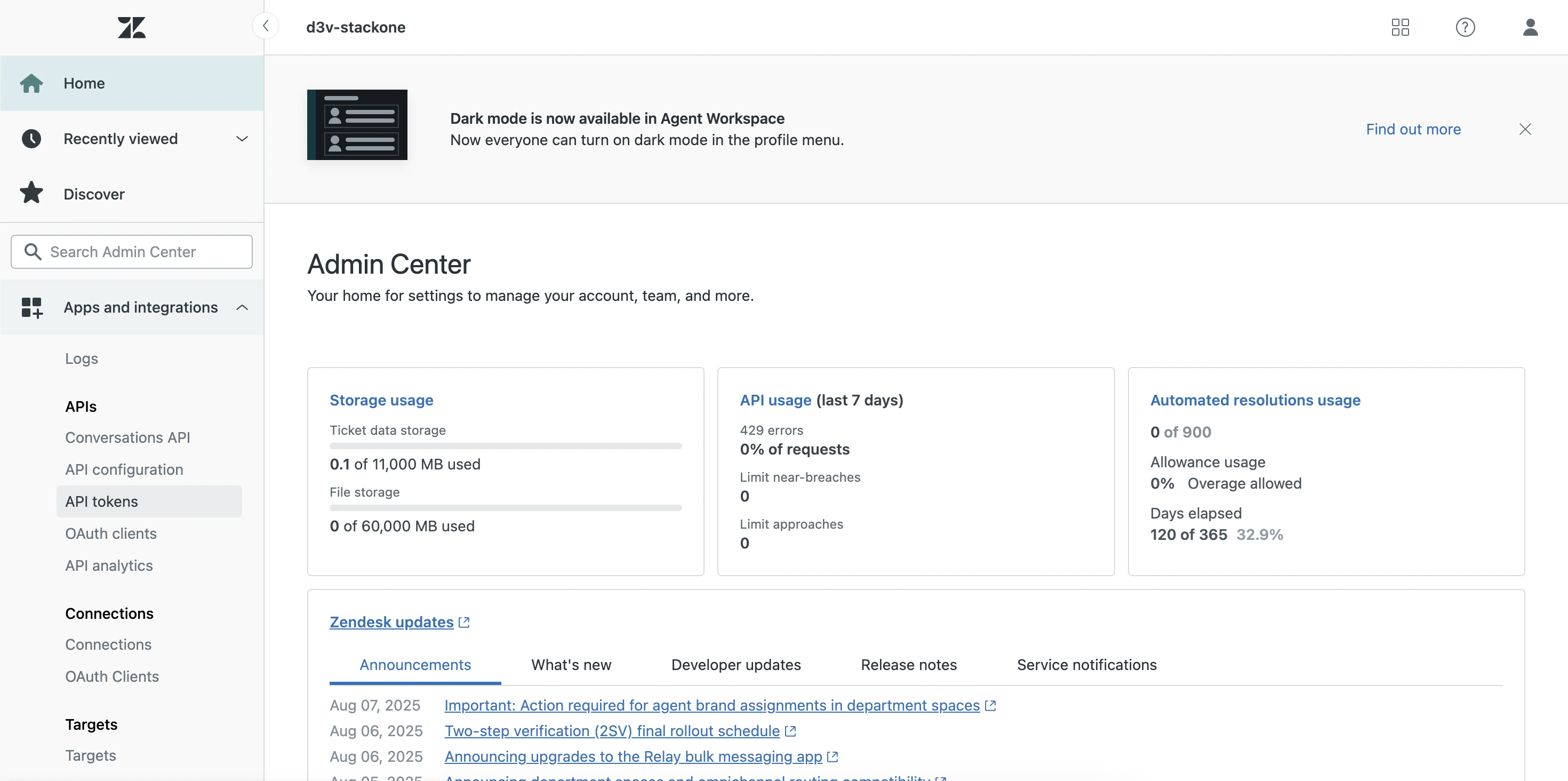 Click on the Apps and Integrations section in the left sidebar, then select APIs from the dropdown menu.
In the APIs section, click on API Tokens in the left sidebar.
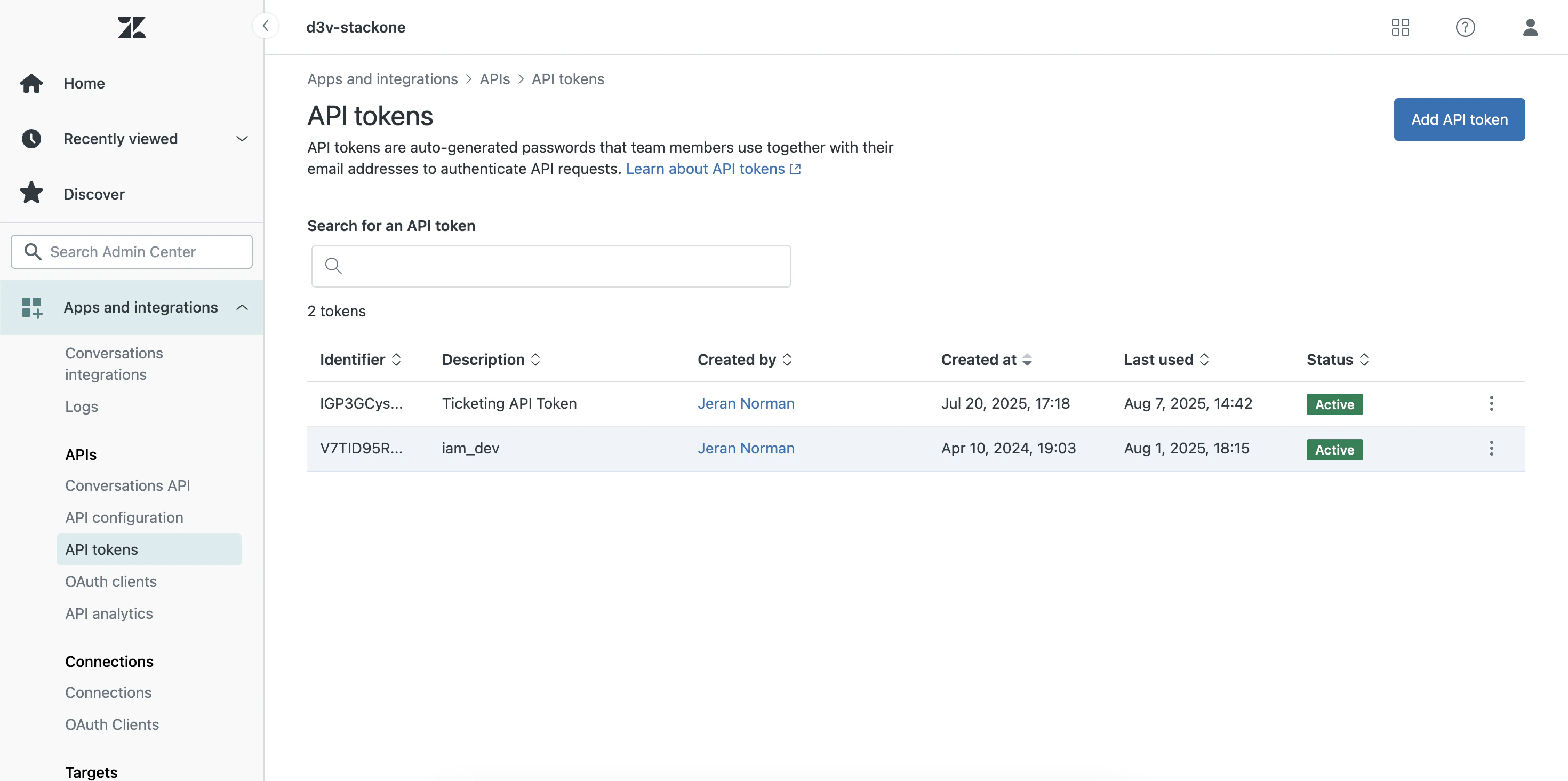
Here, you will see a list of existing API tokens. To create a new token, click on the Add API Token button.
Click on the Apps and Integrations section in the left sidebar, then select APIs from the dropdown menu.
In the APIs section, click on API Tokens in the left sidebar.
Here, you will see a list of existing API tokens. To create a new token, click on the Add API Token button.
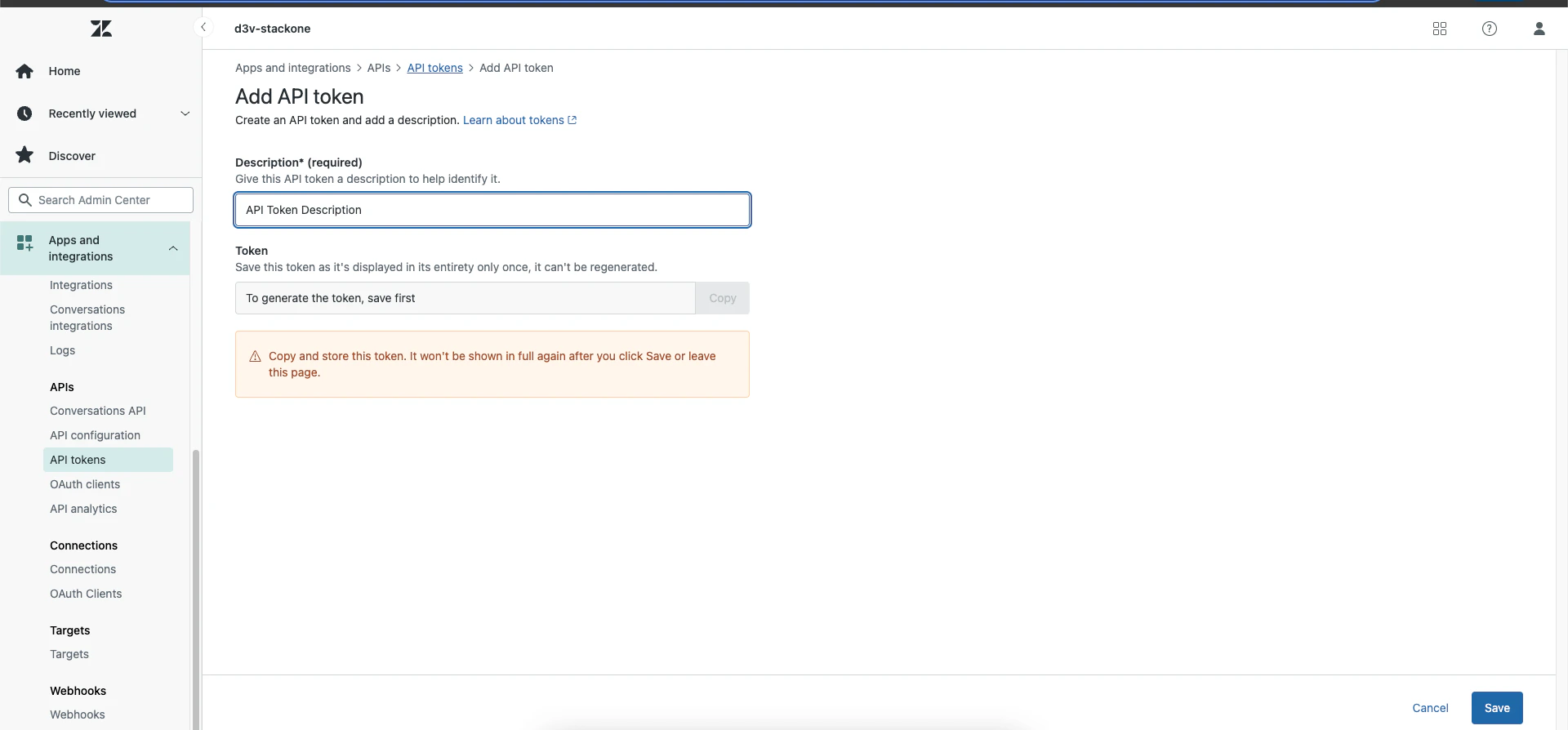
 In the dialog that appears, enter a description for your API token (e.g., "StackOne Integration") and click on the Save button to generate the Token.
Once the token is generated, it will be displayed on the screen. Make sure to copy it immediately, as you won't be able to see it again.
In the dialog that appears, enter a description for your API token (e.g., "StackOne Integration") and click on the Save button to generate the Token.
Once the token is generated, it will be displayed on the screen. Make sure to copy it immediately, as you won't be able to see it again.
 ## Use the API Token in the StackOne Hub
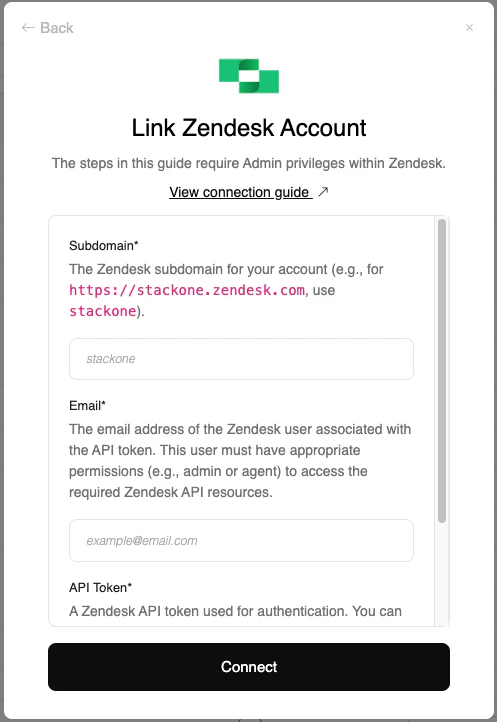
Once you have copied the API token, you can use it in the StackOne Hub to connect your Zendesk account.
This will require Subdomain, email, and the API token you just generated.
Go to the StackOne Hub and navigate to the Accounts section and click on the Add Account button.
Click on the Connect button to save your settings and establish the connection with Zendesk.
## Use the API Token in the StackOne Hub
Once you have copied the API token, you can use it in the StackOne Hub to connect your Zendesk account.
This will require Subdomain, email, and the API token you just generated.
Go to the StackOne Hub and navigate to the Accounts section and click on the Add Account button.
Click on the Connect button to save your settings and establish the connection with Zendesk.
 The Scope will be automatically inherited with the user's email and API token.
Ensure that the user has the necessary permissions to access the Zendesk resources required for the integration.
The Scope will be automatically inherited with the user's email and API token.
Ensure that the user has the necessary permissions to access the Zendesk resources required for the integration.
Congratulations, you're all set! If you face any issues with the steps mentioned above,
please contact us by emailing [integrations@stackone.com](mailto:integrations@stackone.com). We're always here to assist you!
## Useful Links
[https://developer.zendesk.com/api-reference/](https://developer.zendesk.com/api-reference/)