> ## Documentation Index
> Fetch the complete documentation index at: https://stackone-hub-docs-confluence-api-token-update.mintlify.site/llms.txt
> Use this file to discover all available pages before exploring further.

# Zinc

> If you have been directed to StackOne to integrate with Zinc, the following steps will help you understand the process and any necessary actions to configure successful integration.

<Warning>
  The following guidance assumes you have Admin privileges for your Zinc
  account.
</Warning>

## Generating an API Key

<Steps>
  <Step title="Sign in and open Company Settings">
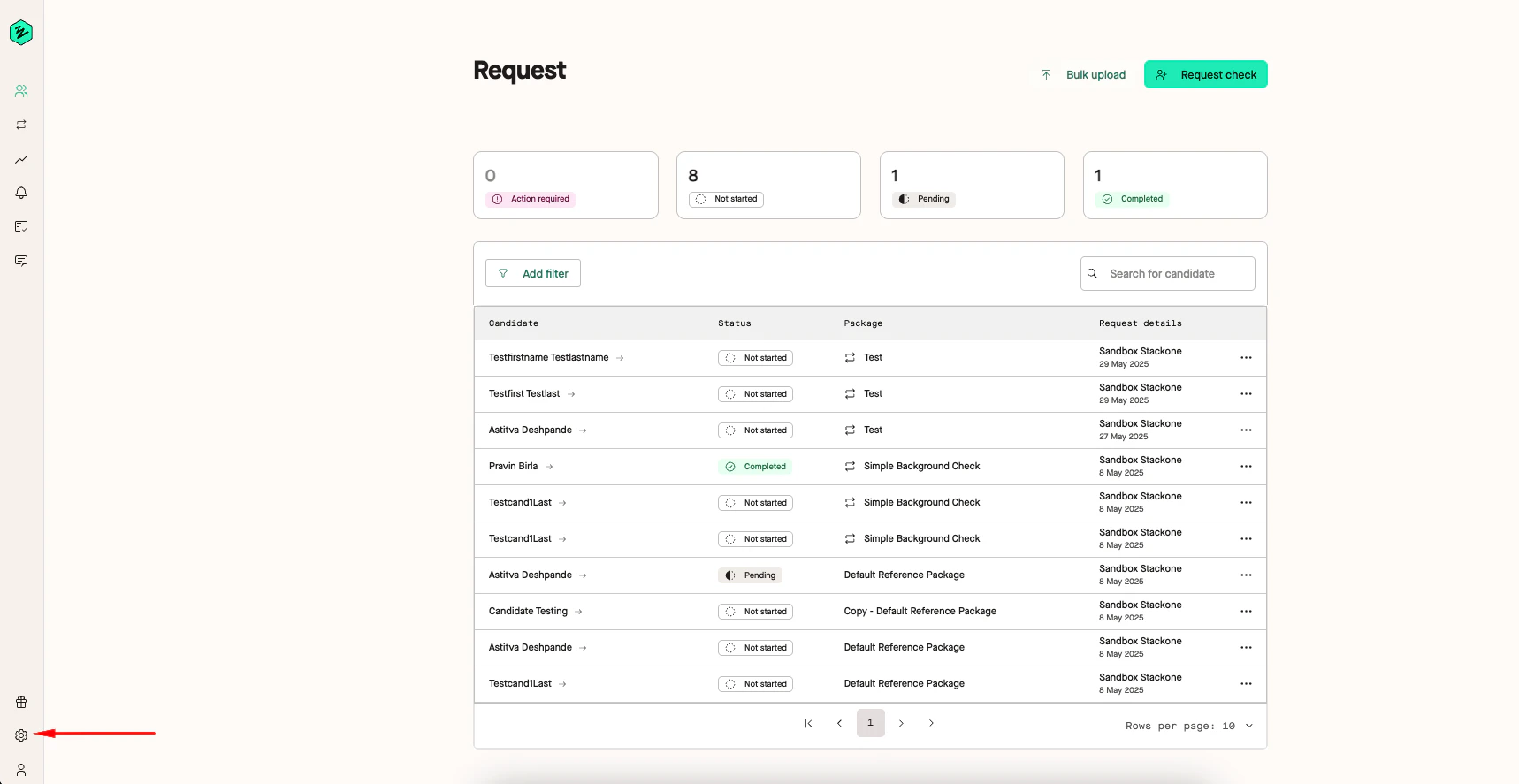
    Sign in to <a href="https://app.zincwork.com/sign-in">your account</a> and click the `Company Settings` <Icon icon="gear" iconType="regular" /> button on the side bar.

    <Frame>
      <img className="rounded-md" style={{ margin: '0 auto', border: '1px solid #efefef' }} alt="Home page" src="https://mintcdn.com/stackone-hub-docs-confluence-api-token-update/w__eN0U5iLwN8ehP/images/zinc/image1.png?fit=max&auto=format&n=w__eN0U5iLwN8ehP&q=85&s=9bf122109a83231a98c305332308a91c" width="1718" height="887" data-path="images/zinc/image1.png" />
    </Frame>
  </Step>

  <Step title="Generate API Key">
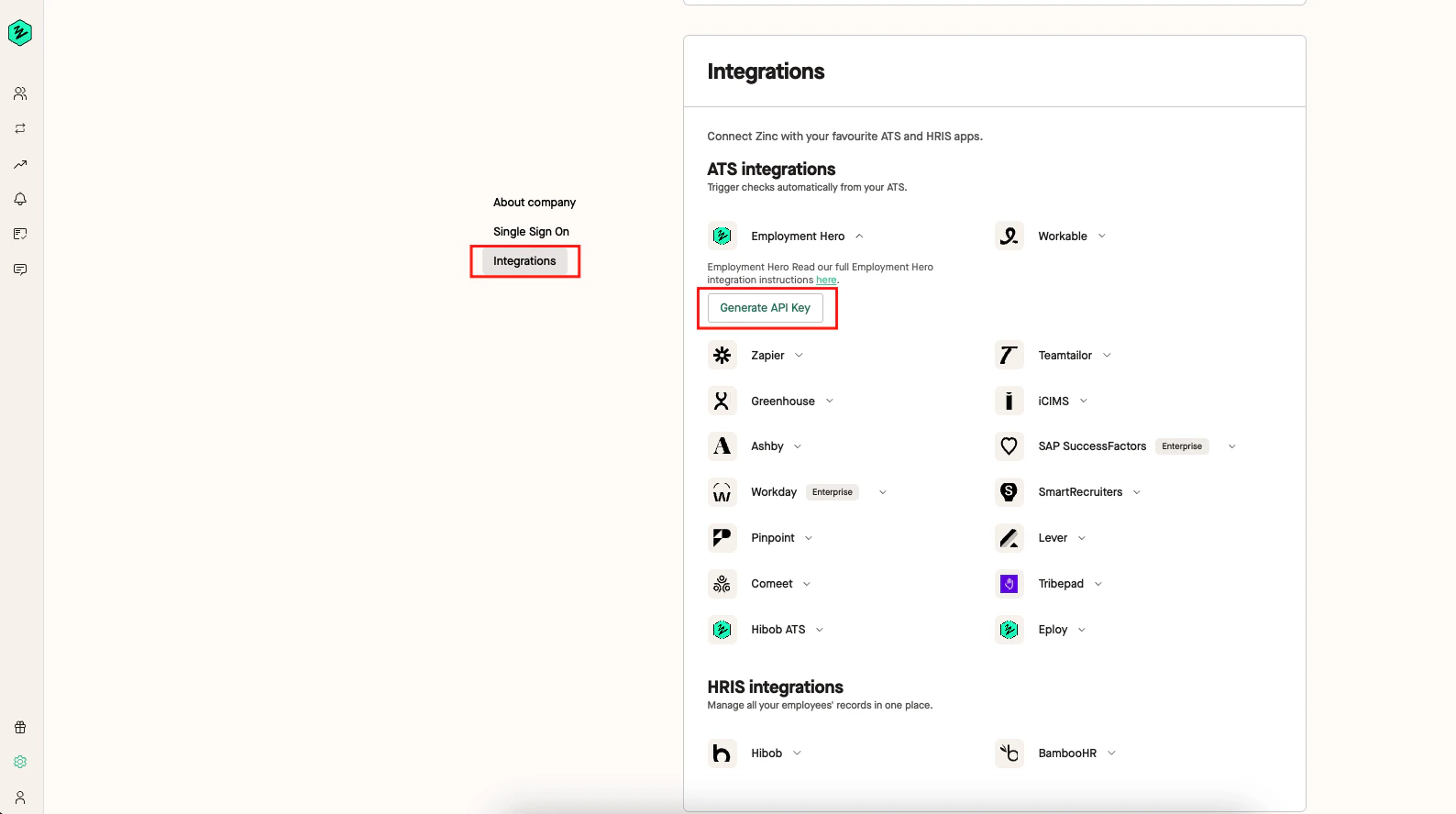
    Scroll down to the `Integrations` section and select a valid integration.

    Click `Generate API Key` button.
    <Frame>
      <img className="rounded-md" style={{ width: '400px', margin: '0 auto', border: '1px solid #efefef' }} alt="Company settings page" src="https://mintcdn.com/stackone-hub-docs-confluence-api-token-update/w__eN0U5iLwN8ehP/images/zinc/image2.png?fit=max&auto=format&n=w__eN0U5iLwN8ehP&q=85&s=69f3304d4e4188f6347b8fbb0db185af" width="1588" height="888" data-path="images/zinc/image2.png" />
    </Frame>

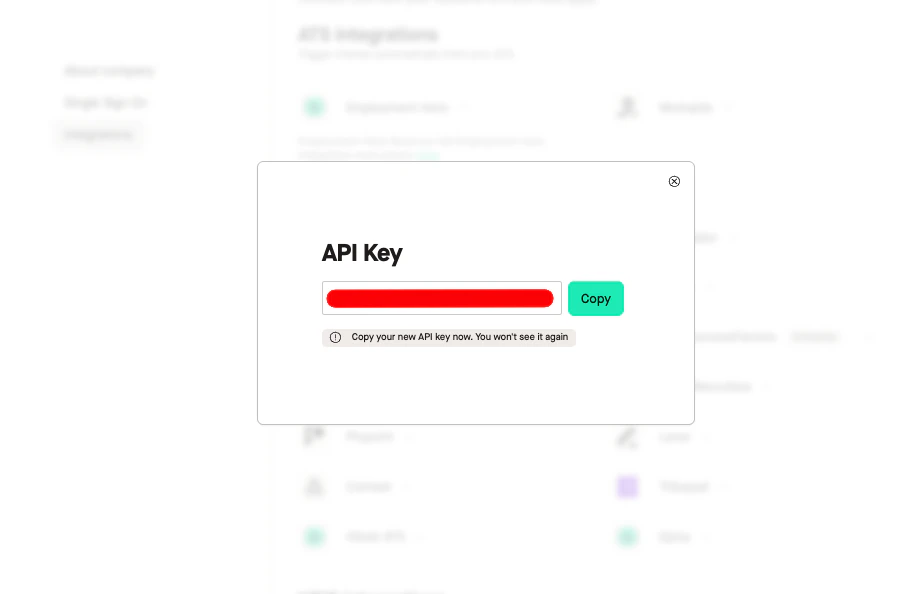
    Record the displayed API key for use in the final step.
    <Frame>
      <img className="rounded-md" style={{ width: '400px', margin: '0 auto', border: '1px solid #efefef' }} alt="API Keys page" src="https://mintcdn.com/stackone-hub-docs-confluence-api-token-update/w__eN0U5iLwN8ehP/images/zinc/image3.png?fit=max&auto=format&n=w__eN0U5iLwN8ehP&q=85&s=dfaec22029d899c98626ed7a632201d4" width="923" height="594" data-path="images/zinc/image3.png" />
    </Frame>
  </Step>
</Steps>

## Use the API Key in the StackOne Hub

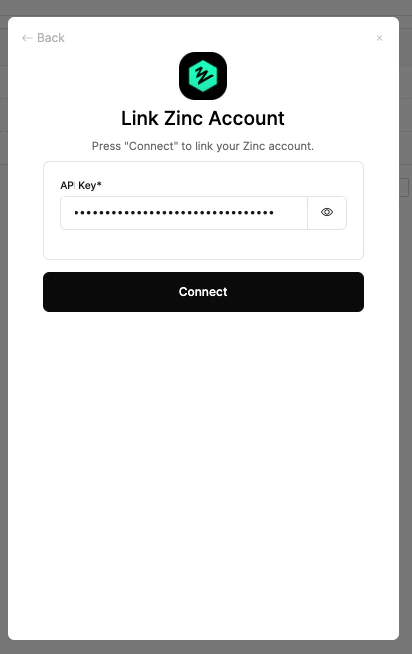
Upon reaching the Link Account page, enter the generated API key and proceed by clicking the <b>Connect</b> button.

<Frame>
  <img className="rounded-md" style={{ width: "400px", margin: "0 auto", border: "1px solid #efefef" }} alt="Access Token Created" src="https://mintcdn.com/stackone-hub-docs-confluence-api-token-update/w__eN0U5iLwN8ehP/images/zinc/image4.png?fit=max&auto=format&n=w__eN0U5iLwN8ehP&q=85&s=8ece7b6c93be45ef4d4ed2452880aafc" width="412" height="654" data-path="images/zinc/image4.png" />
</Frame>

<br />

Congratulations, you're all set! If you face any issues with the steps mentioned above,
please contact us by emailing [integrations@stackone.com](mailto:integrations@stackone.com). We're always here to assist you!

## Useful Links

<Card title="API Reference" icon="link" href="https://docs.zincwork.com/">
  [https://docs.zincwork.com/](https://docs.zincwork.com/)
</Card>