> ## Documentation Index
> Fetch the complete documentation index at: https://stackone-hub-docs-confluence-api-token-update.mintlify.site/llms.txt
> Use this file to discover all available pages before exploring further.

# Salesforce Marketing Cloud

> Follow these steps to connect Salesforce Marketing Cloud via the StackOne Hub successfully.

<Warning>
  Ensure you have `Installed Package | Administer` permission. This permission is automatically applied to the Administrator and Marketing Cloud Administrator system-defined roles. Add the permission for a different role or user in the Administration area.
</Warning>

If you've been directed to StackOne to integrate with Salesforce Marketing Cloud, the following steps will help you understand the process and any necessary actions to configure successful integration.

## Create a package (server to server integration)

<Steps>
  <Step title="Open Setup">
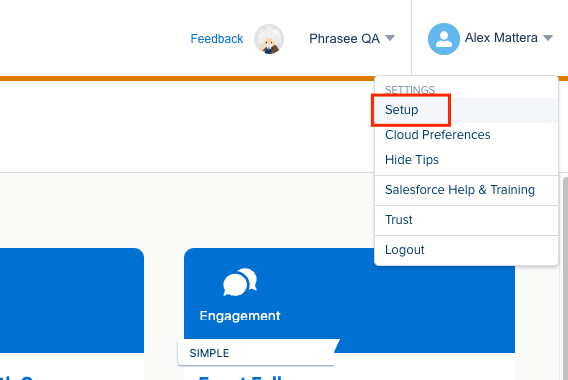
    Hover over profile icon and click on the setup option.
    <Frame>
      <img className="rounded-md" style={{ margin: '0 auto', border: '1px solid #efefef' }} alt="Open Setup" src="https://mintcdn.com/stackone-hub-docs-confluence-api-token-update/C1VeUVSQ_nltDcS8/images/sfmc/image.png?fit=max&auto=format&n=C1VeUVSQ_nltDcS8&q=85&s=8fbf45c7b82518fc719ea7a60b4cd761" width="568" height="380" data-path="images/sfmc/image.png" />
    </Frame>
  </Step>

  <Step title="Navigate to Installed Packages">
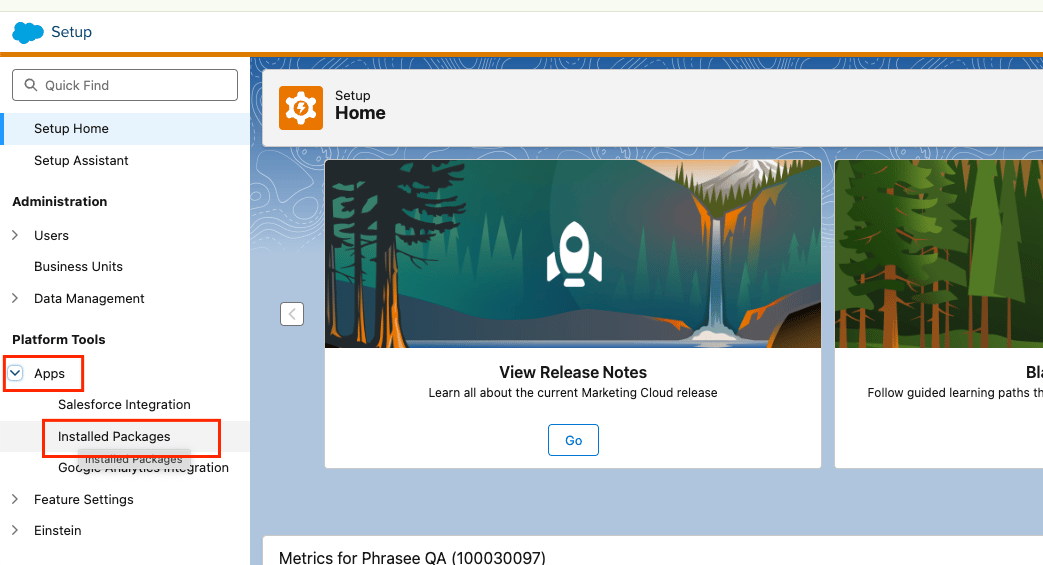
    Click Apps and then click Installed Packages.
    <Frame>
      <img className="rounded-md" style={{ margin: '0 auto', border: '1px solid #efefef' }} alt="Navigate to Installed Packages" src="https://mintcdn.com/stackone-hub-docs-confluence-api-token-update/C1VeUVSQ_nltDcS8/images/sfmc/image2.png?fit=max&auto=format&n=C1VeUVSQ_nltDcS8&q=85&s=841de3c3240f9afa07f6d7c4a6735f78" width="1043" height="565" data-path="images/sfmc/image2.png" />
    </Frame>
  </Step>

  <Step title="Create new Package">
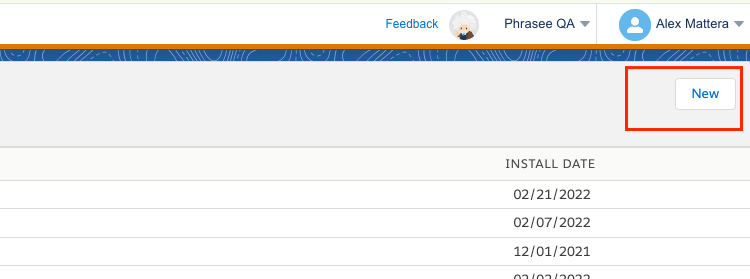
    Click on `new` button placed on top-right corner on the installed packages page.
    <Frame>
      <img className="rounded-md" style={{ margin: '0 auto', border: '1px solid #efefef' }} alt="Create new Package" src="https://mintcdn.com/stackone-hub-docs-confluence-api-token-update/C1VeUVSQ_nltDcS8/images/sfmc/image3.png?fit=max&auto=format&n=C1VeUVSQ_nltDcS8&q=85&s=a6a81827e336677667828f5770560b48" width="750" height="279" data-path="images/sfmc/image3.png" />
    </Frame>
  </Step>

  <Step title="Fill the details">
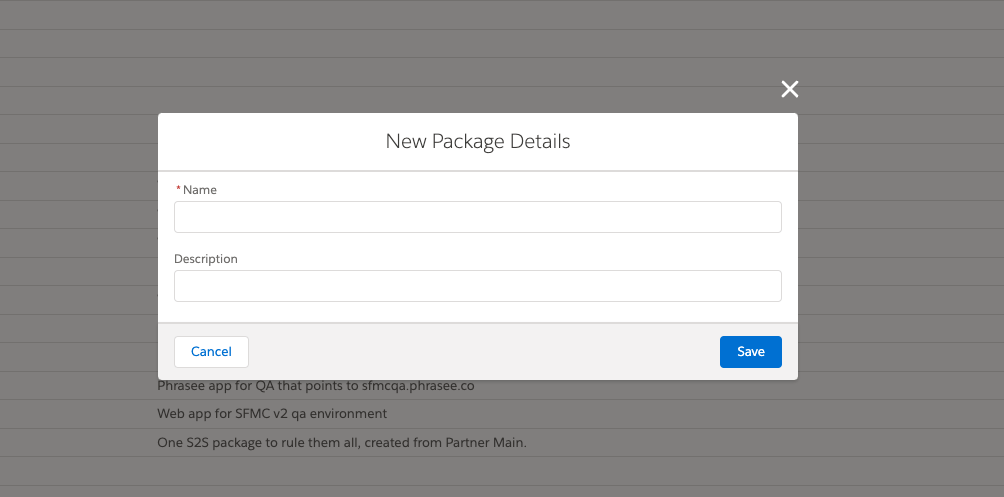
    Fill the name of package and description and click on `save` button.
    <Frame>
      <img className="rounded-md" style={{ margin: '0 auto', border: '1px solid #efefef' }} alt="Fill the details" src="https://mintcdn.com/stackone-hub-docs-confluence-api-token-update/C1VeUVSQ_nltDcS8/images/sfmc/image4.png?fit=max&auto=format&n=C1VeUVSQ_nltDcS8&q=85&s=677cb748f1e0a7e3183c25be725ba637" width="1004" height="497" data-path="images/sfmc/image4.png" />
    </Frame>
  </Step>

  <Step title="Add Component">
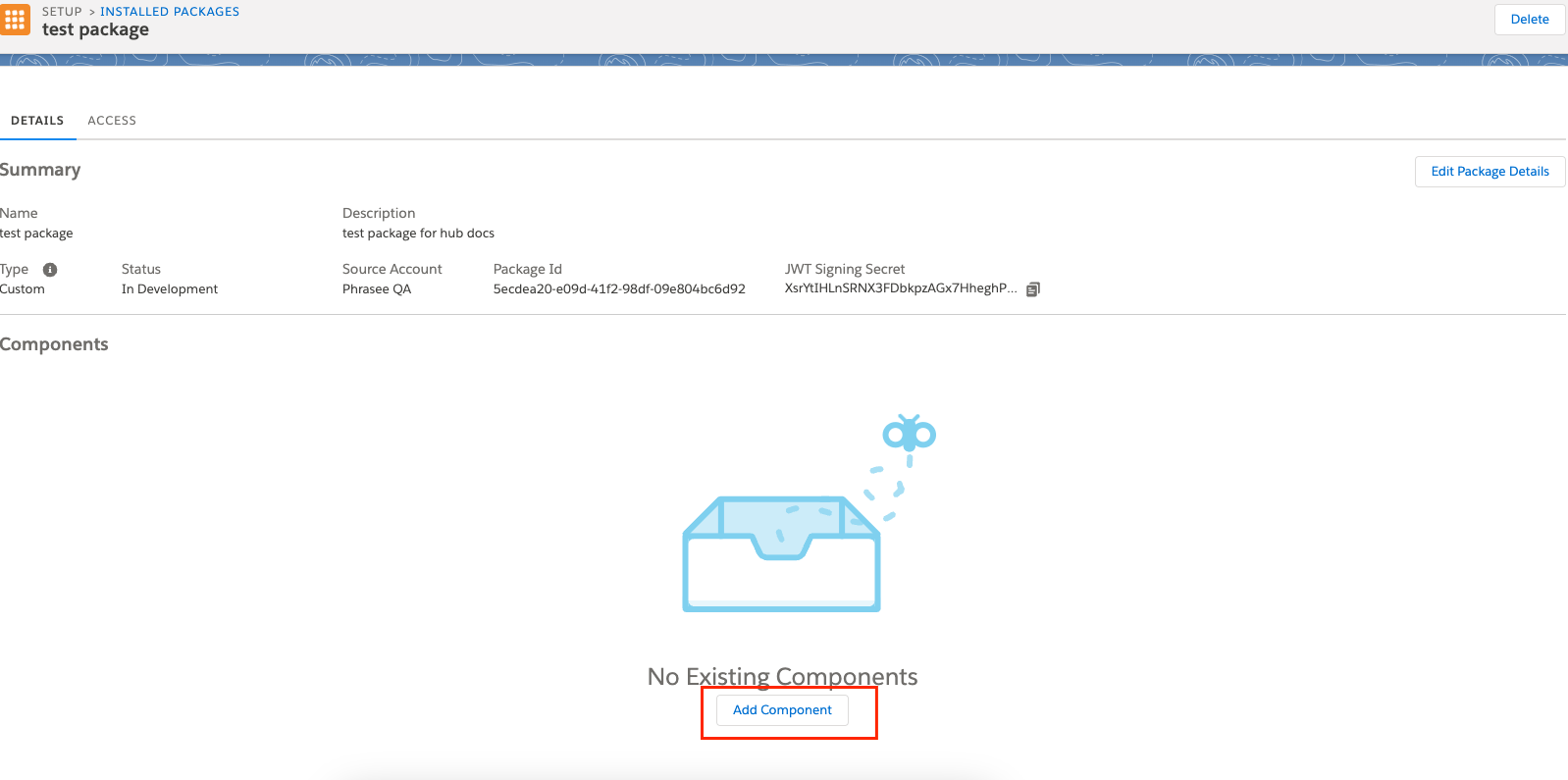
    Now it's time to add components, click on the `Add Component` button.
    <Frame>
      <img className="rounded-md" style={{ margin: '0 auto', border: '1px solid #efefef' }} alt="Add Component" src="https://mintcdn.com/stackone-hub-docs-confluence-api-token-update/C1VeUVSQ_nltDcS8/images/sfmc/image5.png?fit=max&auto=format&n=C1VeUVSQ_nltDcS8&q=85&s=45bd6cdc7018358f266763bf5e051825" width="1598" height="795" data-path="images/sfmc/image5.png" />
    </Frame>
  </Step>

  <Step title="Choose your component type">
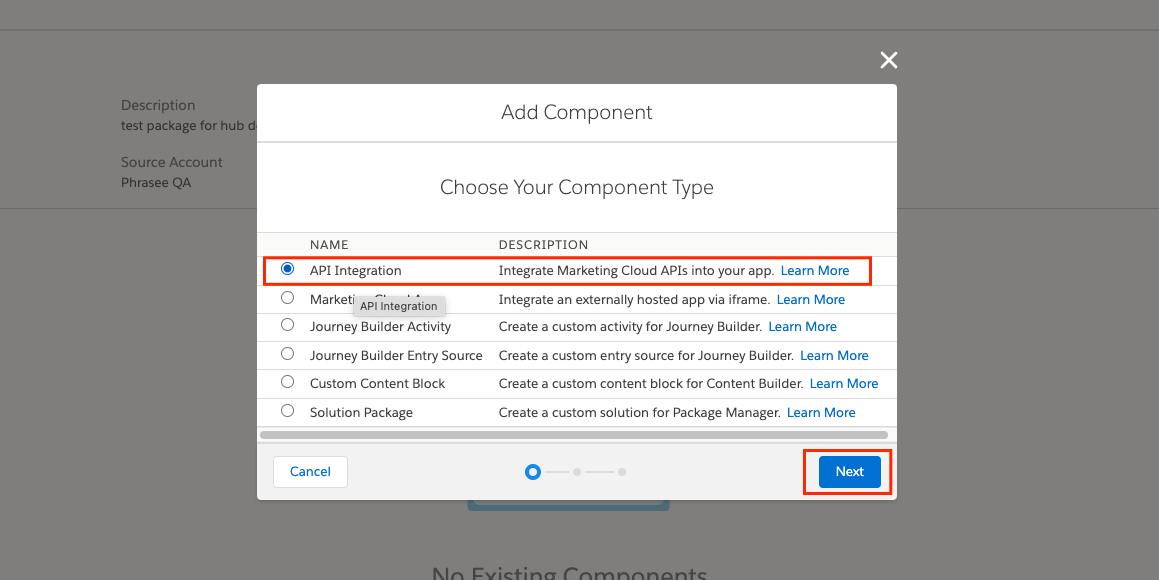
    Select `API Integration` and click on `next` button.
    <Frame>
      <img className="rounded-md" style={{ margin: '0 auto', border: '1px solid #efefef' }} alt="Choose your component type" src="https://mintcdn.com/stackone-hub-docs-confluence-api-token-update/C1VeUVSQ_nltDcS8/images/sfmc/image6.png?fit=max&auto=format&n=C1VeUVSQ_nltDcS8&q=85&s=e6e5da02f8f050eceb510c1760b4141f" width="1159" height="580" data-path="images/sfmc/image6.png" />
    </Frame>
  </Step>

  <Step title="Choose your integration type">
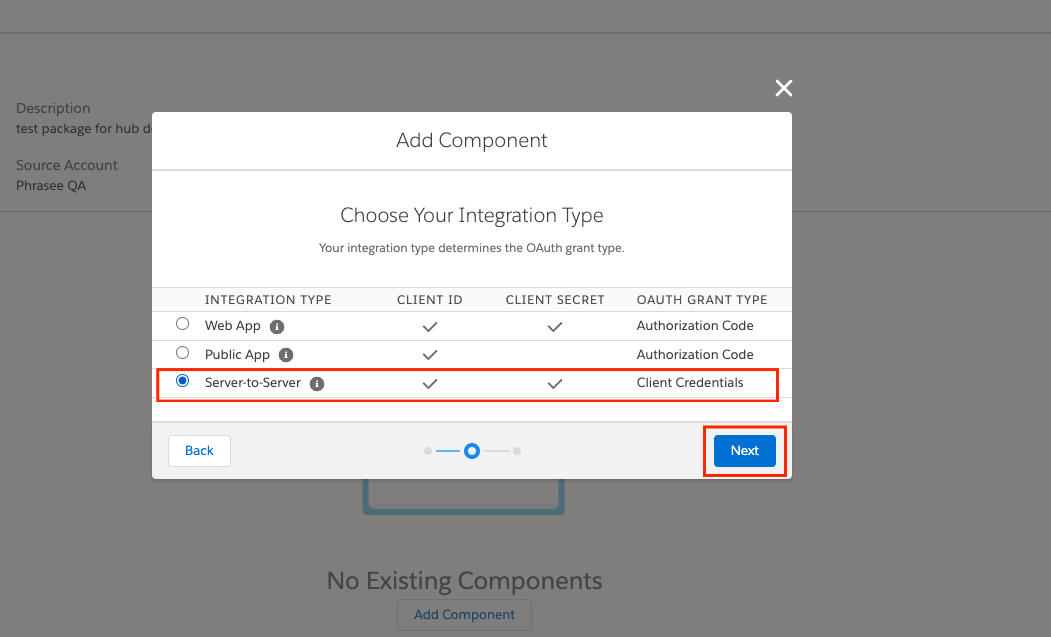
    Select `Server to Server` and click on `next` button.
    <Frame>
      <img className="rounded-md" style={{ margin: '0 auto', border: '1px solid #efefef' }} alt="Choose your integration type" src="https://mintcdn.com/stackone-hub-docs-confluence-api-token-update/C1VeUVSQ_nltDcS8/images/sfmc/image7.png?fit=max&auto=format&n=C1VeUVSQ_nltDcS8&q=85&s=8d8171e11662d47cd1b2c3000013d9b6" width="1051" height="637" data-path="images/sfmc/image7.png" />
    </Frame>
  </Step>

  <Step title="Set Server-to-Server Properties">
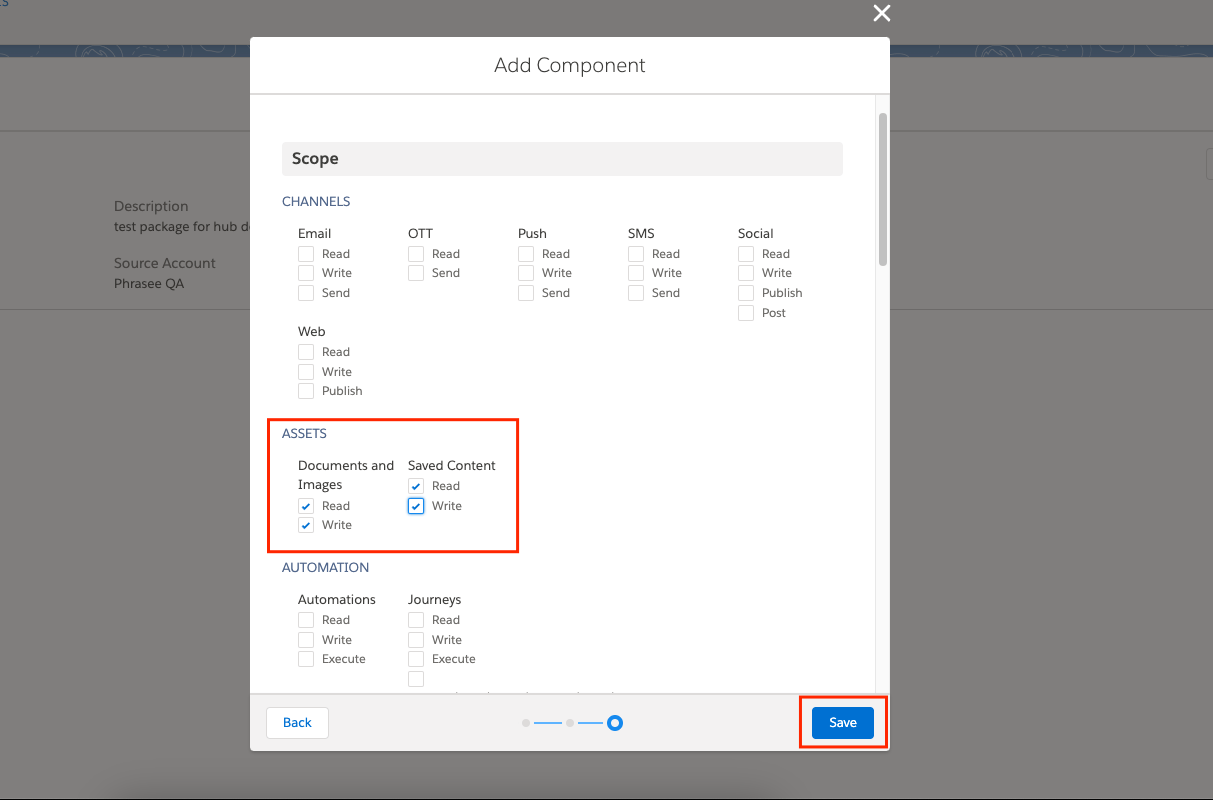
    Check all the Assets scope and click on save.
    <Frame>
      <img className="rounded-md" style={{ margin: '0 auto', border: '1px solid #efefef' }} alt="Set Server-to-Server Properties" src="https://mintcdn.com/stackone-hub-docs-confluence-api-token-update/C1VeUVSQ_nltDcS8/images/sfmc/image8.png?fit=max&auto=format&n=C1VeUVSQ_nltDcS8&q=85&s=cc25bc0358538f3ba6a621c6060dd14b" width="1213" height="800" data-path="images/sfmc/image8.png" />
    </Frame>
  </Step>

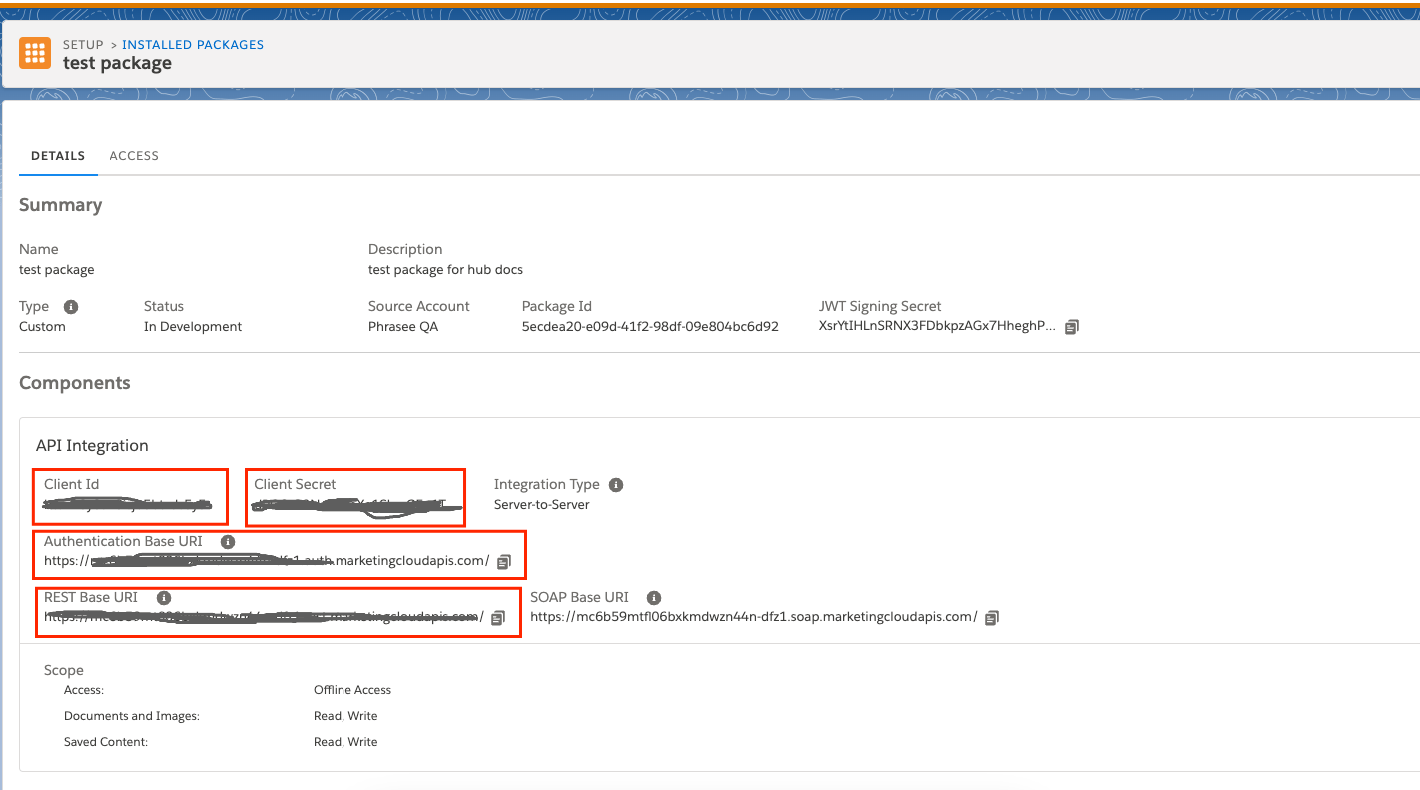
  <Step title="Get the credentials">
    Now the Credentials are visible on screen, use them to integrate with StackOne.
    <Frame>
      <img className="rounded-md" style={{ margin: '0 auto', border: '1px solid #efefef' }} alt="Set Server-to-Server Properties" src="https://mintcdn.com/stackone-hub-docs-confluence-api-token-update/C1VeUVSQ_nltDcS8/images/sfmc/image9.png?fit=max&auto=format&n=C1VeUVSQ_nltDcS8&q=85&s=8821597543a1980ca96d6a62f2c44895" width="1420" height="790" data-path="images/sfmc/image9.png" />
    </Frame>
  </Step>
</Steps>

## Connecting with StackOne

<Steps>
  <Step title="Enter your API credentials">
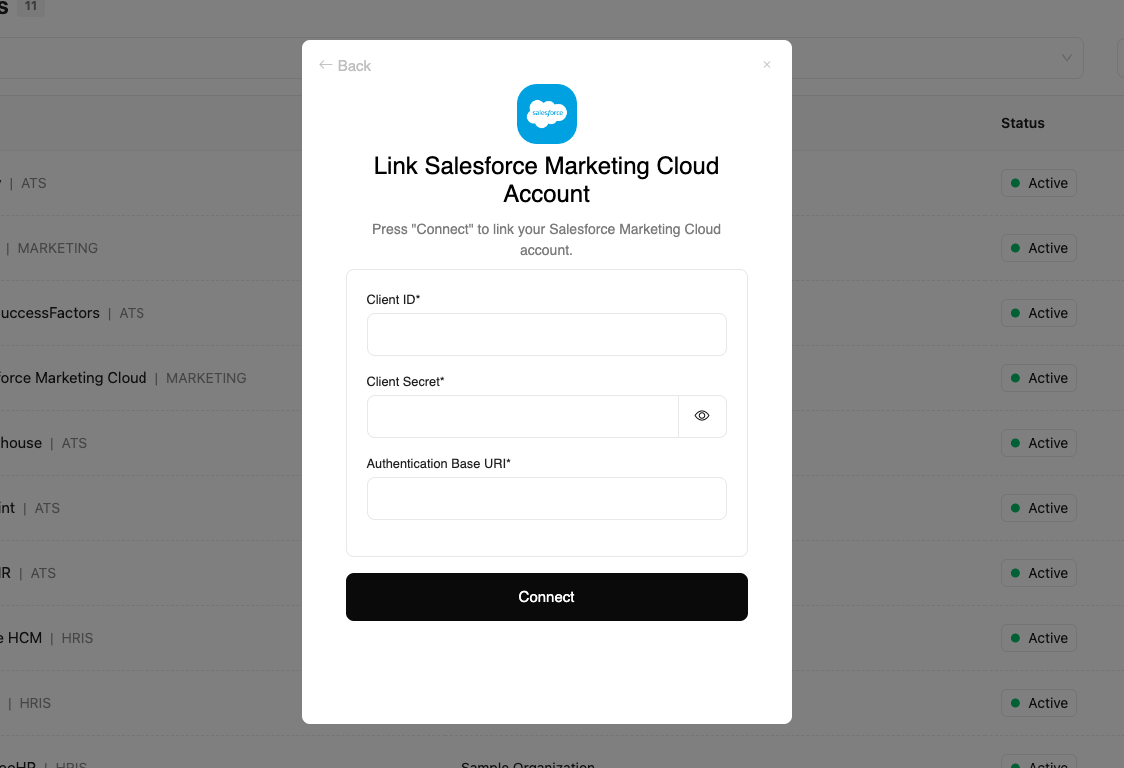
    Upon reaching the Link Account page, enter the following credentials received in the previous steps:

    * Client ID
    * Client Secret
    * Authentication Base URI

    Proceed by clicking the `Connect` button.
    <Frame>
      <img className="rounded-md" style={{ margin: '0 auto', border: '1px solid #efefef' }} alt="Enter your API credentials" src="https://mintcdn.com/stackone-hub-docs-confluence-api-token-update/C1VeUVSQ_nltDcS8/images/sfmc/image10.png?fit=max&auto=format&n=C1VeUVSQ_nltDcS8&q=85&s=a424aadcaf2e4fd5c530a48678066fa3" width="1124" height="768" data-path="images/sfmc/image10.png" />
    </Frame>
  </Step>
</Steps>

<br />

Congratulations, you're all set! If you face any issues with the steps mentioned above,
please contact us by emailing [integrations@stackone.com](mailto:integrations@stackone.com). We're always here to assist you!
