> ## Documentation Index
> Fetch the complete documentation index at: https://stackone-hub-docs-confluence-api-token-update.mintlify.site/llms.txt
> Use this file to discover all available pages before exploring further.

# Coursera

> If you've been directed to StackOne to integrate with Coursera, the following steps will help you understand the process and any necessary actions to configure successful integration.

<Warning>
  Ensure you have Admin privileges for your Coursera account.
</Warning>

## Get your Coursera API Credentials

<Steps>
  <Step title="Sign in to the Coursera Developer Portal">
    <ol>
      <li>Navigate to the <a href="https://dev.coursera.com" target="_blank">Coursera Developer Portal</a></li>
      <li>Click the <b>Sign In</b> button in the upper-right corner</li>
      <li>Log in to your account at <a href="https://www.coursera.org" target="_blank">[www.coursera.org](http://www.coursera.org)</a> and click <b>Login With SAML</b></li>
      <li>Accept the terms and conditions if prompted</li>
    </ol>

    <Note>
      If the top-right still shows "Sign in" after logging in via SAML, click the Sign In button again.
    </Note>
  </Step>

  <Step title="Register an App">
    <ol>
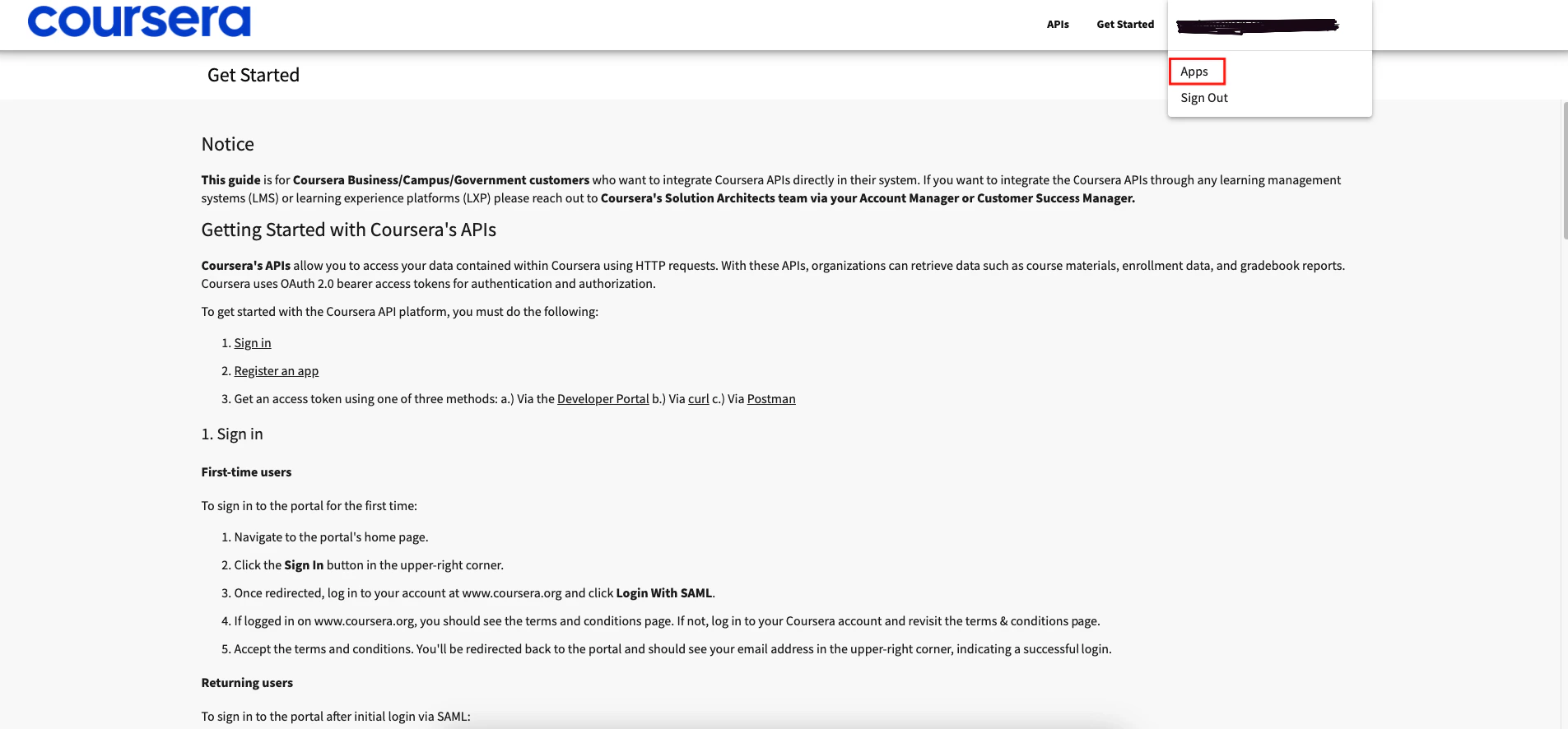
      <li>Click your email address in the upper-right corner and choose `Apps` from the dropdown</li>

      <Frame>
        <img className="rounded-md" style={{ margin: '0 auto', border: '1px solid #efefef' }} alt="Apps dropdown" src="https://mintcdn.com/stackone-hub-docs-confluence-api-token-update/YuiSn9_H_qPKyg_D/images/coursera/image1.png?fit=max&auto=format&n=YuiSn9_H_qPKyg_D&q=85&s=445db339acd4d81fe645cf6a836fd77a" width="1905" height="886" data-path="images/coursera/image1.png" />
      </Frame>

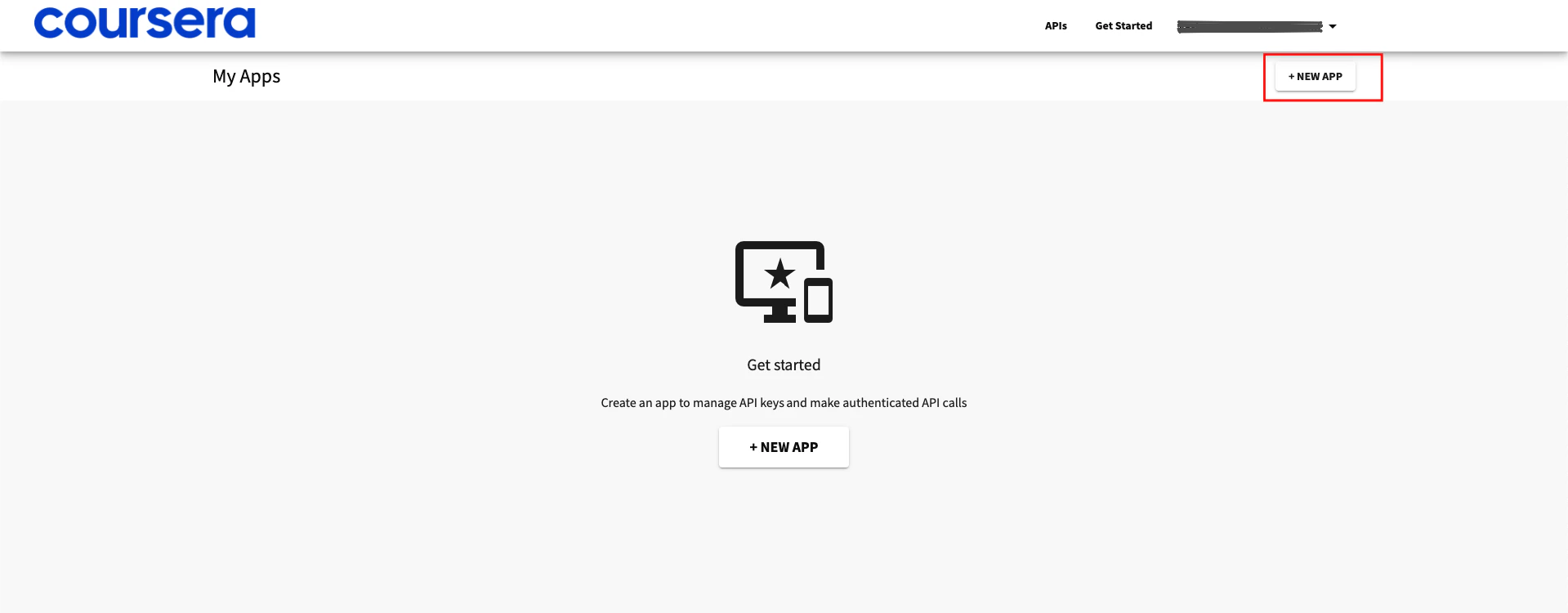
      <li>Click `+ New App` in the top-right corner of the `Apps` page</li>

      <Frame>
        <img className="rounded-md" style={{ margin: '0 auto', border: '1px solid #efefef' }} alt="+ New App" src="https://mintcdn.com/stackone-hub-docs-confluence-api-token-update/YuiSn9_H_qPKyg_D/images/coursera/image2.png?fit=max&auto=format&n=YuiSn9_H_qPKyg_D&q=85&s=6079a50a59f722a92160614657a535f1" width="1919" height="750" data-path="images/coursera/image2.png" />
      </Frame>

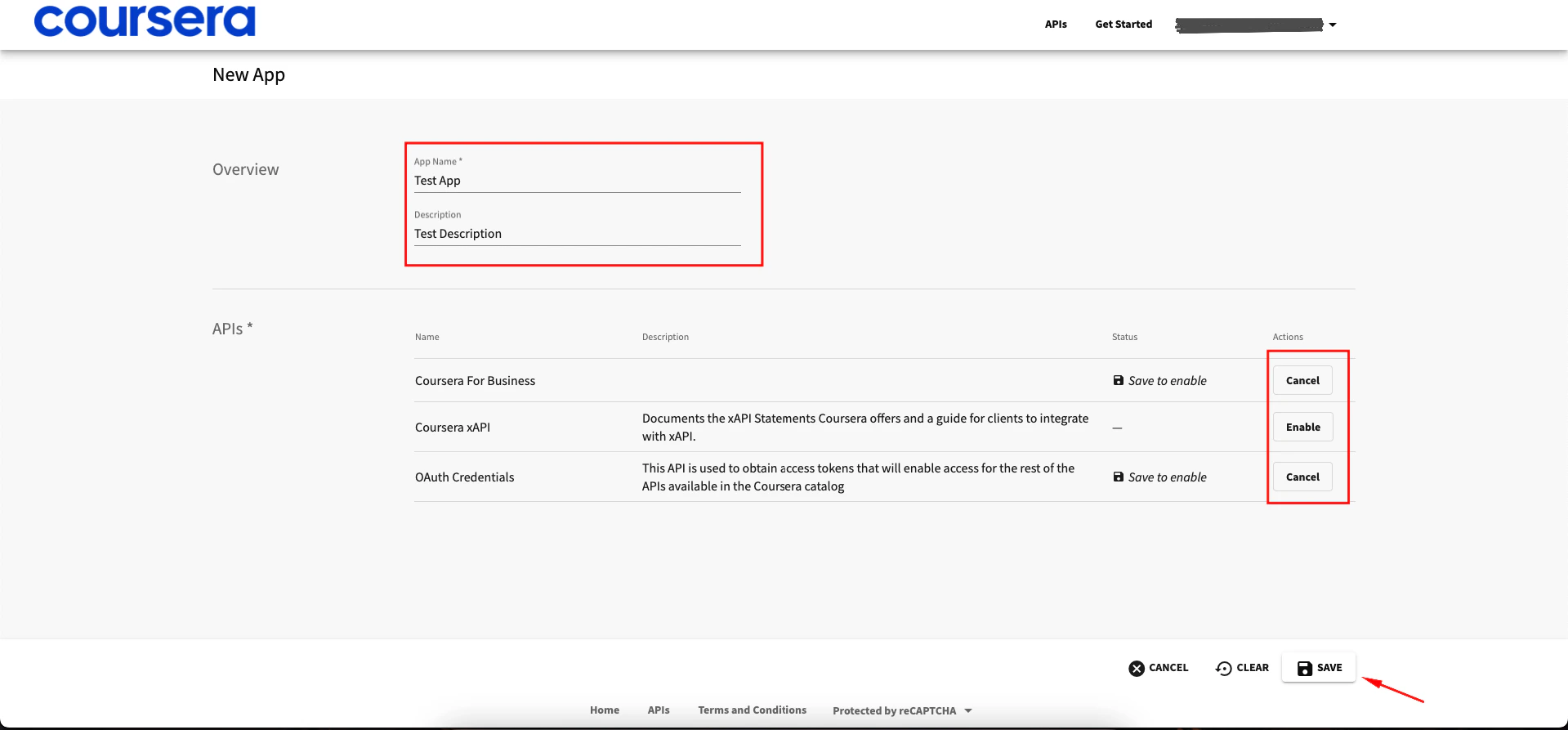
      <li>Add a name and description for the new app and choose one or more APIs in the APIs section and click <b>Enable</b> to activate them</li>

      <Frame>
        <img className="rounded-md" style={{ margin: '0 auto', border: '1px solid #efefef' }} alt="Save App" src="https://mintcdn.com/stackone-hub-docs-confluence-api-token-update/YuiSn9_H_qPKyg_D/images/coursera/image3.png?fit=max&auto=format&n=YuiSn9_H_qPKyg_D&q=85&s=b9ddaed2341fee28f56ae7315fc74c02" width="1919" height="893" data-path="images/coursera/image3.png" />
      </Frame>

      <li>Click `Save` button to create an app.</li>
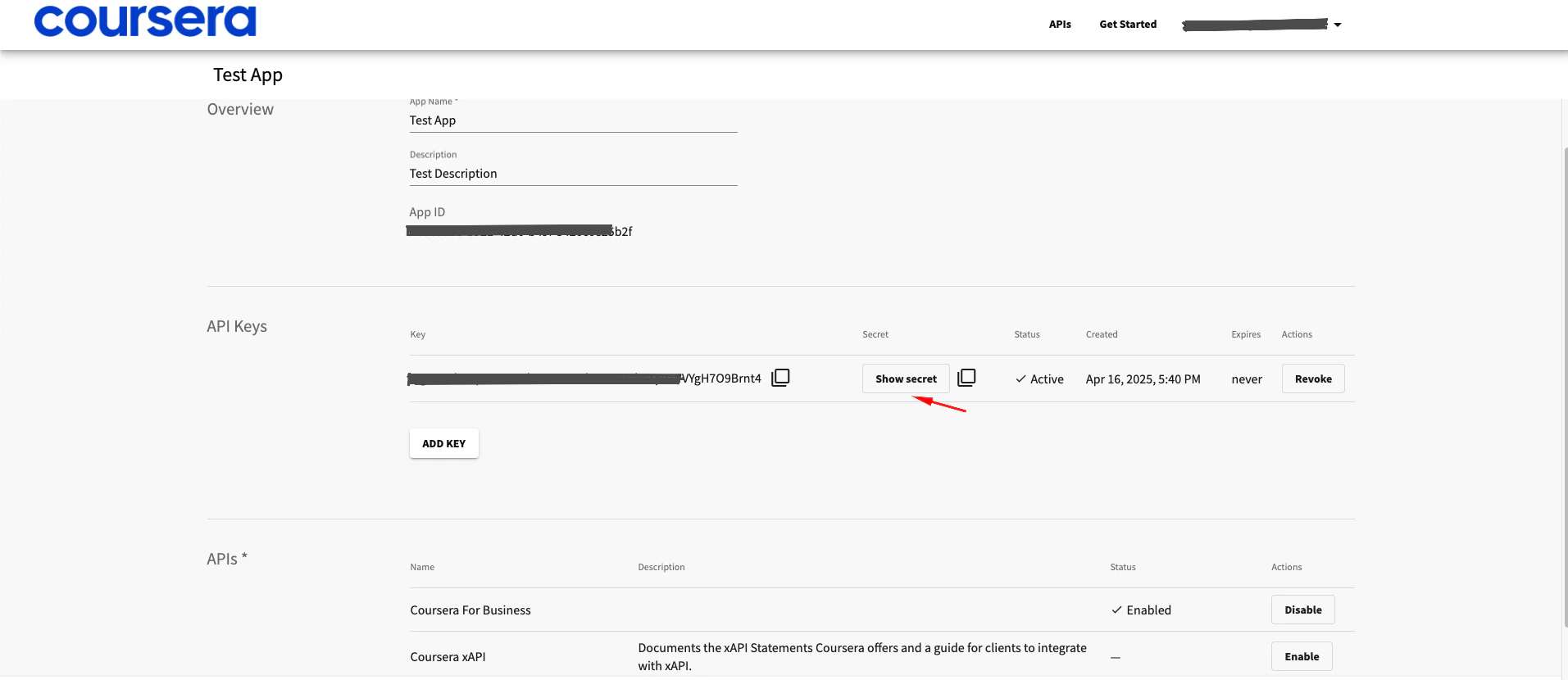
      <li>To view an API key or secret, click the `Show Secret` button in the Credentials section</li>

      <Frame>
        <img className="rounded-md" style={{ margin: '0 auto', border: '1px solid #efefef' }} alt="Show Credentials" src="https://mintcdn.com/stackone-hub-docs-confluence-api-token-update/YuiSn9_H_qPKyg_D/images/coursera/image4.png?fit=max&auto=format&n=YuiSn9_H_qPKyg_D&q=85&s=d3389f6e41b4e9f84b5a3cdad74a7d8d" width="1913" height="830" data-path="images/coursera/image4.png" />
      </Frame>
    </ol>

    <Note>
      Please use your organization's admin account to register apps to ensure you don't encounter any access issues.
    </Note>
  </Step>

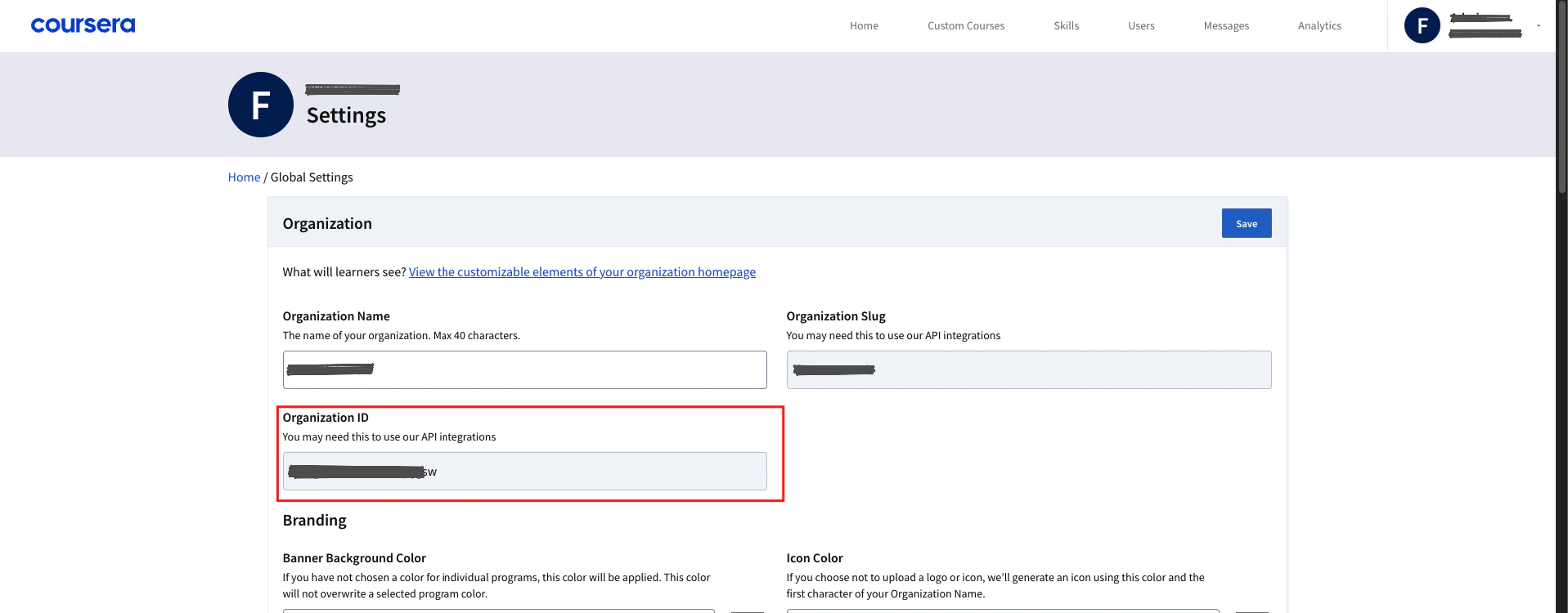
  <Step title="Find your Organization ID">
    <ol>
      <li>Click your email address in the upper-right corner and choose `Admin` from the dropdown</li>
      <li>Click `Settings` in the right sidebar</li>

      <Frame>
        <img className="rounded-md" style={{ margin: '0 auto', border: '1px solid #efefef' }} alt="Admin dropdown" src="https://mintcdn.com/stackone-hub-docs-confluence-api-token-update/YuiSn9_H_qPKyg_D/images/coursera/image5.png?fit=max&auto=format&n=YuiSn9_H_qPKyg_D&q=85&s=6efbdd65bcb53d5594ce1a3b78898e27" width="1917" height="750" data-path="images/coursera/image5.png" />
      </Frame>
    </ol>
  </Step>
</Steps>

## Linking your Coursera Account

<Steps>
  <Step title="Enter Credentials">
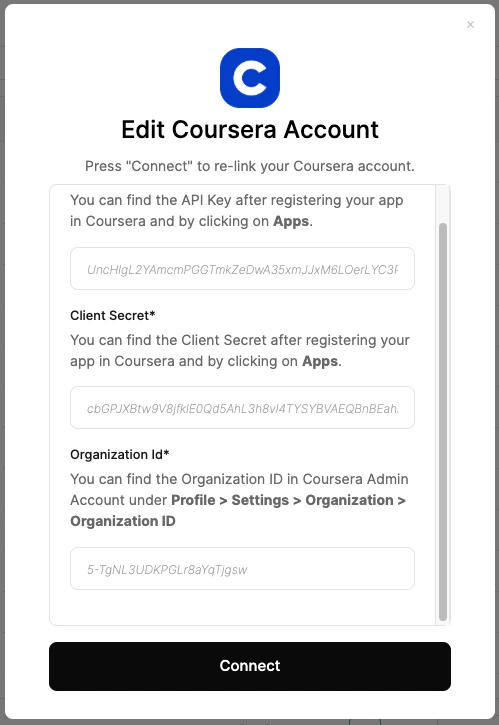
    In the hub, go to the Coursera tile.

    <ul>
      <li>Enter your `Client ID` (app key), `Client Secret` (app secret), and `Organization ID` from the Coursera Developer Portal</li>
    </ul>

    Click the <b>Connect</b> button to proceed.

    <Frame>
      <img className="rounded-md" style={{ margin: '0 auto', border: '1px solid #efefef' }} alt="Link Coursera Account" src="https://mintcdn.com/stackone-hub-docs-confluence-api-token-update/YuiSn9_H_qPKyg_D/images/coursera/image6.png?fit=max&auto=format&n=YuiSn9_H_qPKyg_D&q=85&s=3be95249e5efc48b4f48290204aa1e2e" width="499" height="725" data-path="images/coursera/image6.png" />
    </Frame>
  </Step>
</Steps>

<br />

Congratulations, you're all set! If you face any issues with the steps mentioned above,
please contact us by emailing [integrations@stackone.com](mailto:integrations@stackone.com). We're always here to assist you!

## Useful Links

<Card title="Coursera Developer Portal" icon="link" href="https://dev.coursera.com">
  [https://dev.coursera.com](https://dev.coursera.com)
</Card>