> ## Documentation Index
> Fetch the complete documentation index at: https://stackone-hub-docs-confluence-api-token-update.mintlify.site/llms.txt
> Use this file to discover all available pages before exploring further.

# Webex

> Follow these steps to connect Webex via the StackOne Hub successfully.

<Warning>
  Ensure you have Full Admin privileges for your Webex account.
</Warning>

If you've been directed to StackOne to integrate with Webex, the following steps will help you understand the process and any necessary actions to configure successful integration.

## Get your Webex Organization ID

<Steps>
  <Step title="Log in to Webex Control Hub">
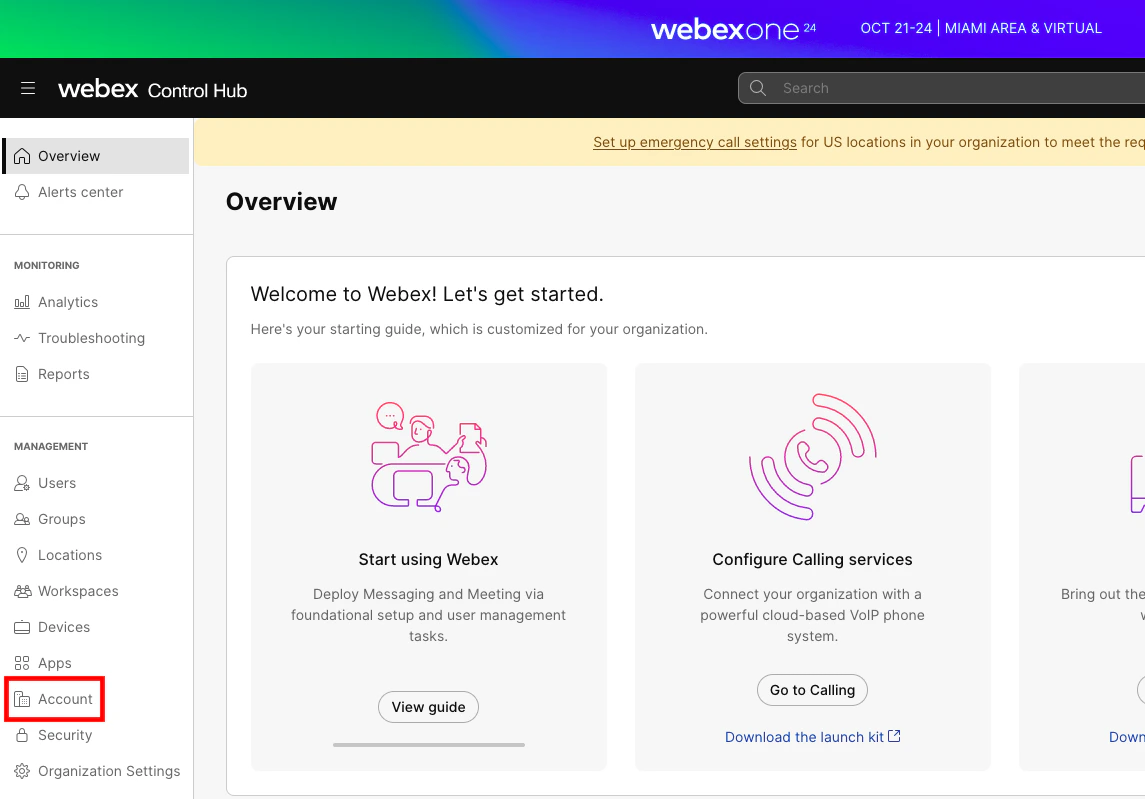
    Within the [Webex Control Hub](https://admin.webex.com), click Management > Account on the left.
    <Frame>
      <img className="rounded-md" style={{ margin: '0 auto', border: '1px solid #efefef' }} alt="Webex Control Hub" src="https://mintcdn.com/stackone-hub-docs-confluence-api-token-update/_BEMwWcX5HRLBXL3/images/webex/image1.png?fit=max&auto=format&n=_BEMwWcX5HRLBXL3&q=85&s=88ae8e1baf9a5d01cff383ee858e4100" width="1145" height="799" data-path="images/webex/image1.png" />
    </Frame>
  </Step>

  <Step title="Copy Organization ID">
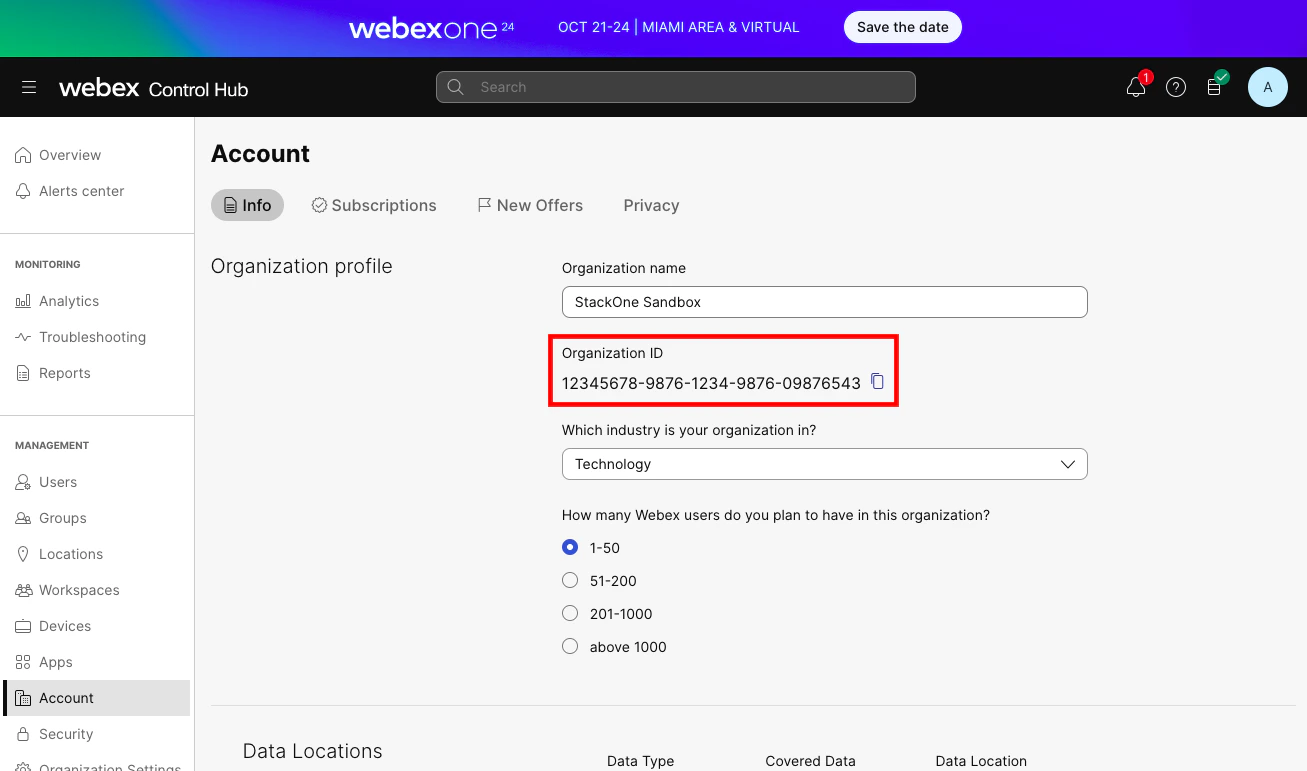
    Your Organization ID is listed in the Organization Profile section. Copy and store it safely.
    <Frame>
      <img className="rounded-md" style={{ margin: '0 auto', border: '1px solid #efefef' }} alt="Organization ID" src="https://mintcdn.com/stackone-hub-docs-confluence-api-token-update/_BEMwWcX5HRLBXL3/images/webex/image2.png?fit=max&auto=format&n=_BEMwWcX5HRLBXL3&q=85&s=29e9be8a7d5f0ec58dfa031c6e2191b7" width="1307" height="771" data-path="images/webex/image2.png" />
    </Frame>
  </Step>
</Steps>

## Create a new Webex App

The Client ID and Client Secret required for the StackOne connection will be provisioned with this new App.

<Steps>
  <Step title="Log in to Webex for Developers">
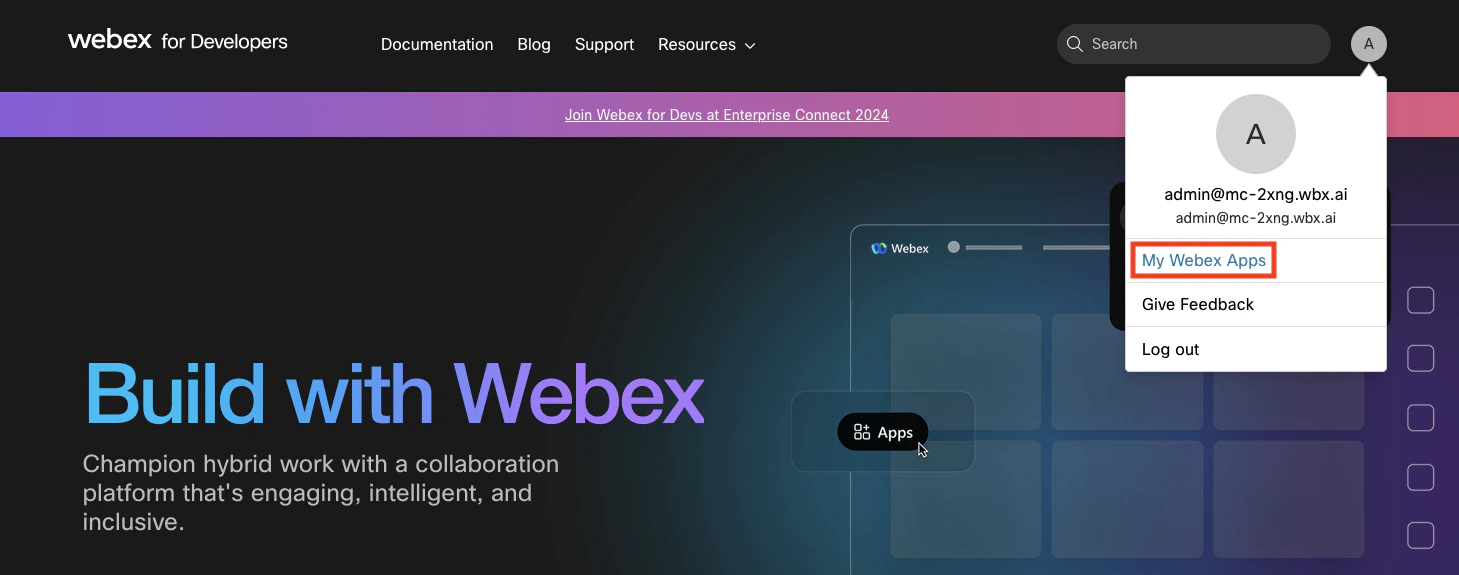
    Within [Webex for Developers](https://developer.webex.com), click your profile icon in the top right corner, then click My Webex Apps.
    <Frame>
      <img className="rounded-md" style={{ margin: '0 auto', border: '1px solid #efefef' }} alt="My Webex Apps" src="https://mintcdn.com/stackone-hub-docs-confluence-api-token-update/_BEMwWcX5HRLBXL3/images/webex/image3.png?fit=max&auto=format&n=_BEMwWcX5HRLBXL3&q=85&s=eaf6588eb07431b799645cf4fcecc2da" width="1459" height="575" data-path="images/webex/image3.png" />
    </Frame>
  </Step>

  <Step title="Create a New App">
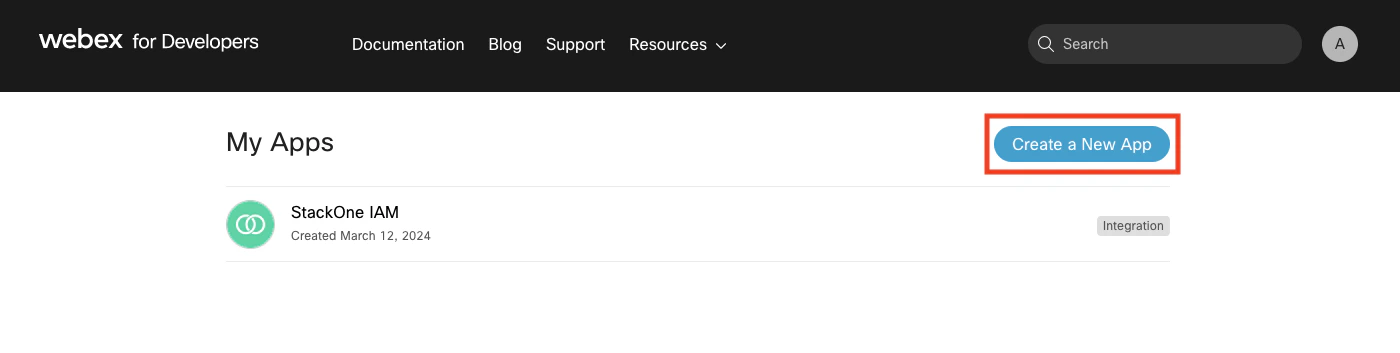
    On the "My Apps" page, click the Create a New App button.
    <Frame>
      <img className="rounded-md" style={{ margin: '0 auto', border: '1px solid #efefef' }} alt="Create a New App" src="https://mintcdn.com/stackone-hub-docs-confluence-api-token-update/_BEMwWcX5HRLBXL3/images/webex/image4.png?fit=max&auto=format&n=_BEMwWcX5HRLBXL3&q=85&s=6fceb35b2ac11c0c84fdf71b8db9458d" width="1400" height="353" data-path="images/webex/image4.png" />
    </Frame>
  </Step>

  <Step title="Create an Integration">
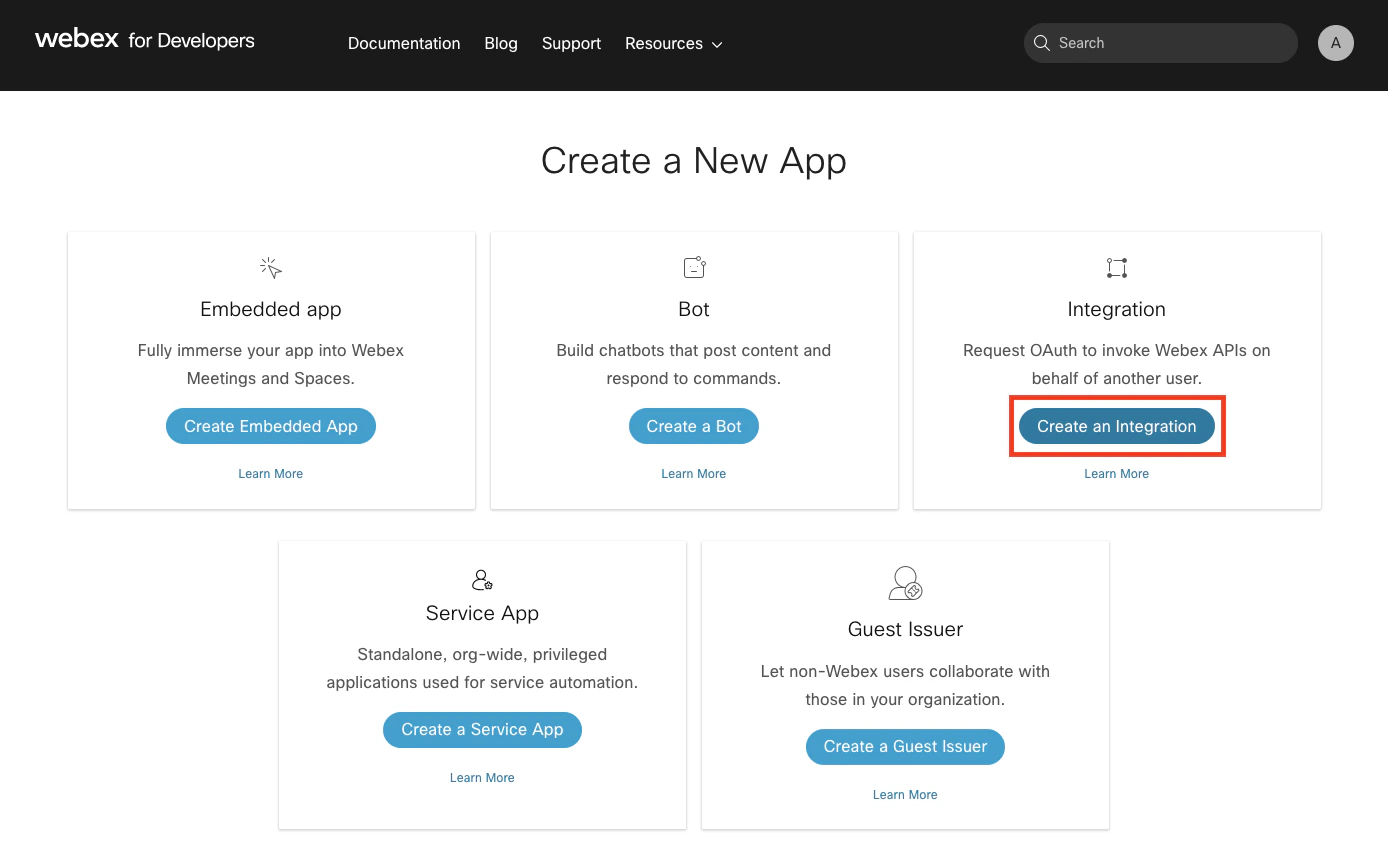
    On the "Create a New App" page, click the Create an Integration button.
    <Frame>
      <img className="rounded-md" style={{ margin: '0 auto', border: '1px solid #efefef' }} alt="Create an Integration" src="https://mintcdn.com/stackone-hub-docs-confluence-api-token-update/_BEMwWcX5HRLBXL3/images/webex/image5.png?fit=max&auto=format&n=_BEMwWcX5HRLBXL3&q=85&s=df61cd0ff3e9233ace73df034b95ecf0" width="1388" height="857" data-path="images/webex/image5.png" />
    </Frame>
  </Step>

  <Step title="Enter App Details">
    Fill in the prompted details:

    <ul>
      <li>Will this integration use a mobile SDK? No</li>
      <li>Integration name</li>
      <li>Icon</li>
      <li>App Hub Description</li>
      <li>Redirect URI(s): `https://api.stackone.com/connect/oauth2/webex_iam/callback`</li>
      <li>Scopes: `identity:people_read`</li>
    </ul>
  </Step>

  <Step title="Add Integration">
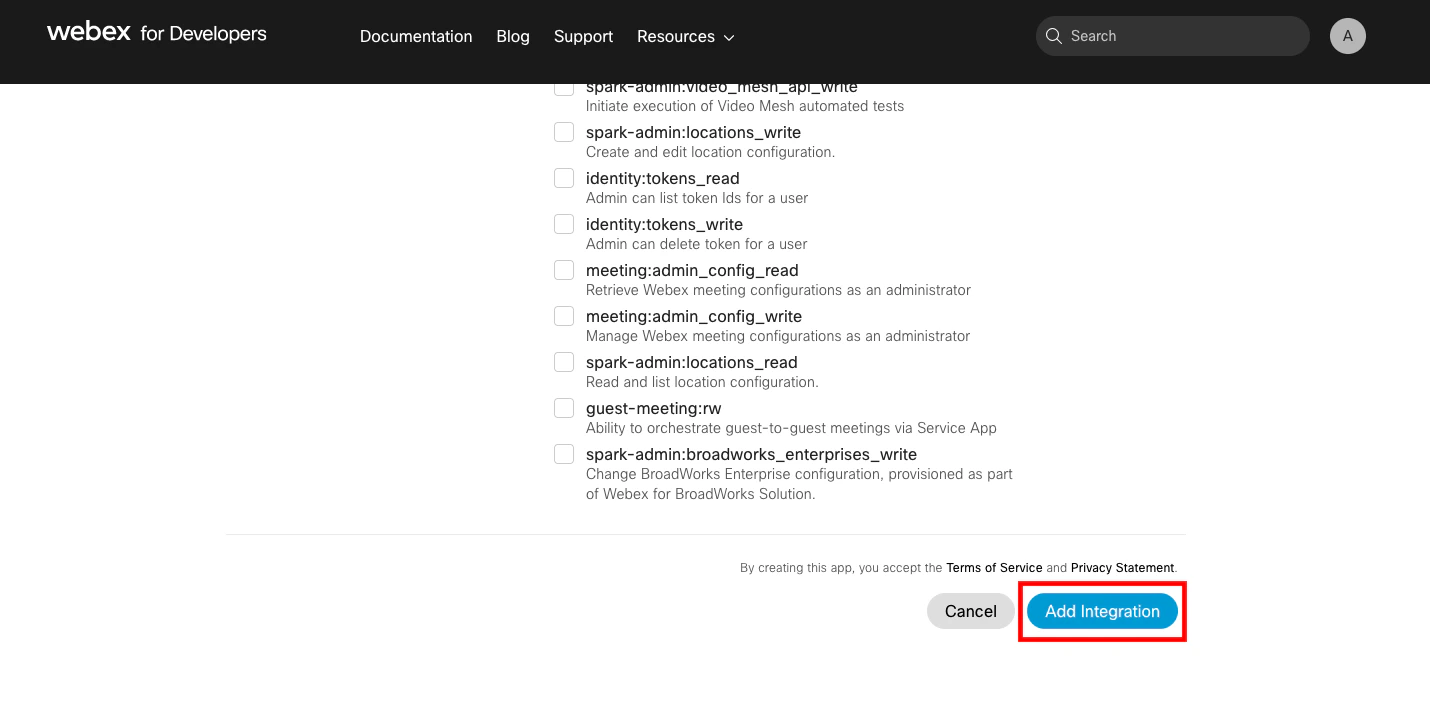
    After providing this New App's details, click the Add Integration button at the bottom right of the page.
    <Frame>
      <img className="rounded-md" style={{ margin: '0 auto', border: '1px solid #efefef' }} alt="Add Integration" src="https://mintcdn.com/stackone-hub-docs-confluence-api-token-update/_BEMwWcX5HRLBXL3/images/webex/image6.png?fit=max&auto=format&n=_BEMwWcX5HRLBXL3&q=85&s=67c91b8b688af40b9c66a1d961408118" width="1430" height="701" data-path="images/webex/image6.png" />
    </Frame>
  </Step>

  <Step title="Copy Client ID and Client Secret">
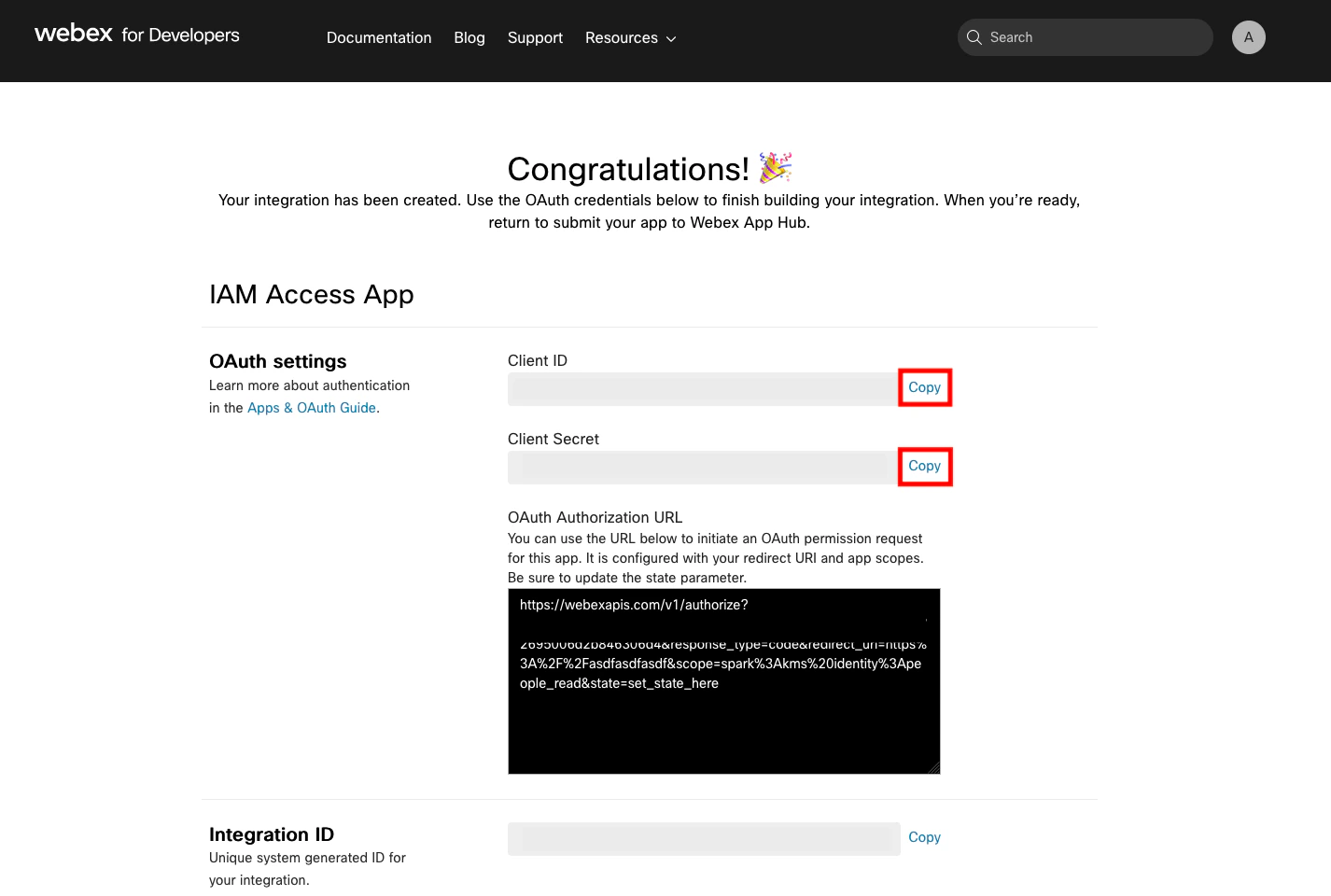
    Upon successfully creating your app, copy the new Client ID and Client Secret that are displayed, and store them safely.
    <Frame>
      <img className="rounded-md" style={{ margin: '0 auto', border: '1px solid #efefef' }} alt="Client ID and Client Secret" src="https://mintcdn.com/stackone-hub-docs-confluence-api-token-update/_BEMwWcX5HRLBXL3/images/webex/image7.png?fit=max&auto=format&n=_BEMwWcX5HRLBXL3&q=85&s=4677695c930252f839b76542af87f0ac" width="1426" height="960" data-path="images/webex/image7.png" />
    </Frame>
  </Step>
</Steps>

## Connecting to StackOne

<Steps>
  <Step title="Enter Authentication Details">
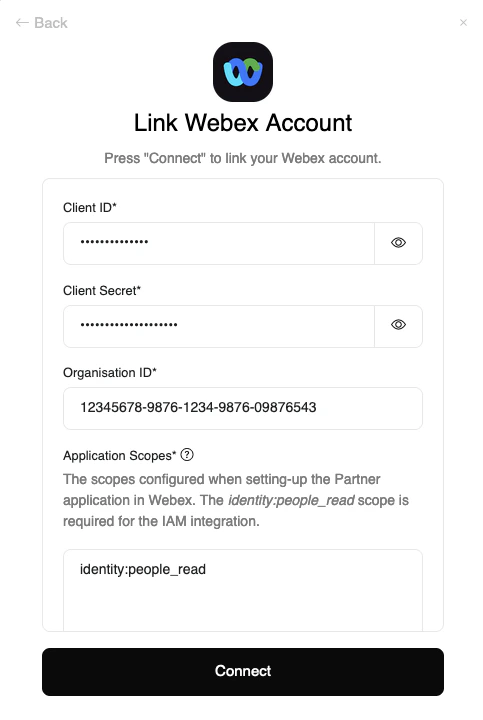
    Upon reaching the Link Account page, enter the following authentication details from the previous steps:

    <ul>
      <li>Client ID</li>
      <li>Client Secret</li>
      <li>Organization ID</li>
      <li>Application Scopes: These scopes must match exactly with those selected within your Webex App. `identity:people_read` is the only required scope</li>
    </ul>

    <Frame>
      <img className="rounded-md" style={{ margin: '0 auto', border: '1px solid #efefef' }} alt="Link Account" src="https://mintcdn.com/stackone-hub-docs-confluence-api-token-update/_BEMwWcX5HRLBXL3/images/webex/image8.png?fit=max&auto=format&n=_BEMwWcX5HRLBXL3&q=85&s=9cdbb246655327a0b73cb105d215cb41" width="483" height="720" data-path="images/webex/image8.png" />
    </Frame>
  </Step>

  <Step title="Connect">
    Proceed by clicking the Connect button.
  </Step>
</Steps>

<br />

Congratulations, you're all set! If you face any issues with the steps mentioned above,
please contact us by emailing [integrations@stackone.com](mailto:integrations@stackone.com). We're always here to assist you!

## Available data

This integration has the following [IAM Resources](https://docs.stackone.com/reference/iam_list_users) available from the provider:

<ul>
  <li>Users</li>
  <li>Groups</li>
</ul>

## Useful Links

<Card title="API Reference" icon="link" href="https://developer.webex.com/docs/service-apps">
  [https://developer.webex.com/docs/service-apps](https://developer.webex.com/docs/service-apps)
</Card>