> ## Documentation Index
> Fetch the complete documentation index at: https://stackone-hub-docs-confluence-api-token-update.mintlify.site/llms.txt
> Use this file to discover all available pages before exploring further.

# SonarCloud

> Follow these steps to connect SonarCloud via the StackOne Hub successfully.

<Warning>
  Ensure you have Admins privileges within your SonarCloud account.
</Warning>

If you've been directed to StackOne to integrate with SonarCloud, the following steps will help you understand the process and any necessary actions to configure successful integration.

## Get User Token and Organization key

<Steps>
  <Step title="Log in to SonarCloud">
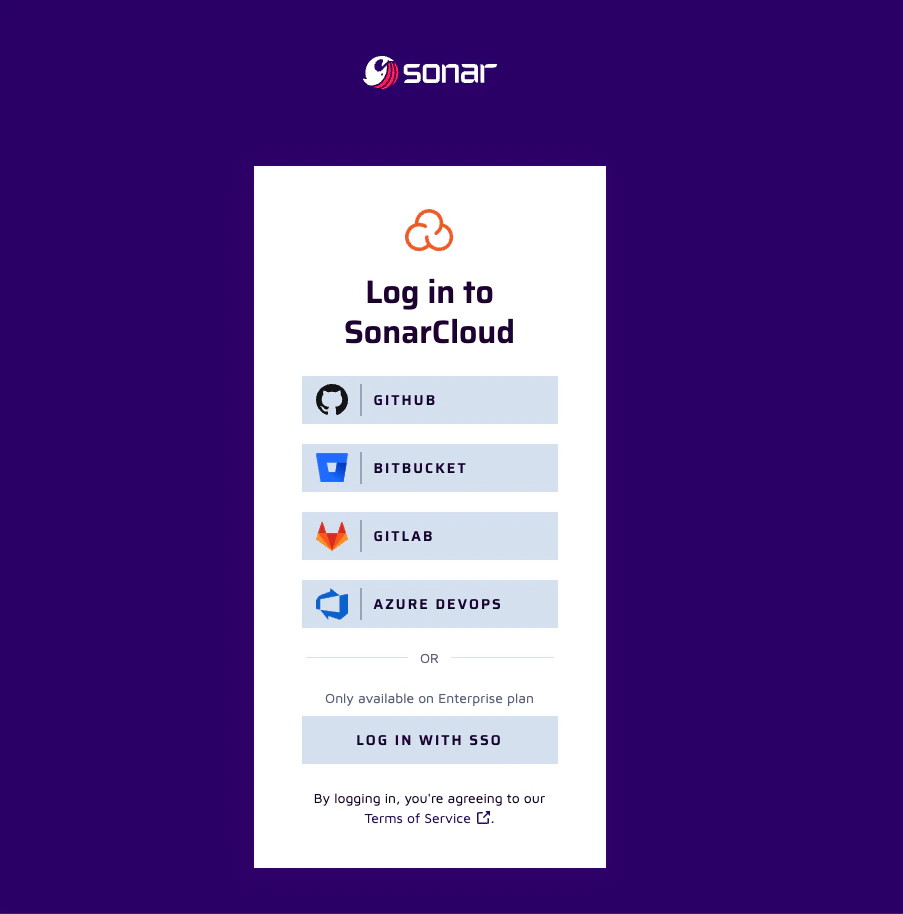
    Log in to your [SonarCloud Account](https://sonarcloud.io/login).\
    Choose the login method you prefer. For this guide, we will use `GitHub` for the login.
    <Frame>
      <img className="rounded-md" style={{ margin: '0 auto', border: '1px solid #efefef' }} alt="Login" src="https://mintcdn.com/stackone-hub-docs-confluence-api-token-update/C1VeUVSQ_nltDcS8/images/sonarcloud/image1.png?fit=max&auto=format&n=C1VeUVSQ_nltDcS8&q=85&s=ed9530f5816c330c4ea92bfed288bb7d" width="903" height="914" data-path="images/sonarcloud/image1.png" />
    </Frame>
  </Step>

  <Step title="Enter Login Credentials">
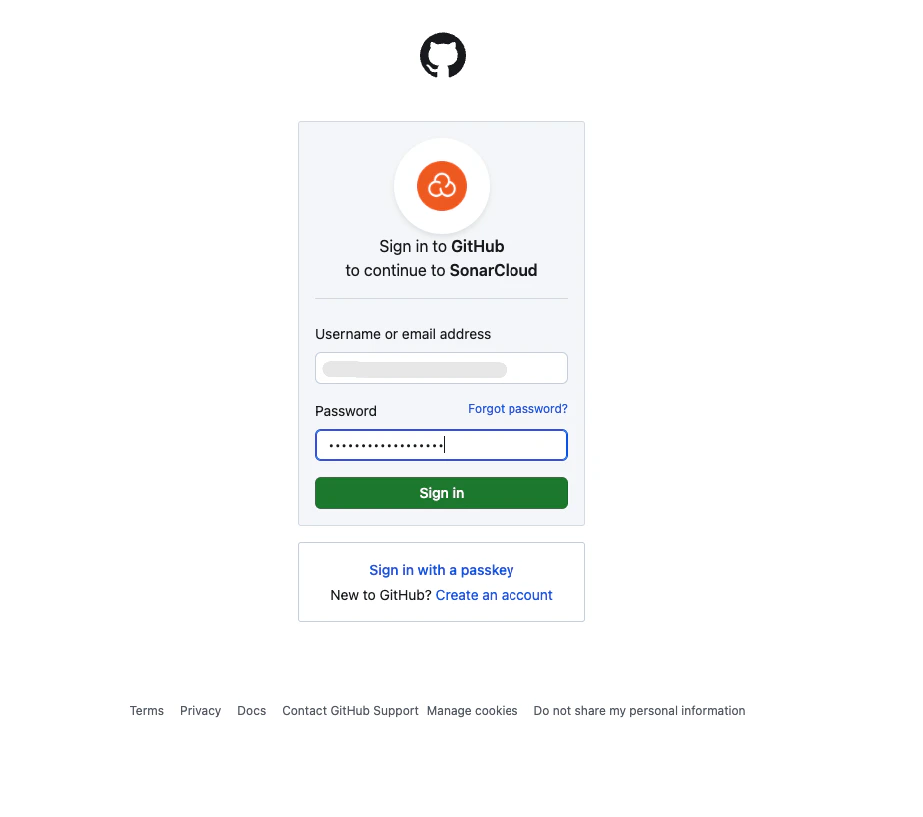
    Enter the credentials and click on the `Sign in` button.
    <Frame>
      <img className="rounded-md" style={{ margin: '0 auto', border: '1px solid #efefef' }} alt="Login" src="https://mintcdn.com/stackone-hub-docs-confluence-api-token-update/C1VeUVSQ_nltDcS8/images/sonarcloud/image2.png?fit=max&auto=format&n=C1VeUVSQ_nltDcS8&q=85&s=93f45e29ba360ce676640bef9a9e25fa" width="923" height="817" data-path="images/sonarcloud/image2.png" />
    </Frame>
  </Step>

  <Step title="Go to the My Account">
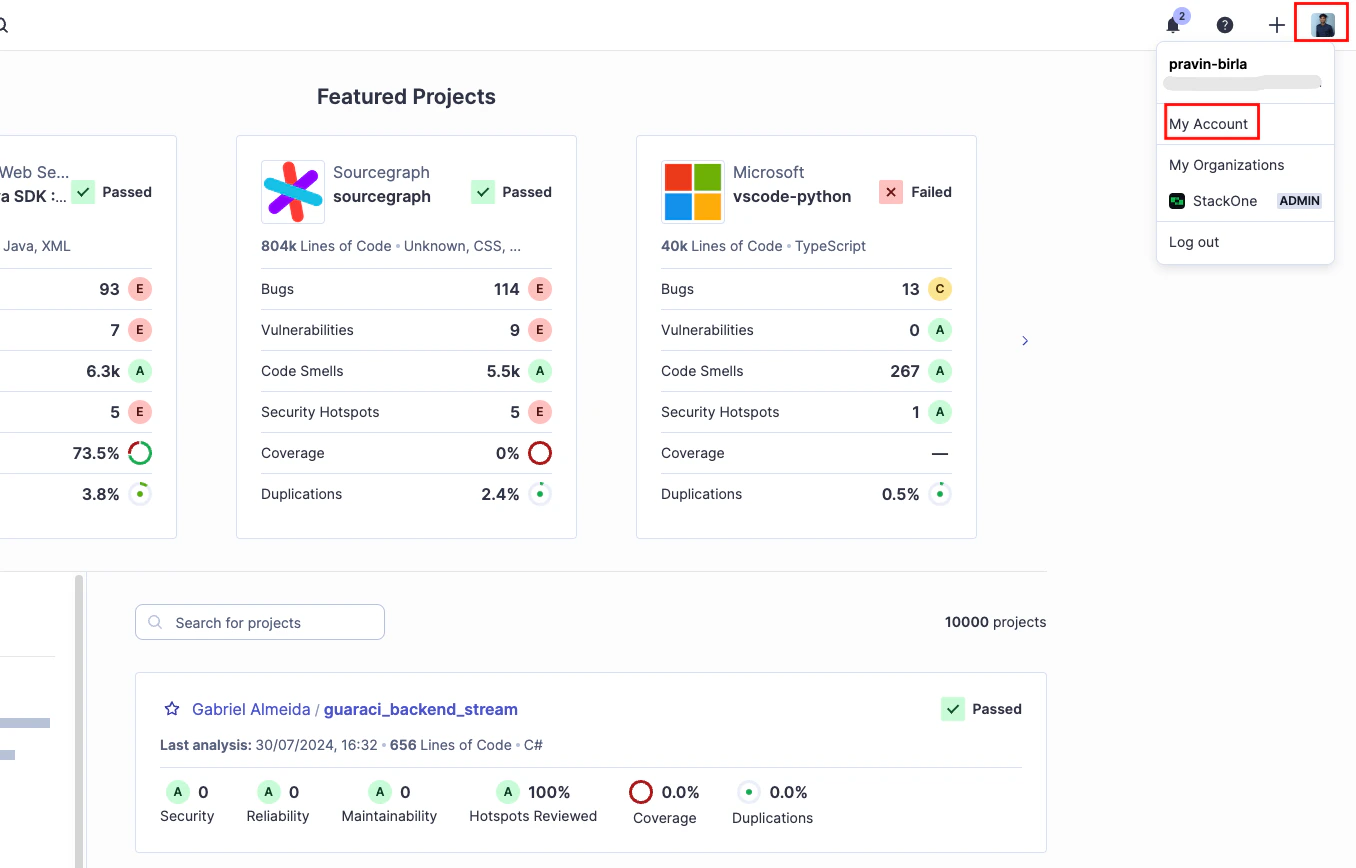
    Click on the `Account` button in the top right corner, and then select **My Account**.
    *Account >> My Account*
    <Frame>
      <img className="rounded-md" style={{ margin: '0 auto', border: '1px solid #efefef' }} alt="My Account Page" src="https://mintcdn.com/stackone-hub-docs-confluence-api-token-update/C1VeUVSQ_nltDcS8/images/sonarcloud/image3.png?fit=max&auto=format&n=C1VeUVSQ_nltDcS8&q=85&s=5fbd1ef4df06c7d8b4c2f8e5f498e263" width="1356" height="868" data-path="images/sonarcloud/image3.png" />
    </Frame>
  </Step>

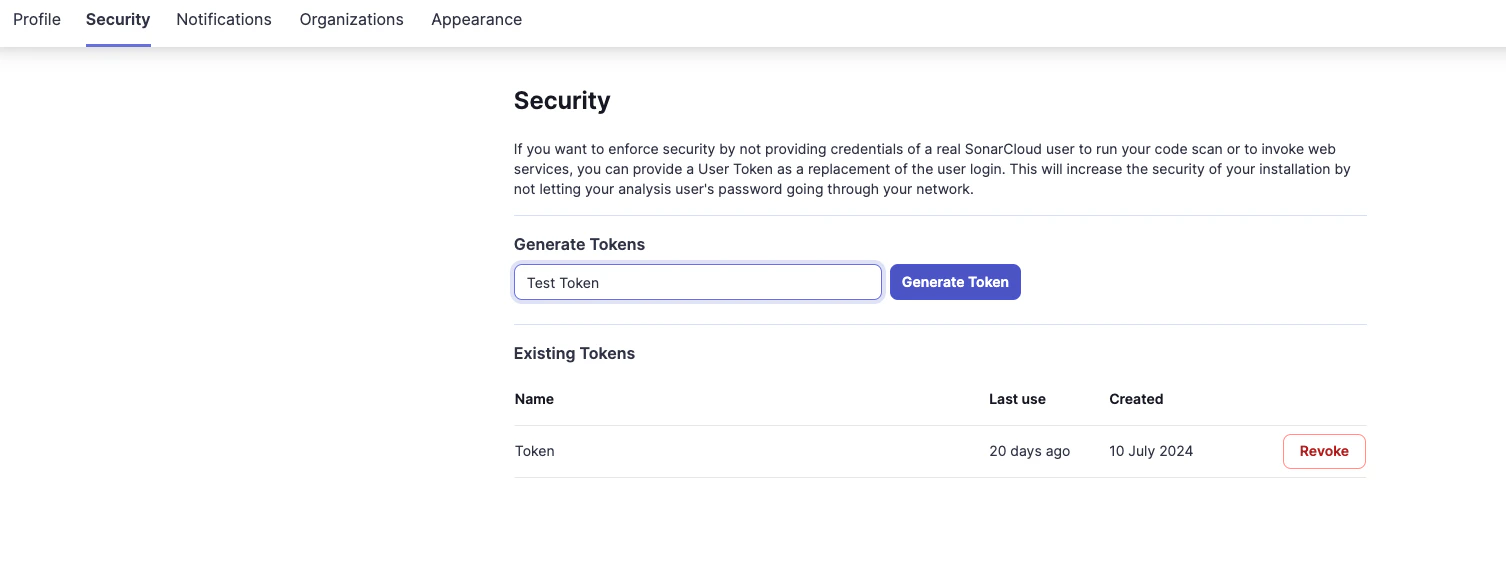
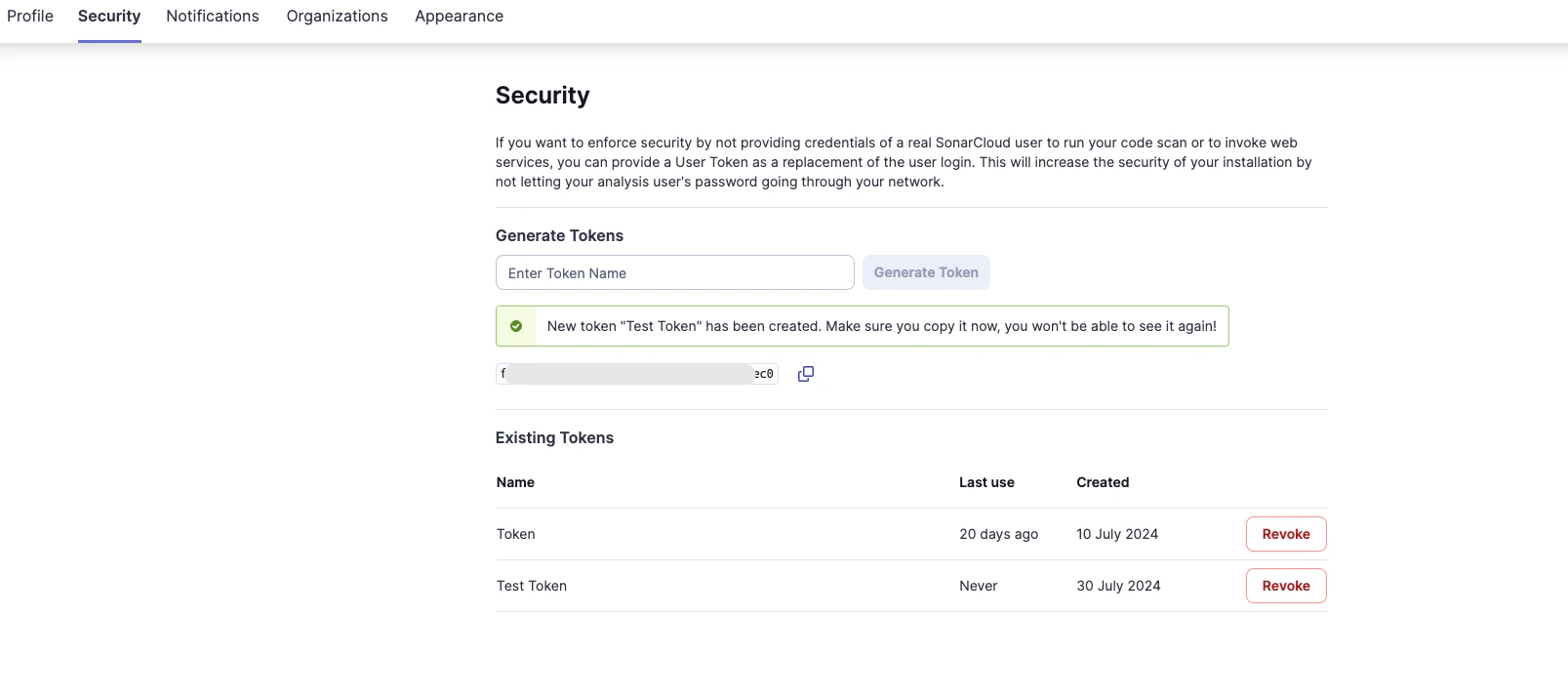
  <Step title="Generate User Token">
    Go to **Security** section, enter the token name and click on the `Generate Token` button. Copy the *User Token* and store it in the secure place, you need to create new token if the current one is expired. You can create multiple *User Token*.
    <Frame>
      <img className="rounded-md" style={{ margin: '0 auto', border: '1px solid #efefef' }} alt="Generate User Token" src="https://mintcdn.com/stackone-hub-docs-confluence-api-token-update/C1VeUVSQ_nltDcS8/images/sonarcloud/image4.png?fit=max&auto=format&n=C1VeUVSQ_nltDcS8&q=85&s=52c7231841bec5e15fd58ca0684c0941" width="1506" height="577" data-path="images/sonarcloud/image4.png" />
    </Frame>

    <br />

    <Frame>
      <img className="rounded-md" style={{ margin: '0 auto', border: '1px solid #efefef' }} alt="Generated User Token" src="https://mintcdn.com/stackone-hub-docs-confluence-api-token-update/C1VeUVSQ_nltDcS8/images/sonarcloud/image5.png?fit=max&auto=format&n=C1VeUVSQ_nltDcS8&q=85&s=455b30b99b900943f323783b7e6eaa1d" width="1607" height="715" data-path="images/sonarcloud/image5.png" />
    </Frame>
  </Step>

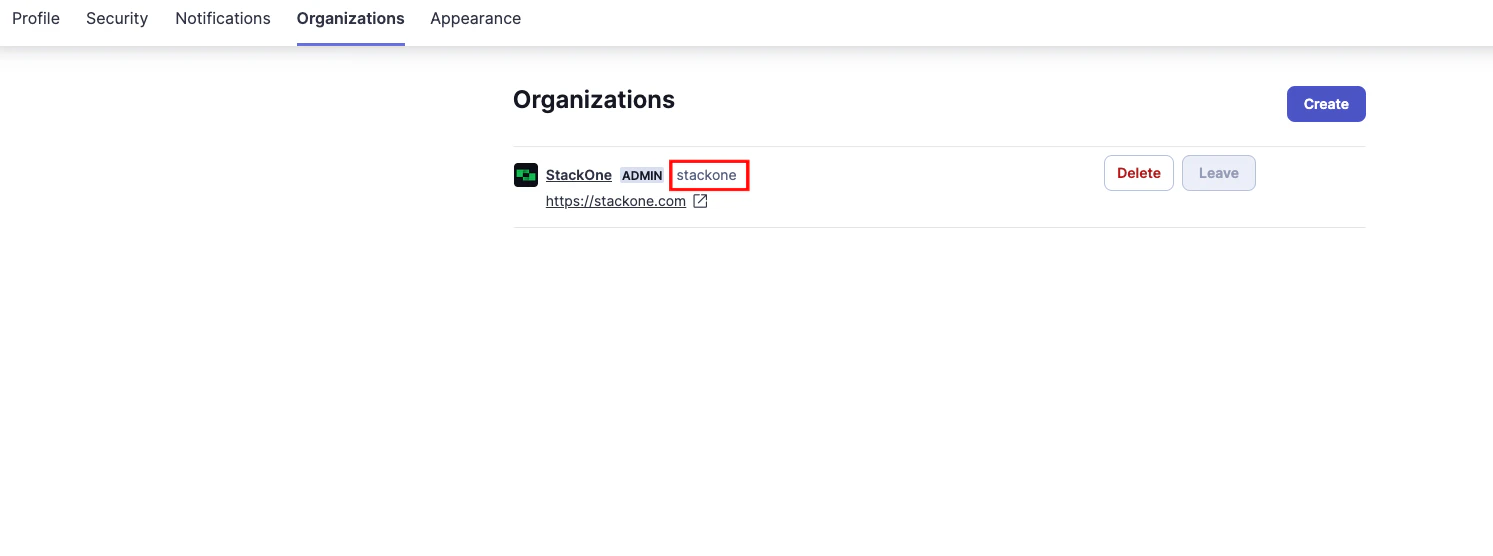
  <Step title="Get Organization Key">
    Go to **Organizations** section, to locate your Organization key.
    <Frame>
      <img className="rounded-md" style={{ margin: '0 auto', border: '1px solid #efefef' }} alt="Generate User Token" src="https://mintcdn.com/stackone-hub-docs-confluence-api-token-update/C1VeUVSQ_nltDcS8/images/sonarcloud/image6.png?fit=max&auto=format&n=C1VeUVSQ_nltDcS8&q=85&s=e5584833ea854161cc4885f51c60ef3b" width="1493" height="556" data-path="images/sonarcloud/image6.png" />
    </Frame>
  </Step>
</Steps>

## Connecting to StackOne

<Steps>
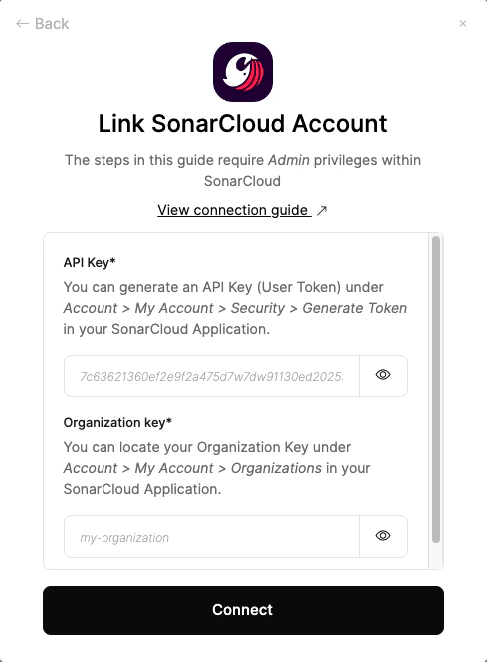
  <Step title="Enter Authentication Details">
    Upon reaching the Link Account page, enter the following authentication details from the previous steps:

    <ul>
      <li>API key (User Token)</li>
      <li>Organization key</li>
    </ul>

    <Frame>
      <img className="rounded-md" style={{ margin: '0 auto', border: '1px solid #efefef' }} alt="Link Account" src="https://mintcdn.com/stackone-hub-docs-confluence-api-token-update/C1VeUVSQ_nltDcS8/images/sonarcloud/image7.png?fit=max&auto=format&n=C1VeUVSQ_nltDcS8&q=85&s=28055981850da24de9a99876e206cbda" width="487" height="662" data-path="images/sonarcloud/image7.png" />
    </Frame>
  </Step>

  <Step title="Connect">
    Proceed by clicking the Connect button.
  </Step>
</Steps>

<br />

Congratulations, you're all set! If you face any issues with the steps mentioned above,
please contact us by emailing [integrations@stackone.com](mailto:integrations@stackone.com). We're always here to assist you!

## Available data

This integration has the following [IAM Resources](https://docs.stackone.com/reference/iam_list_users) available from the provider:

<ul>
  <li>Users</li>
  <li>Roles</li>
  <li>Groups</li>
</ul>

## Useful Links

<Card title="Getting Started" icon="link" href="https://docs.sonarsource.com/sonarcloud/getting-started/gitlab/">
  [https://docs.sonarsource.com/sonarcloud/getting-started/gitlab/](https://docs.sonarsource.com/sonarcloud/getting-started/gitlab/)
</Card>

<Card title="Web API" icon="link" href="https://sonarcloud.io/web_api">
  [https://sonarcloud.io/web\_api](https://sonarcloud.io/web_api)
</Card>