> ## Documentation Index
> Fetch the complete documentation index at: https://stackone-hub-docs-confluence-api-token-update.mintlify.site/llms.txt
> Use this file to discover all available pages before exploring further.

# Rollbar

> Follow these steps to connect Rollbar via the StackOne Hub successfully.

<Warning>
  Ensure you have Owner privileges within your Rollbar account.
</Warning>

If you've been directed to StackOne to integrate with Rollbar, the following steps will help you understand the process and any necessary actions to configure successful integration.

## Get Your Rollbar Access Token

<Steps>
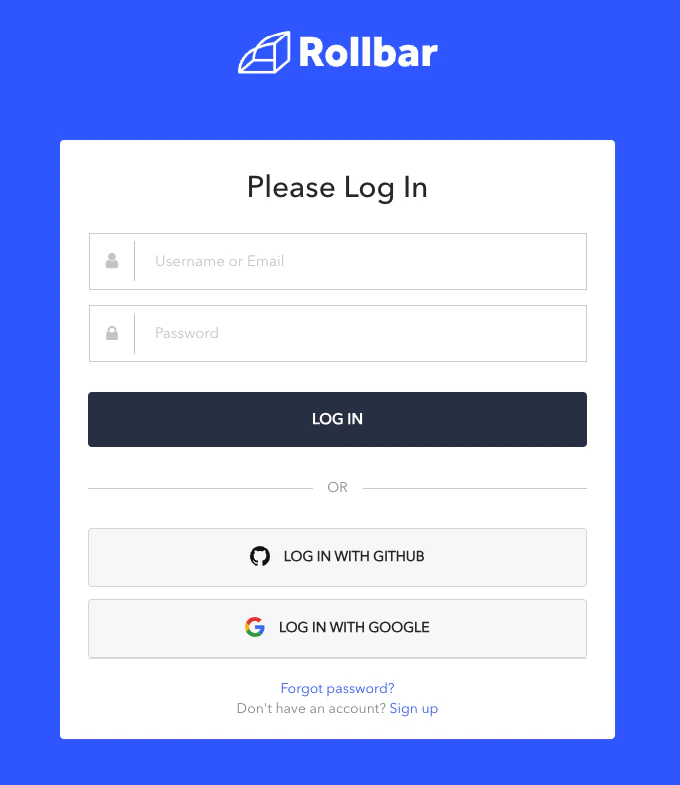
  <Step title="Log in to Rollbar">
    Log in to your [Rollbar Account](https://rollbar.com/login/).
    <Frame>
      <img className="rounded-md" style={{ margin: '0 auto', border: '1px solid #efefef' }} alt="Log in to Rollbar" src="https://mintcdn.com/stackone-hub-docs-confluence-api-token-update/9bhFjdxQvzus54Ck/images/rollbar/image1.png?fit=max&auto=format&n=9bhFjdxQvzus54Ck&q=85&s=c174652d3c8c8de4700b1815b78fbf06" width="680" height="785" data-path="images/rollbar/image1.png" />
    </Frame>
  </Step>

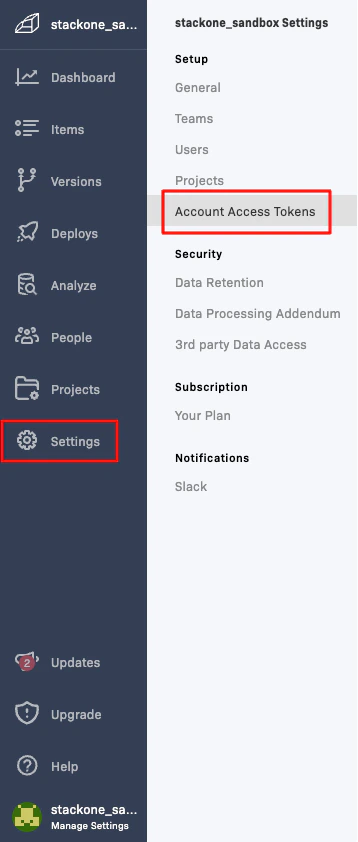
  <Step title="Navigate to Account Access Tokens">
    Click the <Icon icon="gear" iconType="regular" /> `Settings` button on the left, then click `Setup > Account Access Tokens`.
    <Frame>
      <img className="rounded-md" style={{ margin: '0 auto', border: '1px solid #efefef' }} alt="Account Access Tokens" src="https://mintcdn.com/stackone-hub-docs-confluence-api-token-update/9bhFjdxQvzus54Ck/images/rollbar/image2.png?fit=max&auto=format&n=9bhFjdxQvzus54Ck&q=85&s=d61b5d073e5a61e40e7f229fc363fece" width="358" height="842" data-path="images/rollbar/image2.png" />
    </Frame>
  </Step>

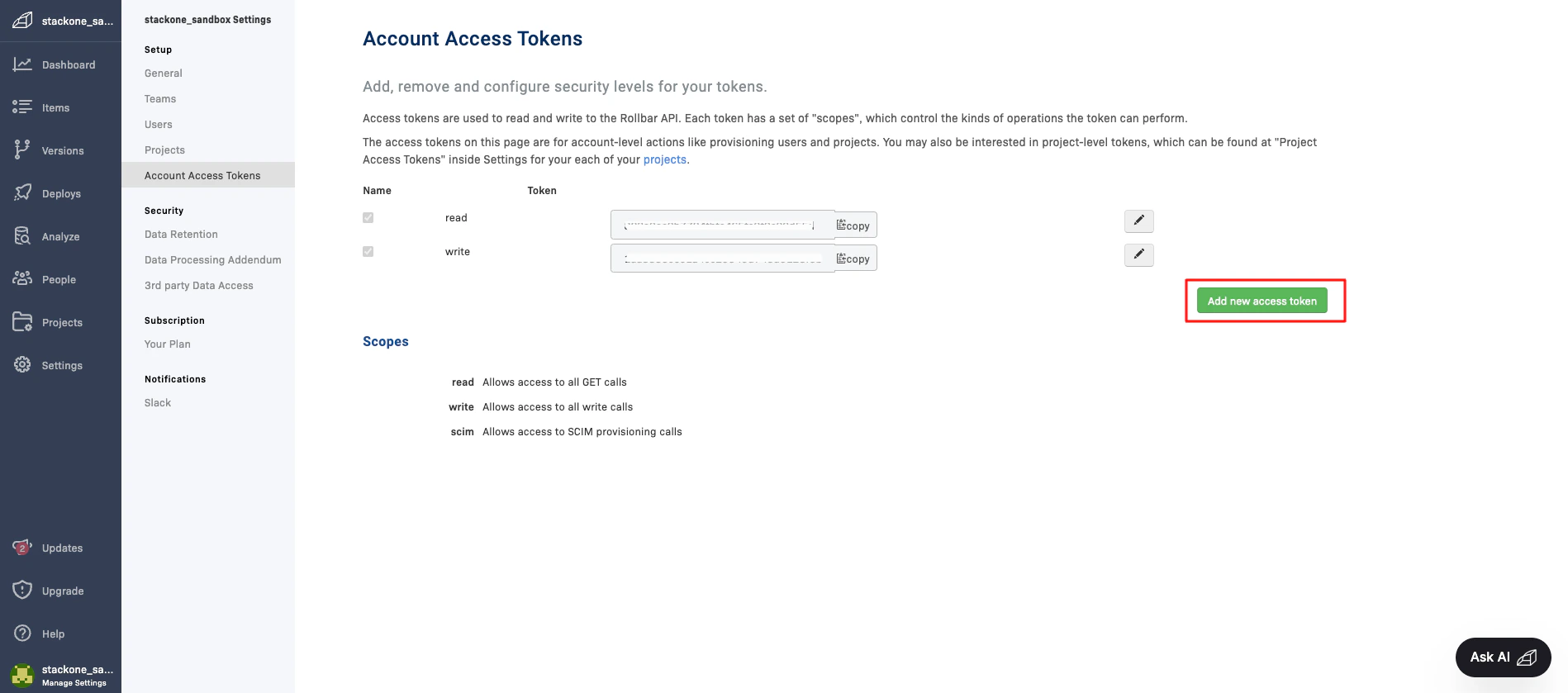
  <Step title="Add Account Access Token">
    Click the `Add new access token` button. The Account Access Token is now listed here.
    <Frame>
      <img className="rounded-md" style={{ margin: '0 auto', border: '1px solid #efefef' }} alt="Add Account Access Token" src="https://mintcdn.com/stackone-hub-docs-confluence-api-token-update/9bhFjdxQvzus54Ck/images/rollbar/image3.png?fit=max&auto=format&n=9bhFjdxQvzus54Ck&q=85&s=e6618b8c3ff1a46d86edfe36a62de913" width="1898" height="839" data-path="images/rollbar/image3.png" />
    </Frame>
  </Step>

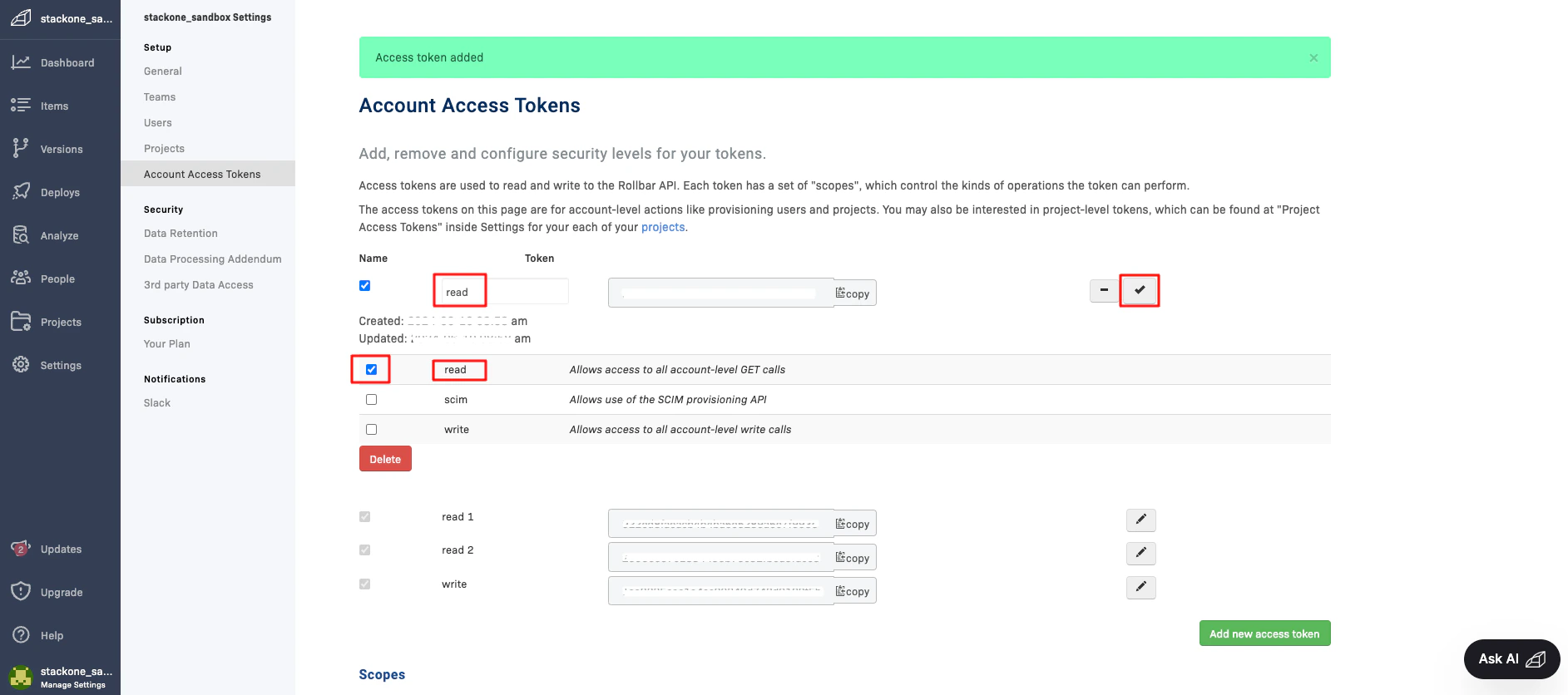
  <Step title="Add read scope">
    Click the pencil <Icon icon="pencil" iconType="solid" /> icon of your Token, then update the name if required and check the `read` scope box. Click the check <Icon icon="check" iconType="solid" /> icon once done.

    <Frame>
      <img className="rounded-md" style={{ margin: '0 auto', border: '1px solid #efefef' }} alt="Add scope" src="https://mintcdn.com/stackone-hub-docs-confluence-api-token-update/9bhFjdxQvzus54Ck/images/rollbar/image4.png?fit=max&auto=format&n=9bhFjdxQvzus54Ck&q=85&s=29307ba426d7c2debad17b194cccdfaa" width="1885" height="836" data-path="images/rollbar/image4.png" />
    </Frame>
  </Step>

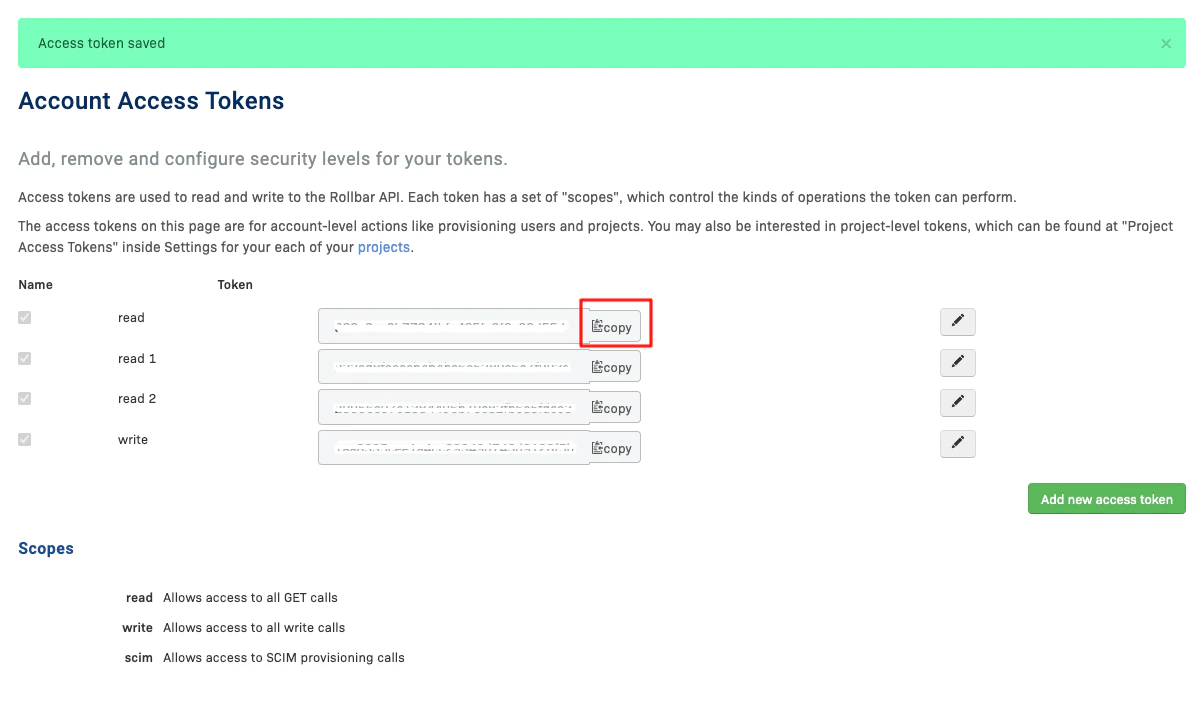
  <Step title="Copy Access Token">
    Copy and store the Account Access Token safely.
    <Frame>
      <img className="rounded-md" style={{ margin: '0 auto', border: '1px solid #efefef' }} alt="Copy Access Token" src="https://mintcdn.com/stackone-hub-docs-confluence-api-token-update/9bhFjdxQvzus54Ck/images/rollbar/image5.png?fit=max&auto=format&n=9bhFjdxQvzus54Ck&q=85&s=429c31c558f7115b9643df23a581d555" width="1203" height="717" data-path="images/rollbar/image5.png" />
    </Frame>
  </Step>
</Steps>

## Connecting to StackOne

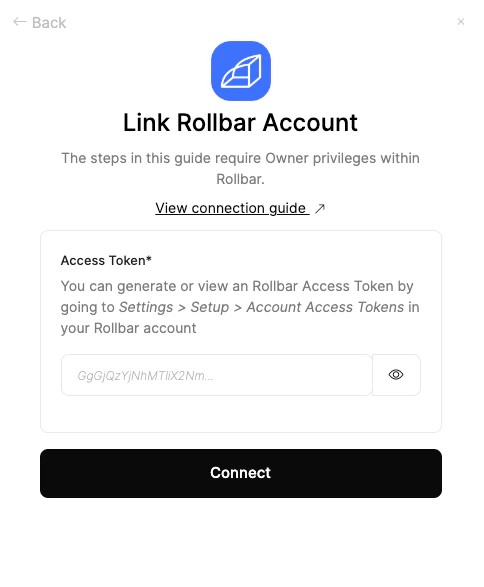
Upon reaching the Link Account page, enter the **Account Access Token** from the previous step. Proceed by clicking the Connect button.
<Frame>
  <img className="rounded-md" style={{ margin: '0 auto', border: '1px solid #efefef' }} alt="Link Account" src="https://mintcdn.com/stackone-hub-docs-confluence-api-token-update/9bhFjdxQvzus54Ck/images/rollbar/image6.png?fit=max&auto=format&n=9bhFjdxQvzus54Ck&q=85&s=68fd6c90d9df9c81600fb50b964963d5" width="484" height="587" data-path="images/rollbar/image6.png" />
</Frame>

<br />

Congratulations, you're all set! If you face any issues with the steps mentioned above,
please contact us by emailing [integrations@stackone.com](mailto:integrations@stackone.com). We're always here to assist you!

## Available data

This integration has the following [IAM Resources](https://docs.stackone.com/reference/iam_list_users) available from the provider:

<ul>
  <li>Users</li>
  <li>Roles</li>
  <li>Groups</li>
</ul>

## Useful Links

<Card title="Rollbar API" icon="link" href="https://docs.rollbar.com/reference/getting-started-1">
  [https://docs.rollbar.com/reference/getting-started-1](https://docs.rollbar.com/reference/getting-started-1)
</Card>