> ## Documentation Index
> Fetch the complete documentation index at: https://stackone-hub-docs-confluence-api-token-update.mintlify.site/llms.txt
> Use this file to discover all available pages before exploring further.
# Ringcentral - OAuth Authentication
> Follow these steps to connect Ringcentral via the StackOne Hub successfully.
Ensure that you have registered an account on [RingCentral Developers](https://developers.ringcentral.com/my-account.html) with Developer Admin privileges.
If you've been directed to StackOne to integrate with Ringcentral, the following steps will help you understand the process and any necessary actions to configure successful integration.
## Log in to RingCentral Developers
If you do not have a RingCentral Developers account, you can register for one here: [https://developers.ringcentral.com/sign-up](https://developers.ringcentral.com/sign-up)
Your account should have the Role "Developer Admin".
Log in to your [RingCentral Developers account](https://developers.ringcentral.com/my-account.html)
## Create a New Ringcentral Application
This connection will authenticate on behalf of a registered Application in RingCentral Developers.
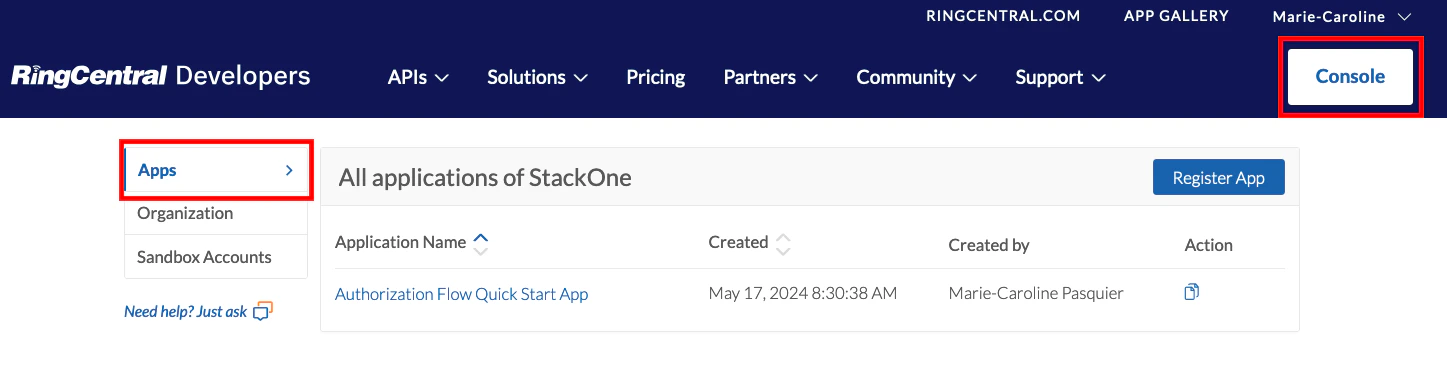
In Ringcentral Developers, click the Console button, then Apps on the left.
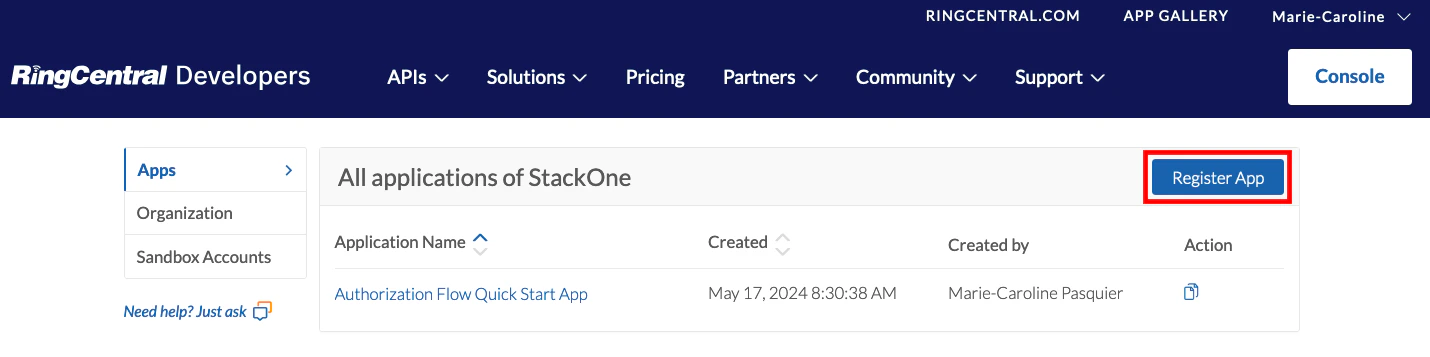
 Click the Register App button.
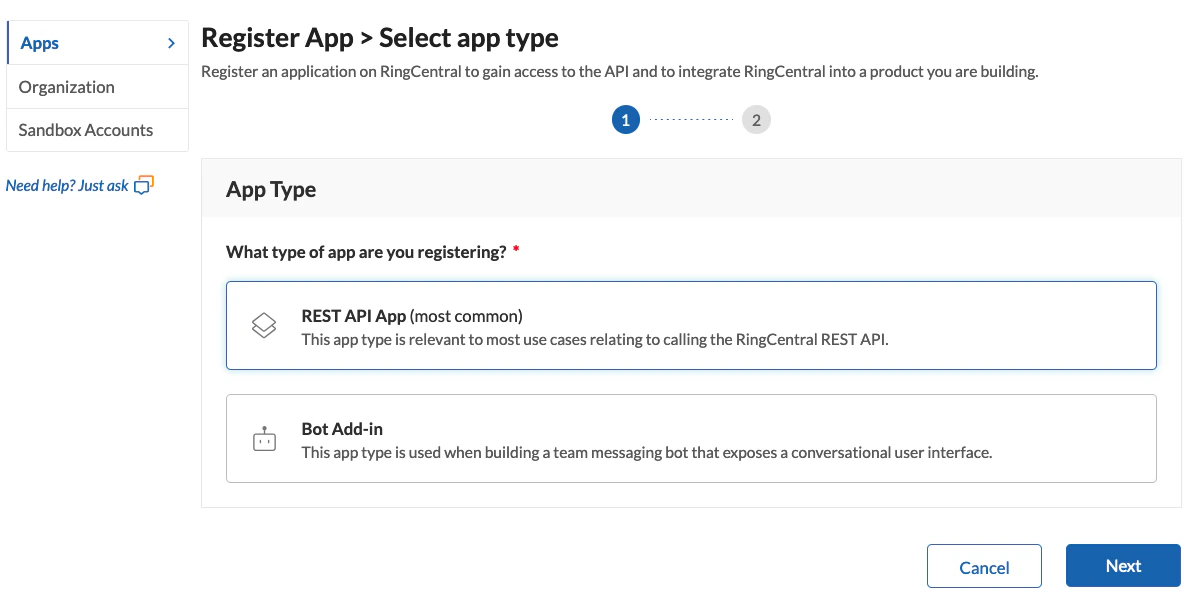
 Under App Type, select "REST API App (most common)" and click the Next button.
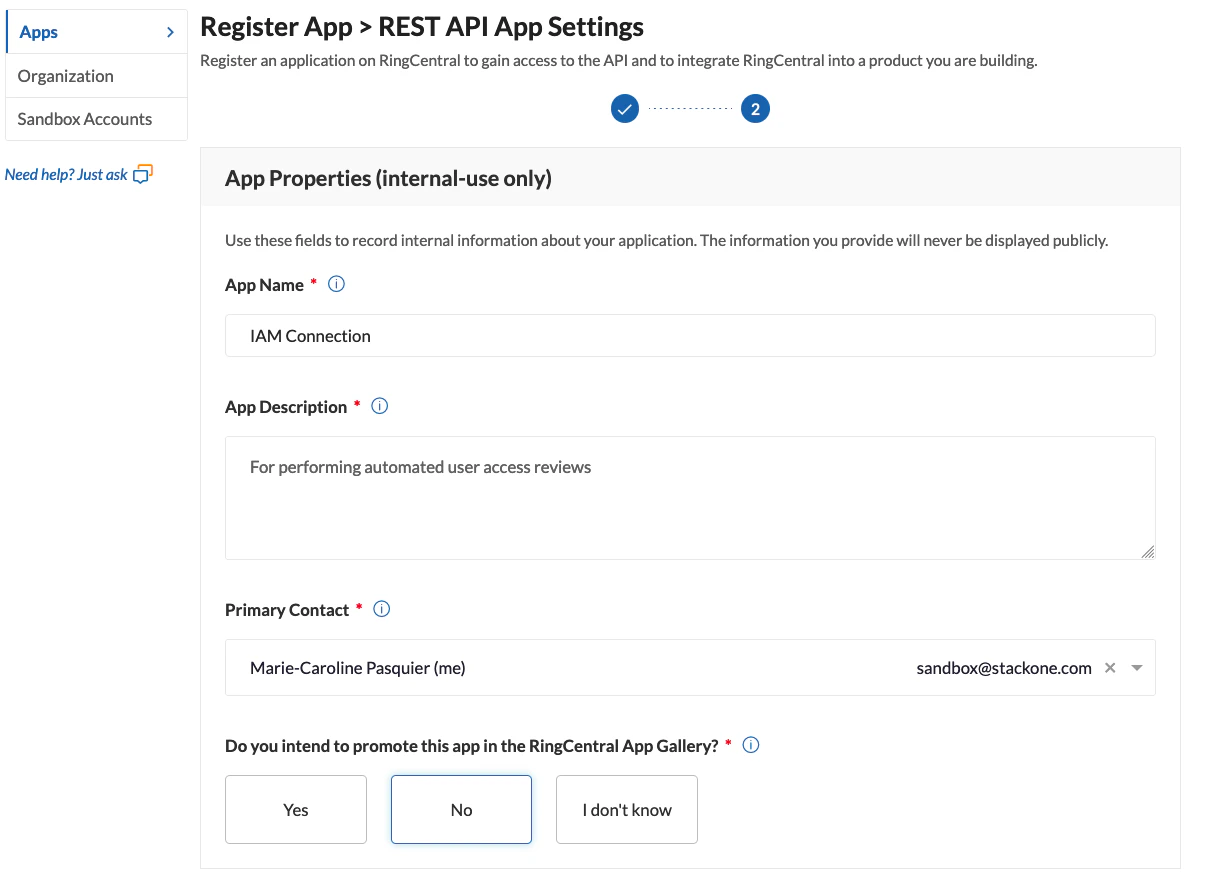
 Under App Properties (internal-use only), enter the following details:
* App Name: Enter a name for your new App
* App description: Enter a description for your new App
* Primary Contact: Enter the email address of the main support contact for this App
* Do you intend to promote this app in the RingCentral App Gallery?: No
Under App Properties (internal-use only), enter the following details:
* App Name: Enter a name for your new App
* App description: Enter a description for your new App
* Primary Contact: Enter the email address of the main support contact for this App
* Do you intend to promote this app in the RingCentral App Gallery?: No
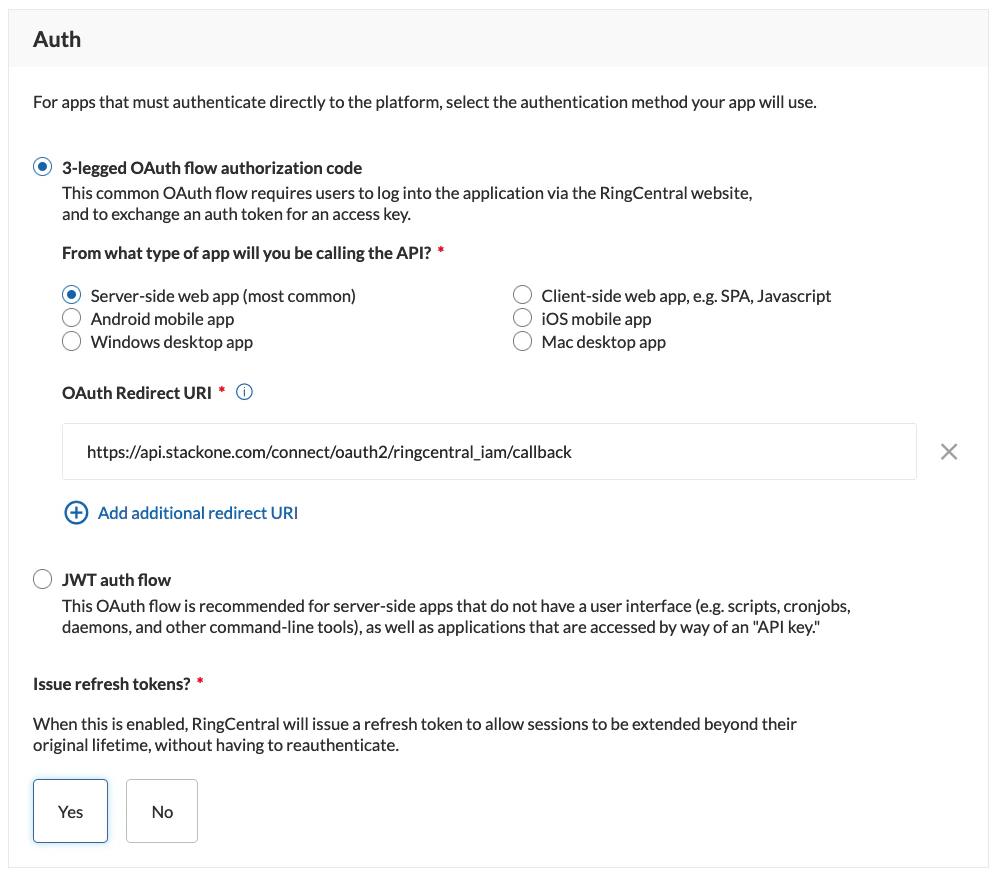
 Scroll down to the Auth section, and enter the following details:
* 3-legged OAuth flow authorization code
* From what type of app will you be calling the API?: Server-side web app (most common)
* OAuth Redirect URI: `https://api.stackone.com/connect/oauth2/ringcentral_iam/callback`
* Issue refresh tokens? Yes
Scroll down to the Auth section, and enter the following details:
* 3-legged OAuth flow authorization code
* From what type of app will you be calling the API?: Server-side web app (most common)
* OAuth Redirect URI: `https://api.stackone.com/connect/oauth2/ringcentral_iam/callback`
* Issue refresh tokens? Yes
 Under Security, select the following:
* Application Scopes: Read Accounts
* Who will be authorized to access your app? : This app is *private* and will only be callable using credentials from the same RingCentral account.
Under Security, select the following:
* Application Scopes: Read Accounts
* Who will be authorized to access your app? : This app is *private* and will only be callable using credentials from the same RingCentral account.
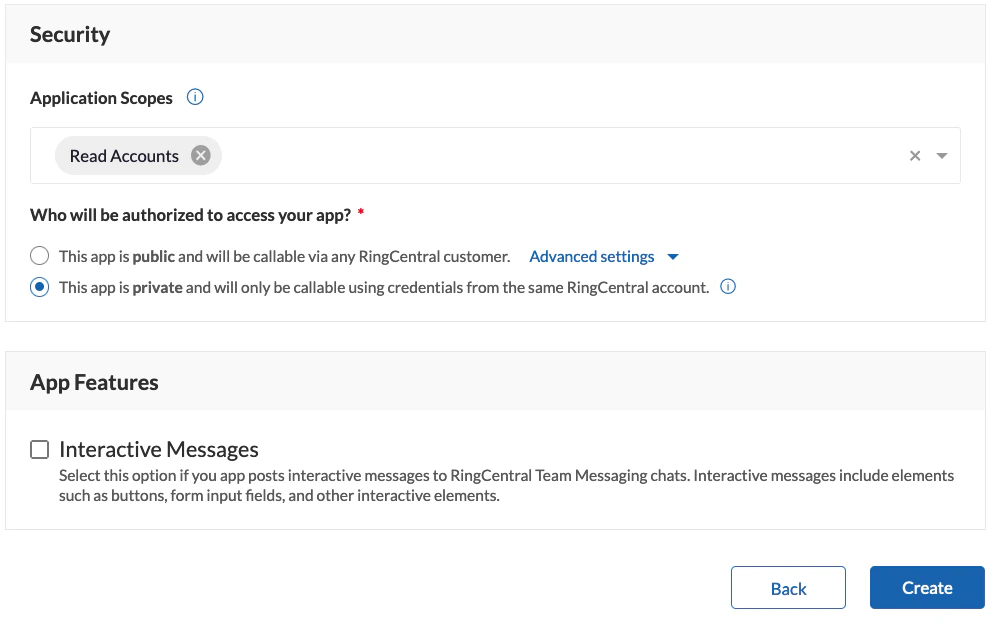 Click the Create button to proceed. Upon seeing a success message, press the OK button.
Your new App Client ID and Client Secret will now be available to copy.
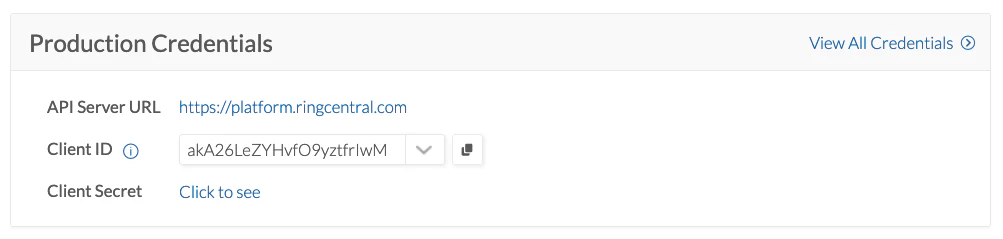
Under Production Credentials, copy both your Client ID and Client Secret and store them safely to use in the following steps.
Click the Create button to proceed. Upon seeing a success message, press the OK button.
Your new App Client ID and Client Secret will now be available to copy.
Under Production Credentials, copy both your Client ID and Client Secret and store them safely to use in the following steps.
 ## Connecting with StackOne
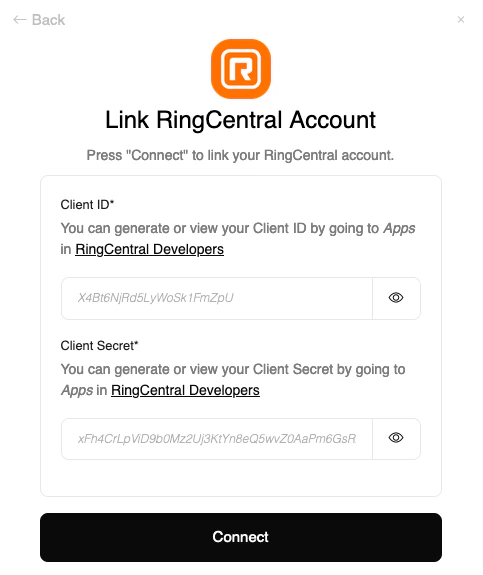
Upon reaching the Link Account page, enter the credentials from the previous steps:
* Client ID
* Client Secret
Proceed by clicking the Connect button.
## Connecting with StackOne
Upon reaching the Link Account page, enter the credentials from the previous steps:
* Client ID
* Client Secret
Proceed by clicking the Connect button.
Congratulations, you're all set! If you face any issues with the steps mentioned above,
please contact us by emailing [integrations@stackone.com](mailto:integrations@stackone.com). We're always here to assist you!
## Available data
This integration has the following [IAM Resources](https://docs.stackone.com/reference/iam_list_users) available from the provider: