> ## Documentation Index
> Fetch the complete documentation index at: https://stackone-hub-docs-confluence-api-token-update.mintlify.site/llms.txt
> Use this file to discover all available pages before exploring further.

# Github

> Follow these steps to connect Github via the StackOne Hub successfully.

<Warning>
  Ensure that your Github account has the Owner privileges in the organization you are making connection with.
</Warning>

If you've been directed to StackOne to integrate with Github, the following steps will help you understand the process and any necessary actions to configure a successful integration.

## Log in to Github

<Step title="Log in">
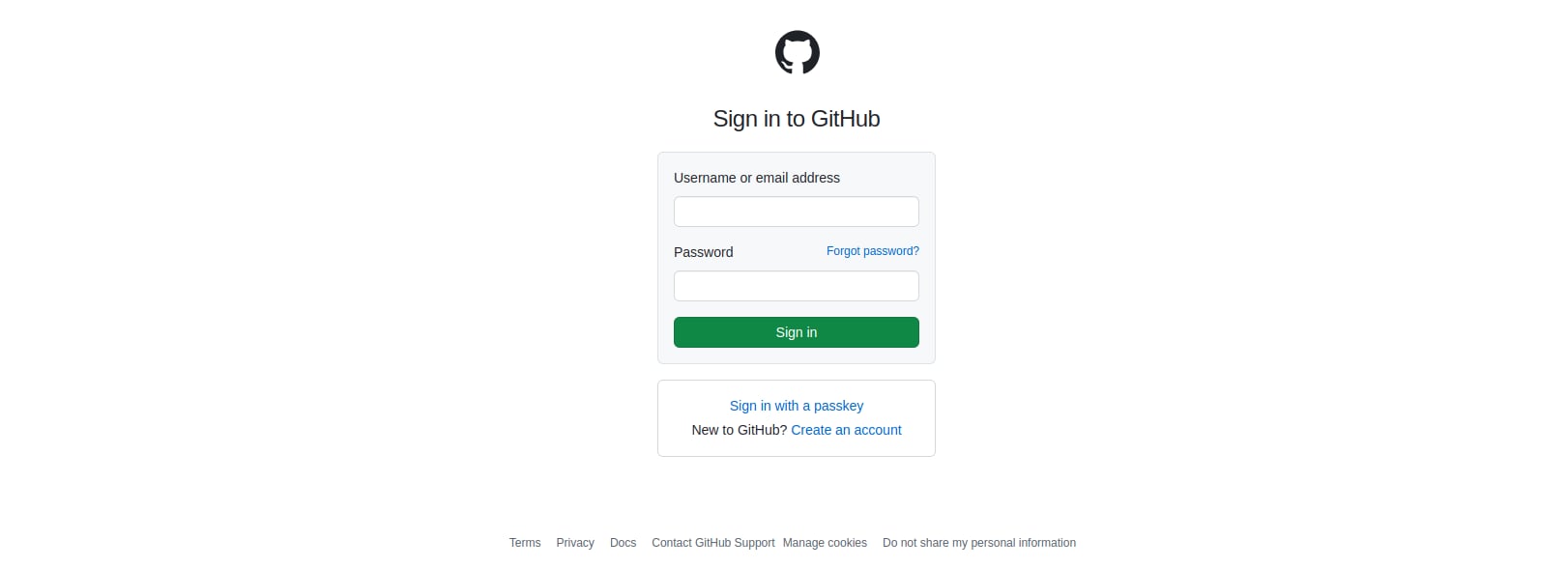
  Log in to your Github account at [https://github.com/login](https://github.com/login).
  <Frame>
    <img className="rounded-md" style={{ margin: '0 auto', border: '1px solid #efefef' }} alt="Log in" src="https://mintcdn.com/stackone-hub-docs-confluence-api-token-update/6QOxZsBfCtSHWqb3/images/github/image2.png?fit=max&auto=format&n=6QOxZsBfCtSHWqb3&q=85&s=cf067f5c7812a0803e9163e0ca75ee7b" width="1622" height="588" data-path="images/github/image2.png" />
  </Frame>
</Step>

## Create a New Personal Access Token

<Steps>
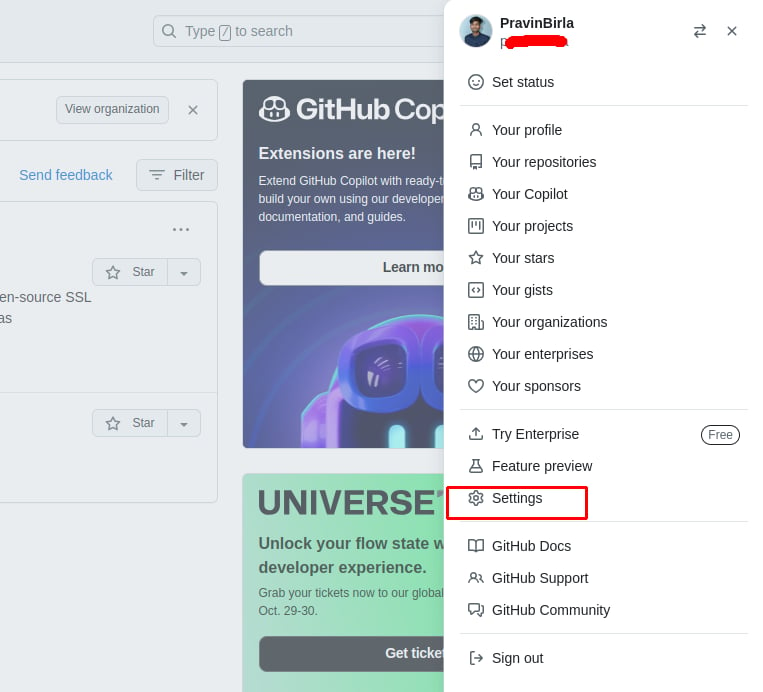
  <Step title="Navigate to Your Profile">
    Click the **Settings** tab.

    <Frame>
      <img className="rounded-md" style={{ margin: '0 auto', border: '1px solid #efefef' }} alt="Navigate to Your Profile" src="https://mintcdn.com/stackone-hub-docs-confluence-api-token-update/6QOxZsBfCtSHWqb3/images/github/image3.png?fit=max&auto=format&n=6QOxZsBfCtSHWqb3&q=85&s=94f8fe7e1bb86de7a0f04da220344ad1" width="763" height="692" data-path="images/github/image3.png" />
    </Frame>
  </Step>

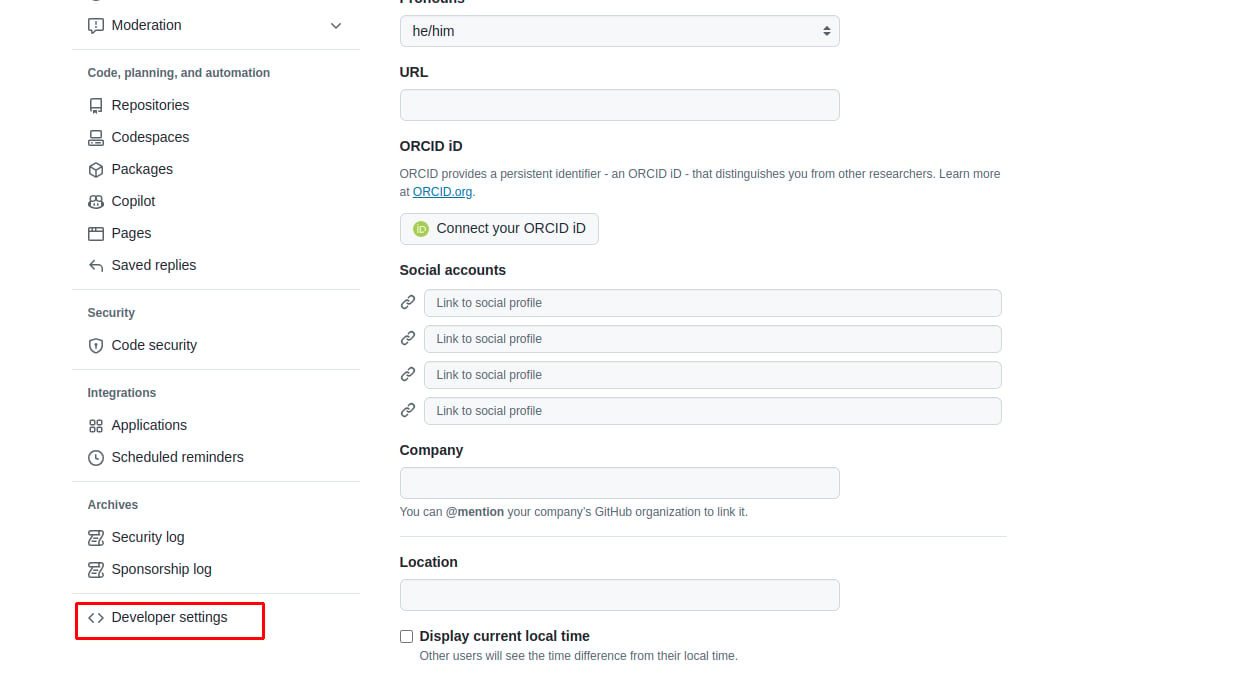
  <Step title="Navigate to Developer settings tab">
    Click **Developer settings**.

    <Frame>
      <img className="rounded-md" style={{ margin: '0 auto', border: '1px solid #efefef' }} alt="Navigate to Developer settings" src="https://mintcdn.com/stackone-hub-docs-confluence-api-token-update/6QOxZsBfCtSHWqb3/images/github/image4.png?fit=max&auto=format&n=6QOxZsBfCtSHWqb3&q=85&s=7dfdc56cc8a4c070d55ba224f1be359e" width="1256" height="684" data-path="images/github/image4.png" />
    </Frame>
  </Step>

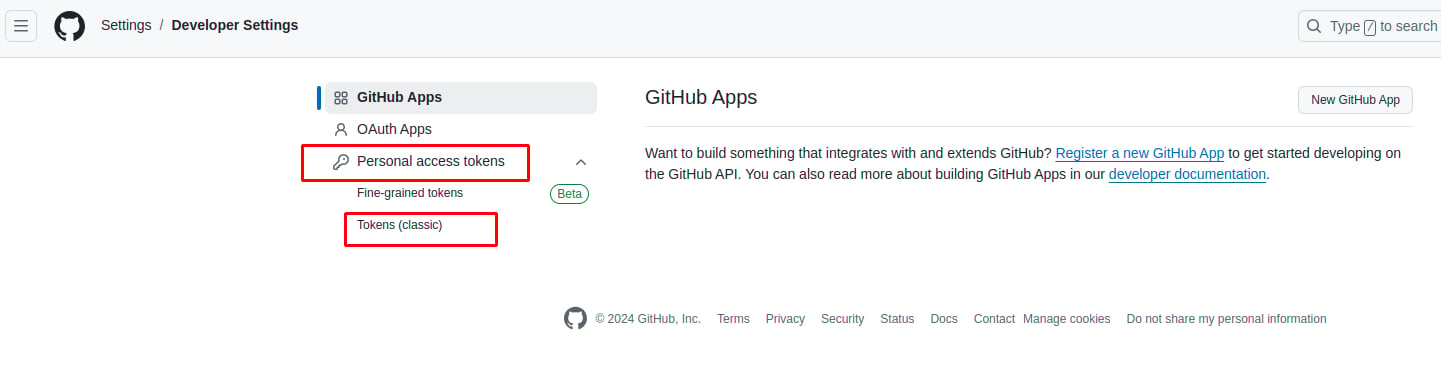
  <Step title="Navigate to Personal access tokens tab">
    Select **Tokens (classic)** from the **Personal access tokens** dropdown.
    <Frame>
      <img className="rounded-md" style={{ margin: '0 auto', border: '1px solid #efefef' }} alt="Navigate to Personal Access Tokens" src="https://mintcdn.com/stackone-hub-docs-confluence-api-token-update/6QOxZsBfCtSHWqb3/images/github/image5.png?fit=max&auto=format&n=6QOxZsBfCtSHWqb3&q=85&s=4f8ca33b4ace4cb6e09399aa37ef2e77" width="1441" height="389" data-path="images/github/image5.png" />
    </Frame>
  </Step>

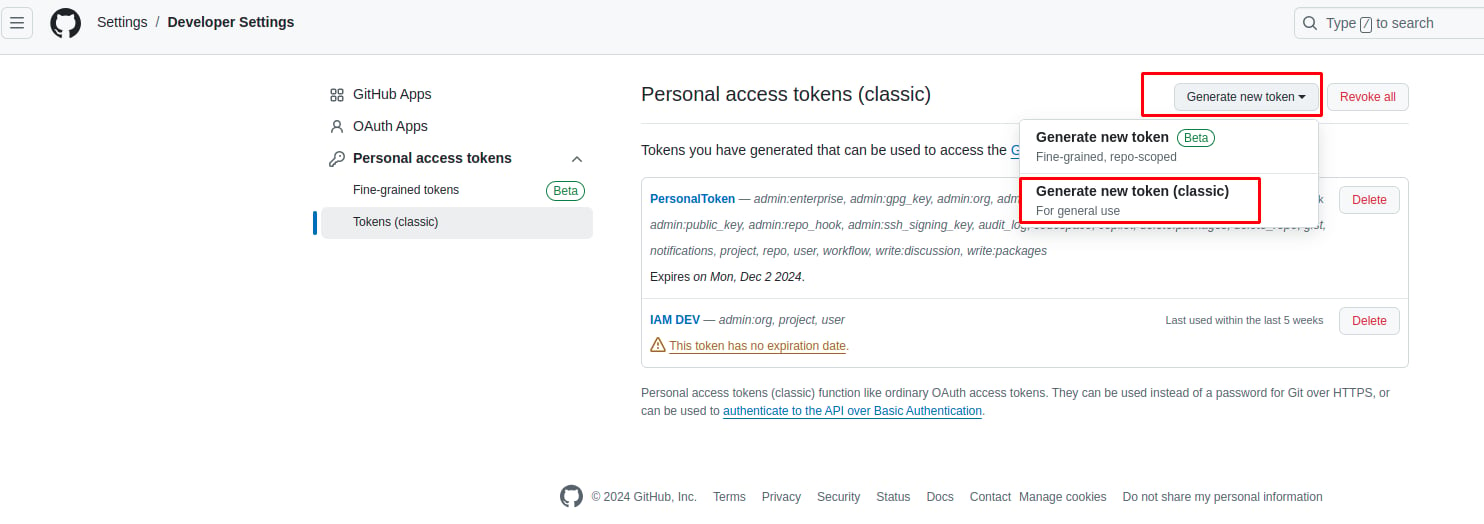
  <Step title="Generate new token">
    Click the **Generate new token** dropdown.
    Select **Generate new token (classic)** from the dropdown.
    <Frame>
      <img className="rounded-md" style={{ margin: '0 auto', border: '1px solid #efefef' }} alt="Generate new token" src="https://mintcdn.com/stackone-hub-docs-confluence-api-token-update/6QOxZsBfCtSHWqb3/images/github/image6.png?fit=max&auto=format&n=6QOxZsBfCtSHWqb3&q=85&s=a61d12703dfcd7281a40bf23aa100140" width="1484" height="524" data-path="images/github/image6.png" />
    </Frame>
  </Step>

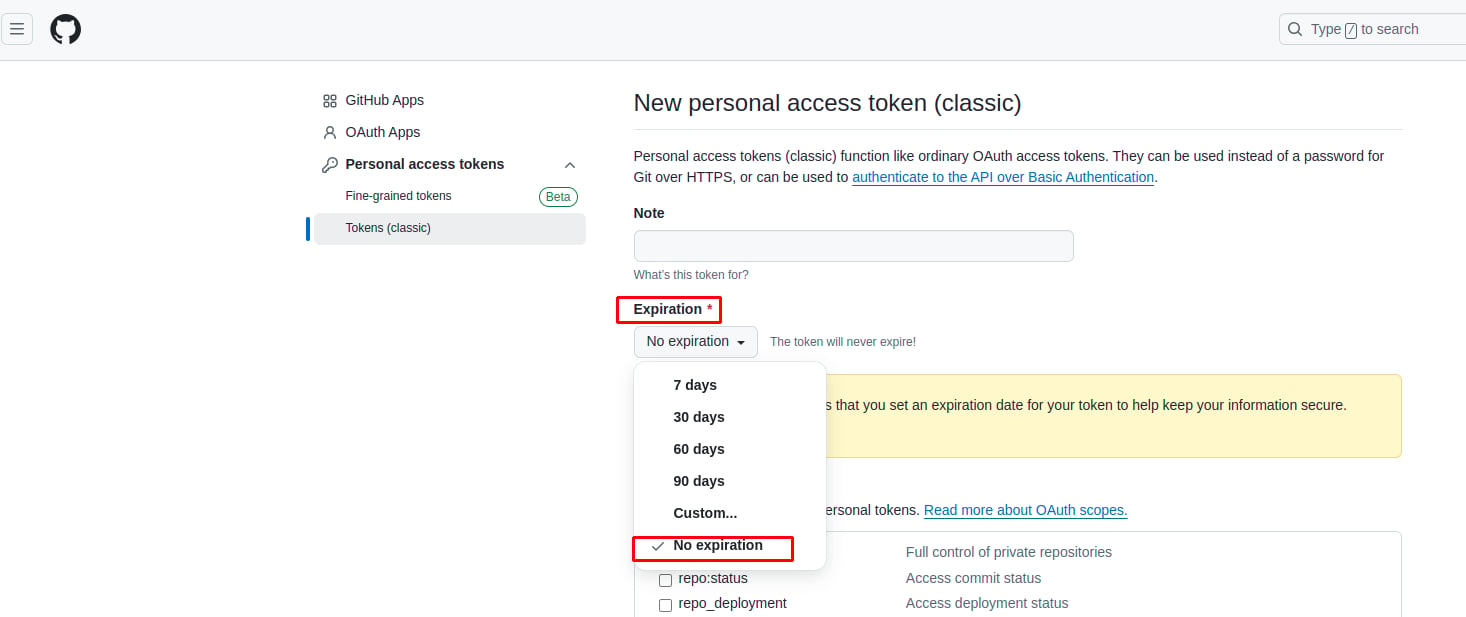
  <Step title="Expiration">
    Select **No expiration** from the Expiration dropdown.
    <Frame>
      <img className="rounded-md" style={{ margin: '0 auto', border: '1px solid #efefef' }} alt="Select Expiration" src="https://mintcdn.com/stackone-hub-docs-confluence-api-token-update/6QOxZsBfCtSHWqb3/images/github/image7.png?fit=max&auto=format&n=6QOxZsBfCtSHWqb3&q=85&s=fe30f7a9f130366c961293556552223c" width="1466" height="617" data-path="images/github/image7.png" />
    </Frame>
  </Step>

  <Step title="Scopes">
    Select the following **Scopes** which are required for this IAM integration.
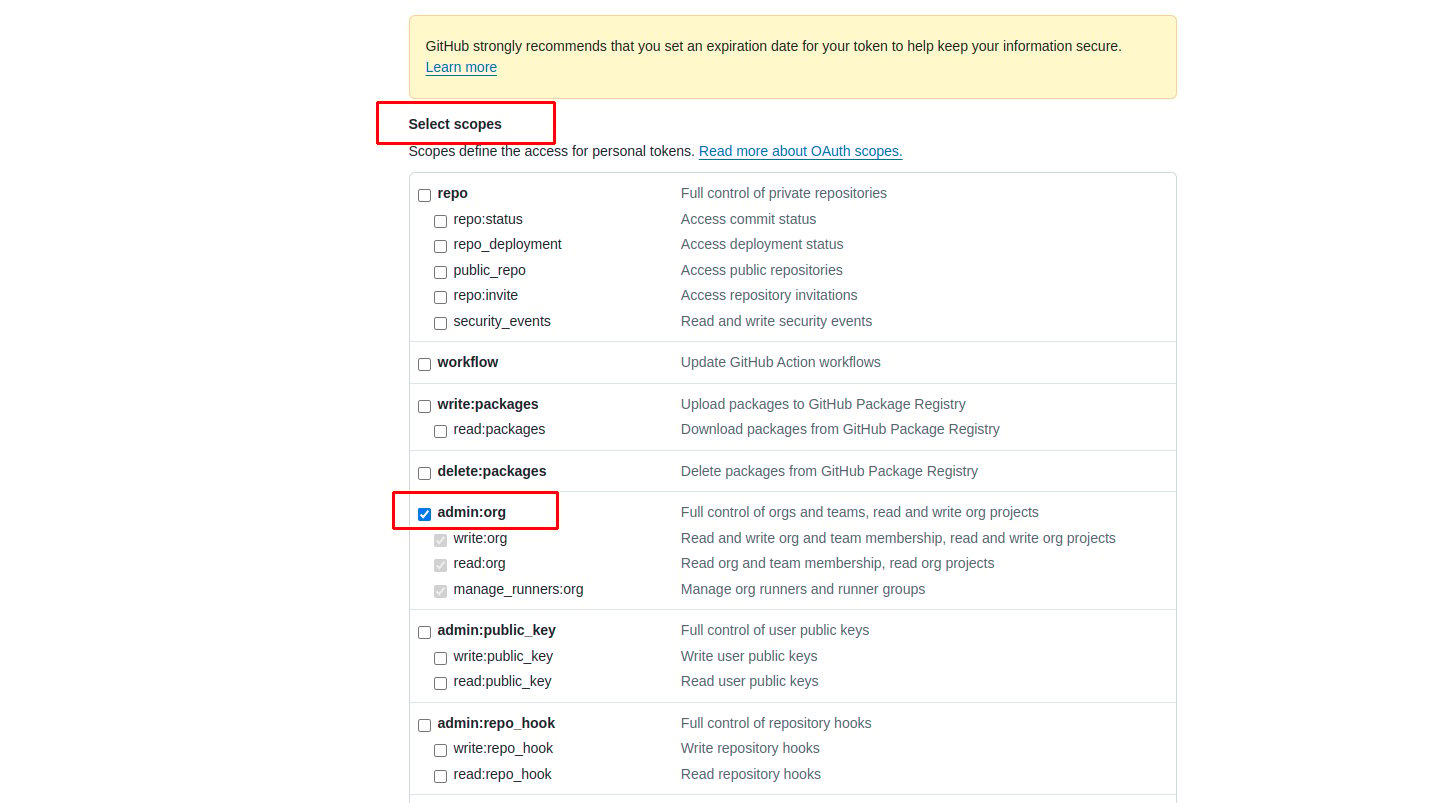
    <ul>
      <li>admin-org</li>
    </ul>

    <Frame>
      <img className="rounded-md" style={{ margin: '0 auto', border: '1px solid #efefef' }} alt="Scopes" src="https://mintcdn.com/stackone-hub-docs-confluence-api-token-update/6QOxZsBfCtSHWqb3/images/github/image8.png?fit=max&auto=format&n=6QOxZsBfCtSHWqb3&q=85&s=969b936dca48701698abf7b505753a32" width="1449" height="803" data-path="images/github/image8.png" />
    </Frame>
  </Step>

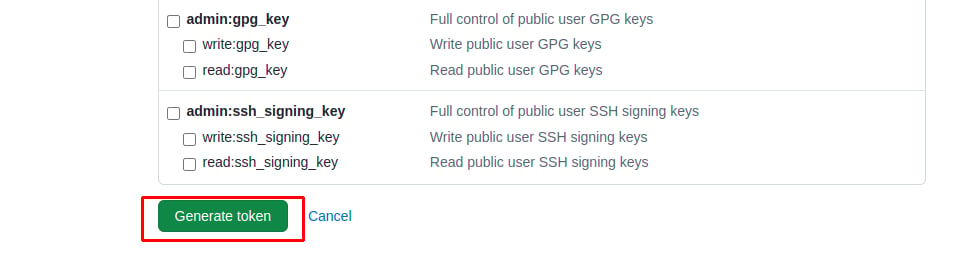
  <Step title="Generate token">
    Scroll down to the bottom and click **Generate token**.
    <Frame>
      <img className="rounded-md" style={{ margin: '0 auto', border: '1px solid #efefef' }} alt="Generate token" src="https://mintcdn.com/stackone-hub-docs-confluence-api-token-update/6QOxZsBfCtSHWqb3/images/github/image9.png?fit=max&auto=format&n=6QOxZsBfCtSHWqb3&q=85&s=696e8902e80d8d7caae16e2ef7c231a0" width="953" height="269" data-path="images/github/image9.png" />
    </Frame>
  </Step>

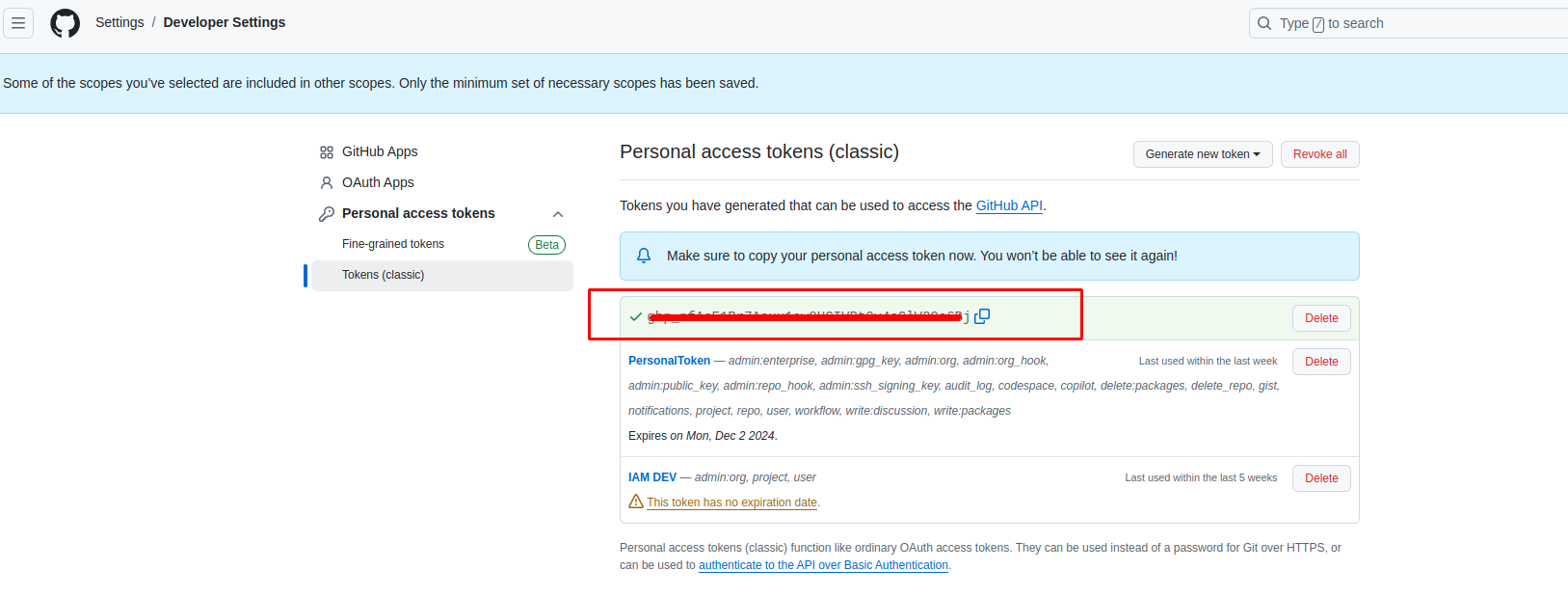
  <Step title="Copy your Personal Access Token">
    Your new **Personal Access Token** will be displayed only once. Copy and store this value securely.
    <Frame>
      <img className="rounded-md" style={{ margin: '0 auto', border: '1px solid #efefef' }} alt="Copy your Personal Access Token" src="https://mintcdn.com/stackone-hub-docs-confluence-api-token-update/6QOxZsBfCtSHWqb3/images/github/image10.png?fit=max&auto=format&n=6QOxZsBfCtSHWqb3&q=85&s=9f3f1228e3cddd02b62304bc764f07f4" width="1627" height="619" data-path="images/github/image10.png" />
    </Frame>
  </Step>
</Steps>

## Find Organization

<Steps>
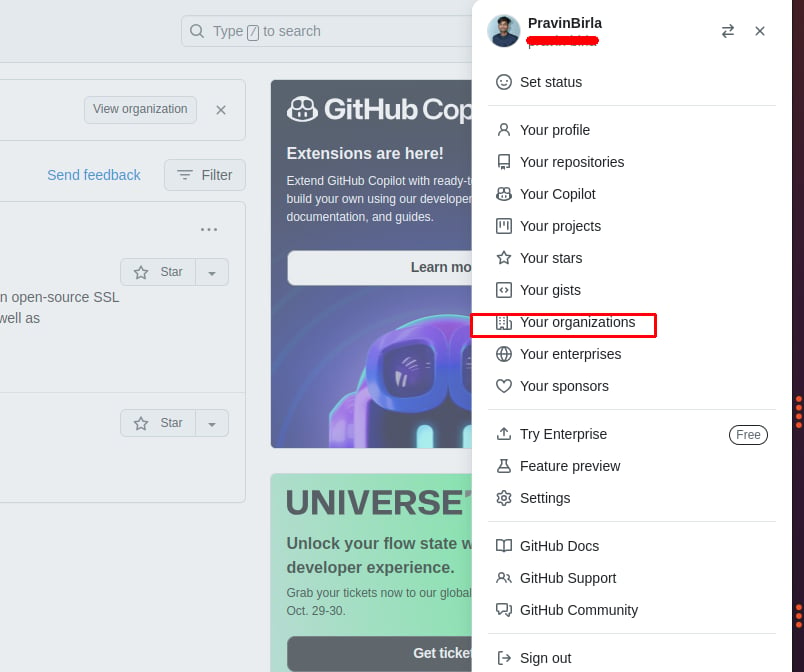
  <Step title="Navigate to Your Profile">
    Select **Your organizations** tab.

    <Frame>
      <img className="rounded-md" style={{ margin: '0 auto', border: '1px solid #efefef' }} alt="Copy your Personal Access Token" src="https://mintcdn.com/stackone-hub-docs-confluence-api-token-update/6QOxZsBfCtSHWqb3/images/github/image11.png?fit=max&auto=format&n=6QOxZsBfCtSHWqb3&q=85&s=2a4845578dcd474c1812a8b2590f9243" width="804" height="672" data-path="images/github/image11.png" />
    </Frame>
  </Step>

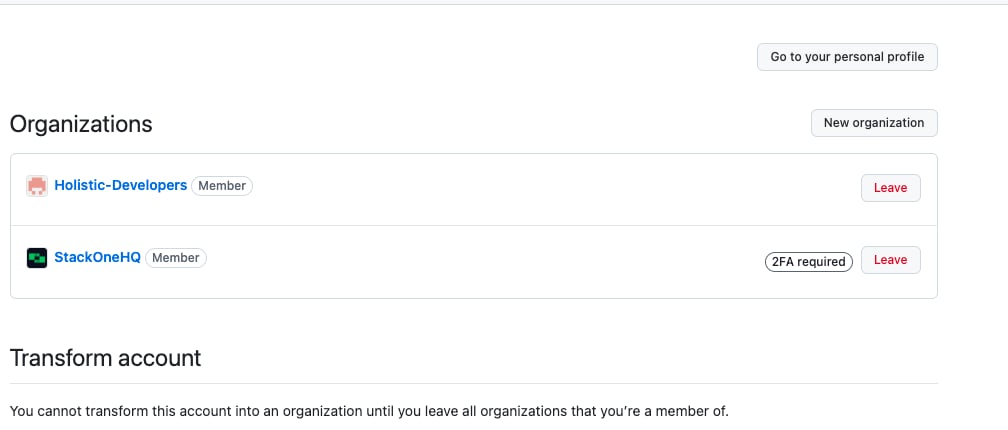
  <Step title="Organization name">
    You can find the list of organizations here. Copy the **Name** of the organization you wish to connect.
    <Frame>
      <img className="rounded-md" style={{ margin: '0 auto', border: '1px solid #efefef' }} alt="Copy your Personal Access Token" src="https://mintcdn.com/stackone-hub-docs-confluence-api-token-update/6QOxZsBfCtSHWqb3/images/github/image13.png?fit=max&auto=format&n=6QOxZsBfCtSHWqb3&q=85&s=427e2dadbe84e1e7d4dfe87bc44b1f6b" width="1008" height="430" data-path="images/github/image13.png" />
    </Frame>
  </Step>
</Steps>

## Connecting with StackOne

<Steps>
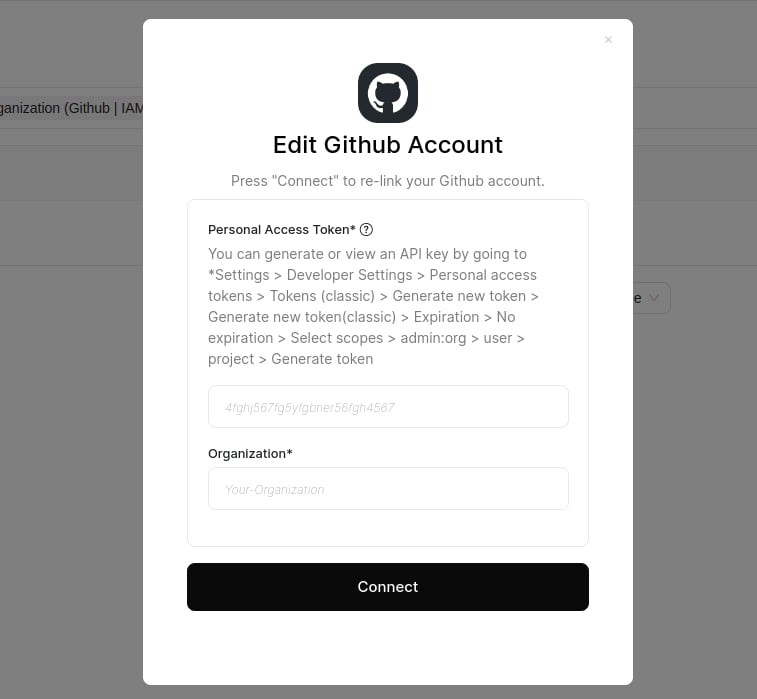
  <Step title="Enter Credentials">
    Upon reaching the Link Account page, enter the credentials from the previous steps:

    * **Personal Access Token**
    * **Organization**

    Proceed by clicking the Connect button.
    <Frame>
      <img className="rounded-md" style={{ margin: '0 auto', border: '1px solid #efefef' }} alt="Enter Credentials" src="https://mintcdn.com/stackone-hub-docs-confluence-api-token-update/6QOxZsBfCtSHWqb3/images/github/image12.png?fit=max&auto=format&n=6QOxZsBfCtSHWqb3&q=85&s=8835aa0b9349e24808eec597687ed800" width="757" height="699" data-path="images/github/image12.png" />
    </Frame>
  </Step>
</Steps>

<br />

Congratulations, you're all set! If you face any issues with the steps mentioned above,
please contact us by emailing [integrations@stackone.com](mailto:integrations@stackone.com). We're always here to assist you!

## Available data

This integration has the following [IAM Resources](https://docs.stackone.com/reference/getting-started-with-your-api) available from the provider:

<ul>
  <li>Users</li>
  <li>Roles</li>
</ul>