> ## Documentation Index
> Fetch the complete documentation index at: https://stackone-hub-docs-confluence-api-token-update.mintlify.site/llms.txt
> Use this file to discover all available pages before exploring further.
# Box
> Follow these steps to connect Box via the StackOne Hub successfully.
Ensure that your Box account has Admin privileges and has **2-Step Verification** enabled in your [Box Account Settings](https://app.box.com/account/developer).
If you've been directed to StackOne to integrate with Box, the following steps will help you understand the process and any necessary actions to configure a successful integration.
## Log in to Box
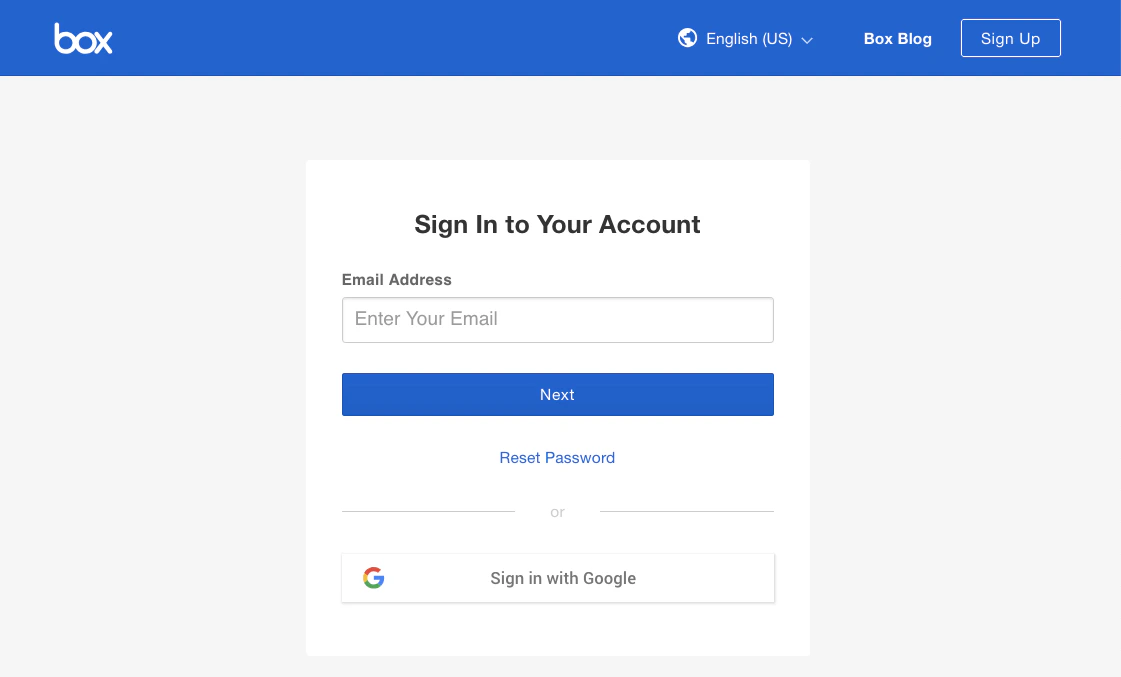
Log in to your [Box account](https://account.box.com/login).
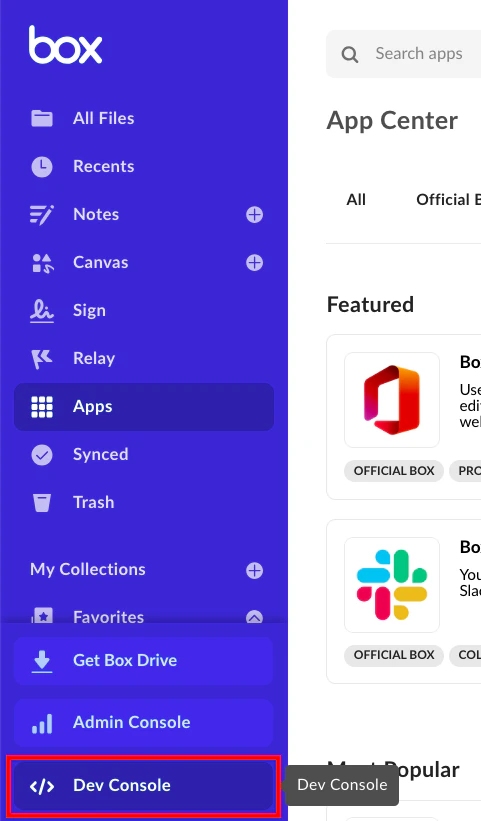
 Click the **Dev Console** button in the bottom-left navigation to go to your [Box Dev Console](https://app.box.com/developers/console).
 ## Create a New OAuth Application
This connection will authenticate on behalf of a registered Application in Box.
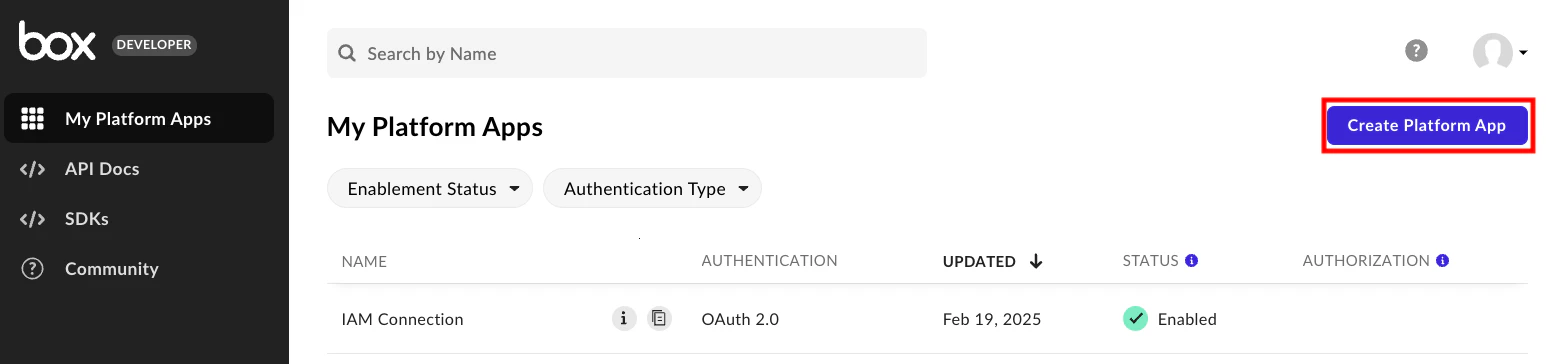
In the *My Platform Apps* page of the Dev Console, click the **Create Platform App** button in the top right.
## Create a New OAuth Application
This connection will authenticate on behalf of a registered Application in Box.
In the *My Platform Apps* page of the Dev Console, click the **Create Platform App** button in the top right.
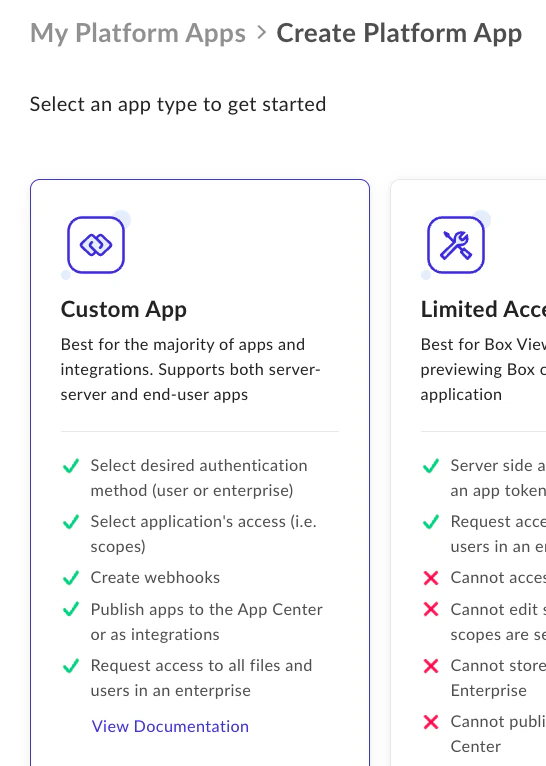
 Under *Create Platform App*, select the **Custom App** option.
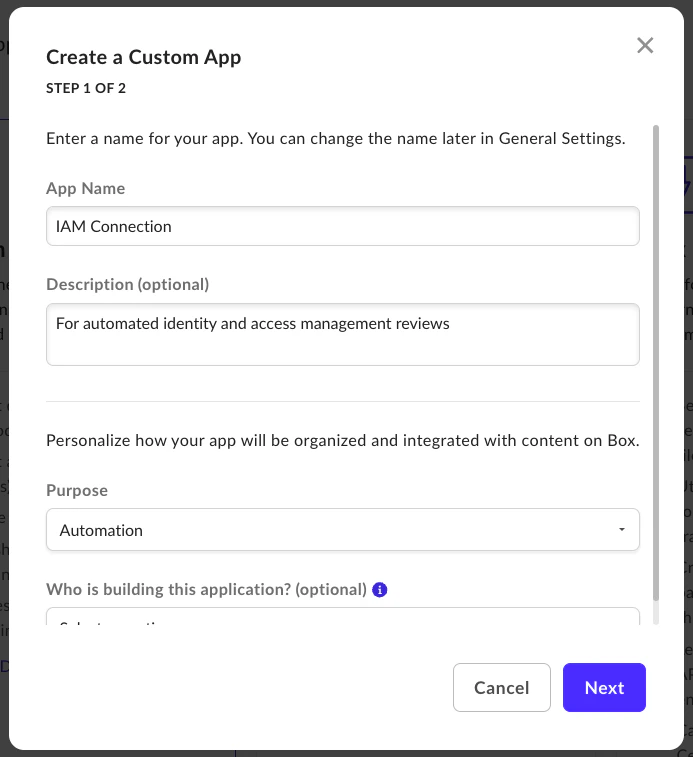
 Under *Create a Custom App: Step 1 of 2*, enter an App Name.
Select **Automation** under *Purpose*, then click the **Next** button to proceed.
Under *Create a Custom App: Step 1 of 2*, enter an App Name.
Select **Automation** under *Purpose*, then click the **Next** button to proceed.
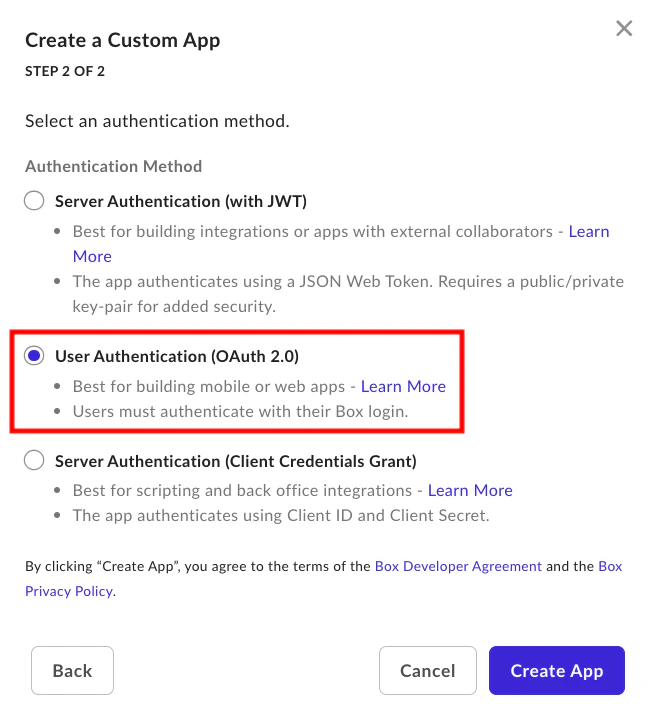
 Under *Create a Custom App: Step 2 of 2*, select **User Authentication (OAuth 2.0)**.
Click the **Create App** button to proceed.
Under *Create a Custom App: Step 2 of 2*, select **User Authentication (OAuth 2.0)**.
Click the **Create App** button to proceed.
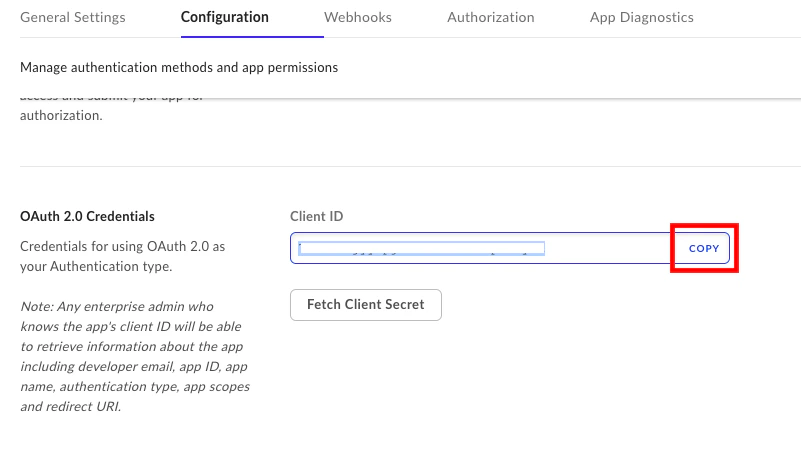
 Your new Application's details will now be displayed.
Scroll down to the **OAuth 2.0 Credentials** section, and copy your **Client ID** and store it safely.
Your new Application's details will now be displayed.
Scroll down to the **OAuth 2.0 Credentials** section, and copy your **Client ID** and store it safely.
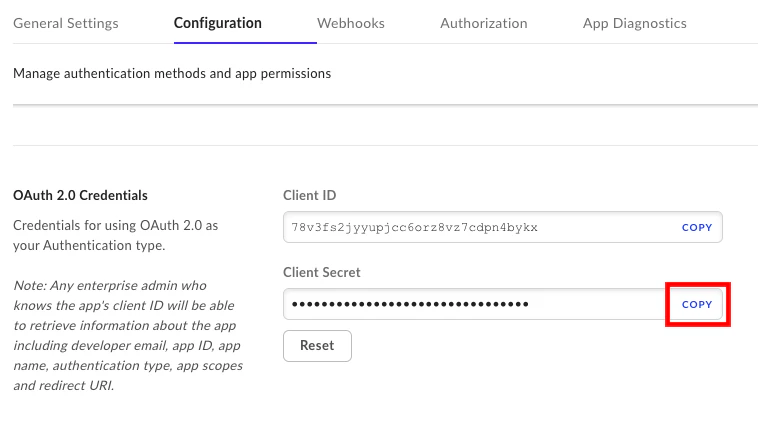
 Click the **Fetch Client Secret** button. This may prompt you for your 2-Step Verification code.
Your **Client Secret** will now be displayed. Copy this and store it safely to be used in the next steps.
Click the **Fetch Client Secret** button. This may prompt you for your 2-Step Verification code.
Your **Client Secret** will now be displayed. Copy this and store it safely to be used in the next steps.
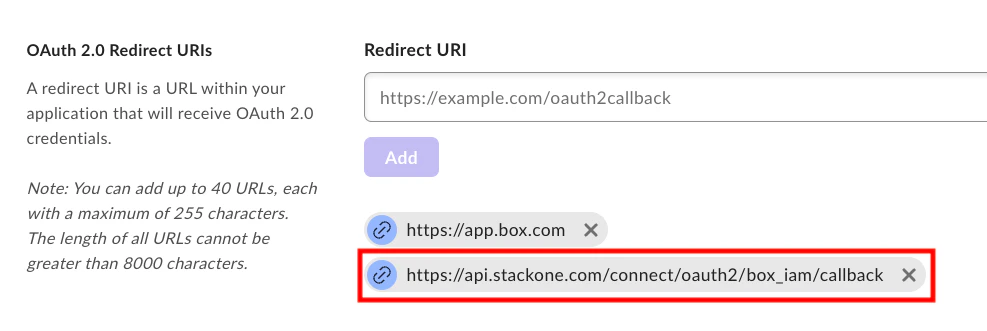
 Scroll down to the *Oauth 2.0 Redirect URIs* section.
Enter the following Redirect URI: `https://api.stackone.com/connect/oauth2/box_iam/callback`
Then click the **Add** button.
Scroll down to the *Oauth 2.0 Redirect URIs* section.
Enter the following Redirect URI: `https://api.stackone.com/connect/oauth2/box_iam/callback`
Then click the **Add** button.
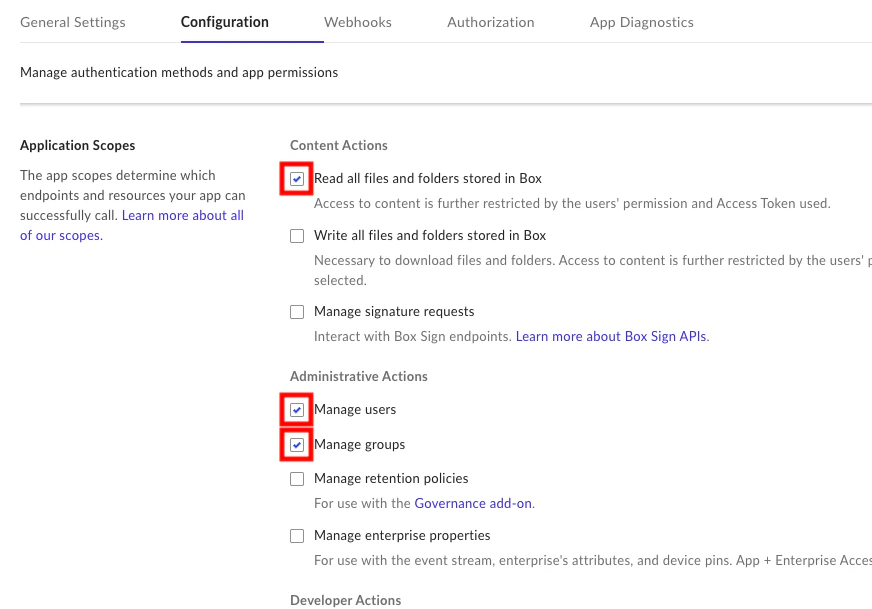
 Scroll down to the *Application Scopes* section.
Select the following scopes:
* Read all files and folders stored in Box
* Manage users
* Manage groups
Scroll down to the *Application Scopes* section.
Select the following scopes:
* Read all files and folders stored in Box
* Manage users
* Manage groups
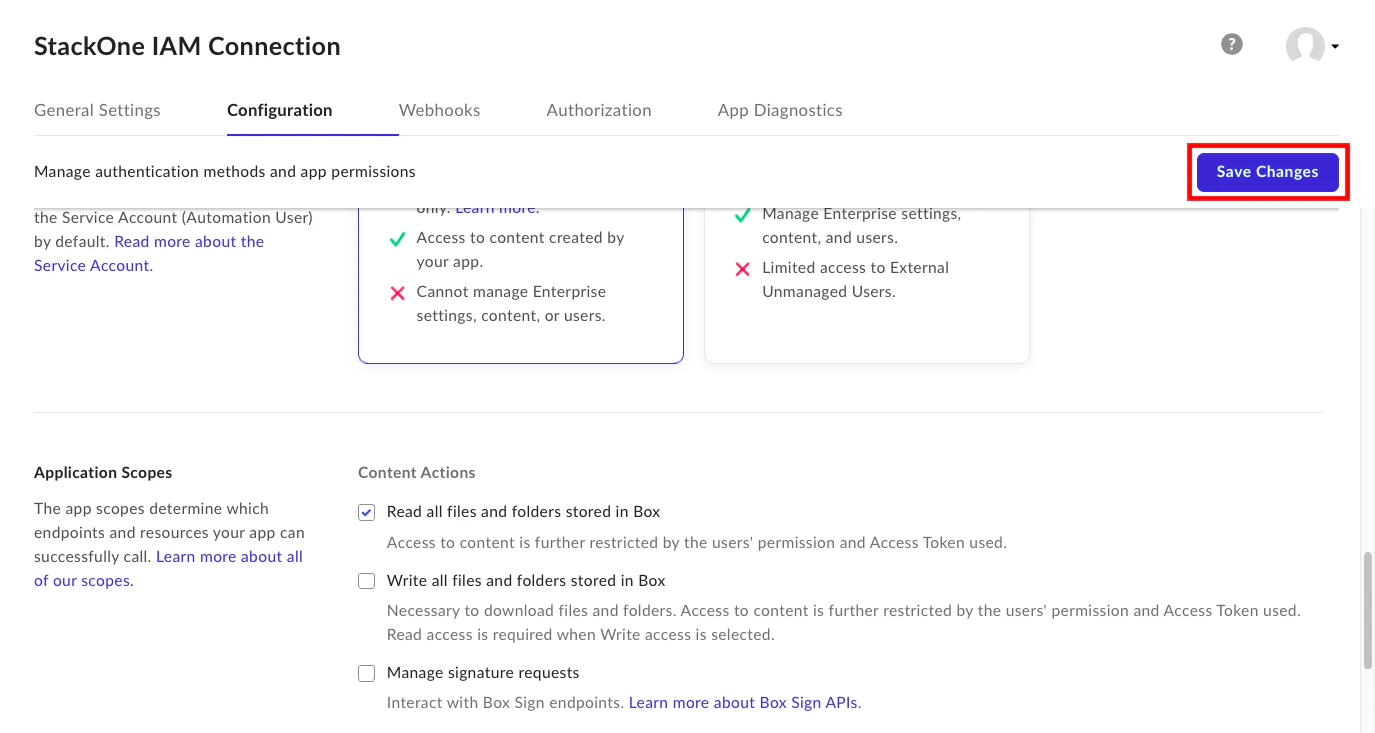
 When complete with the previous steps, click the **Save Changes** button in the top right.
 ## Connecting with StackOne
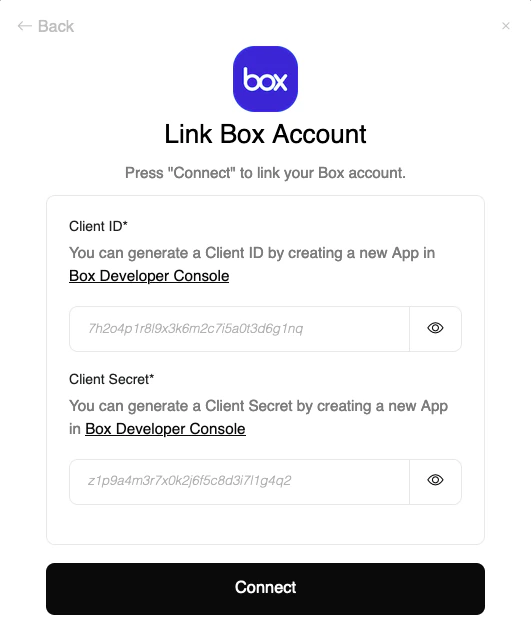
Upon reaching the Link Account page, enter your **Client ID** and **Client Secret** from the previous steps.
Proceed by clicking the Connect button.
## Connecting with StackOne
Upon reaching the Link Account page, enter your **Client ID** and **Client Secret** from the previous steps.
Proceed by clicking the Connect button.
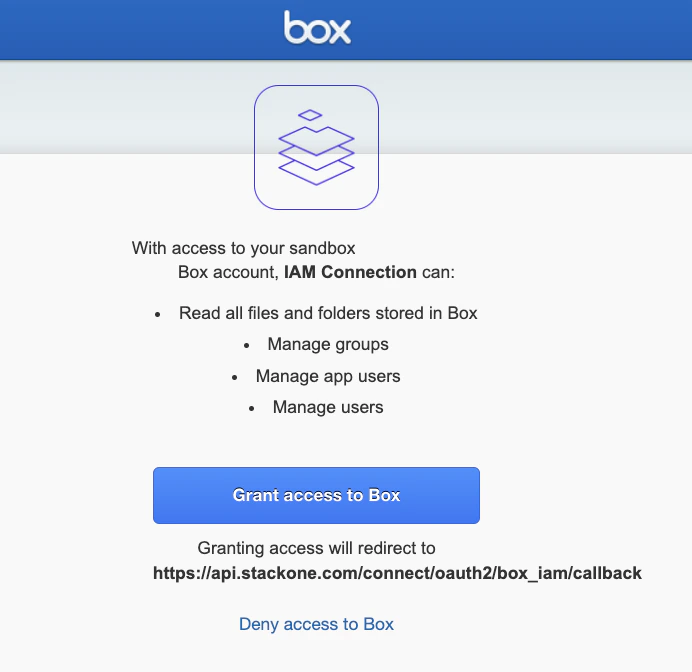
 A new window will open, prompting you to log in to your Box account if you are not already logged in.
A summary of the App you created will be displayed with its requested permissions.
Click the **Grant access to Box** button to proceed.
A new window will open, prompting you to log in to your Box account if you are not already logged in.
A summary of the App you created will be displayed with its requested permissions.
Click the **Grant access to Box** button to proceed.
Congratulations, you're all set! If you face any issues with the steps mentioned above,
please contact us by emailing [integrations@stackone.com](mailto:integrations@stackone.com). We're always here to assist you!
## Available data
This integration has the following [IAM Resources](https://docs.stackone.com/reference/getting-started-with-your-api) available from the provider: