> ## Documentation Index
> Fetch the complete documentation index at: https://stackone-hub-docs-confluence-api-token-update.mintlify.site/llms.txt
> Use this file to discover all available pages before exploring further.
# UKG Pro
> Follow these steps to connect UKG Pro with StackOne Hub successfully.
Ensure you have Admin privileges for your UKG Pro account.
If you've been directed to StackOne to integrate with UKG Pro, the following steps will help you understand the process and any necessary actions to configure successful integration.
This guidance assumes you have Admin privileges for your UKG Pro account.
## Getting your UKG Company Domain and Subdomain
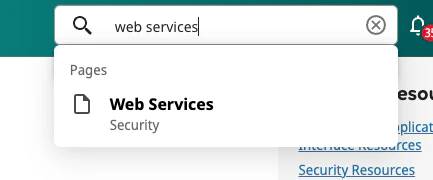
Login to your UKG Pro account and search for Web Services in the search bar at the top right.
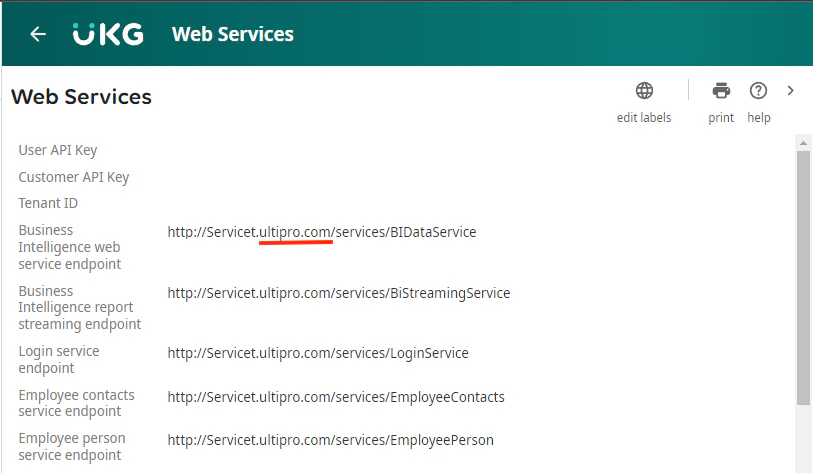
 Copy the domain from any Web Services URL. For example, if your URL is `http://Servicet.ultipro.com/services/BIDataService`, copy `ultipro.com`.
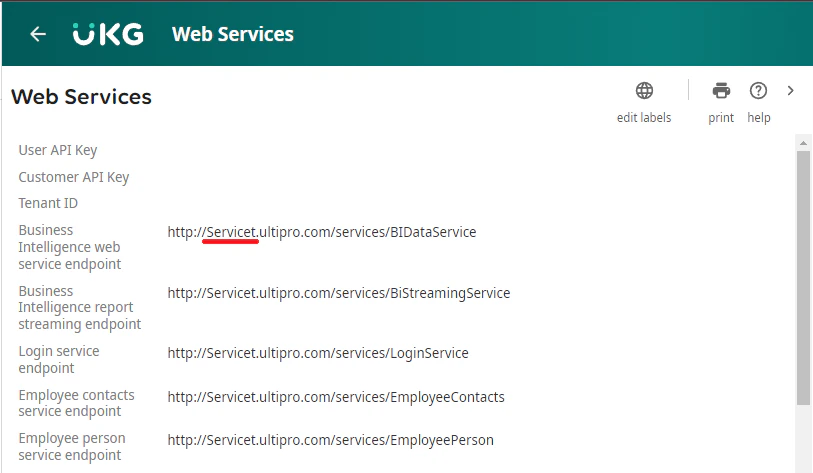
 Copy the subdomain from any Web Services URL. For example, if your URL is `http://Servicet.ultipro.com/services/BIDataService`, copy `Servicet`.
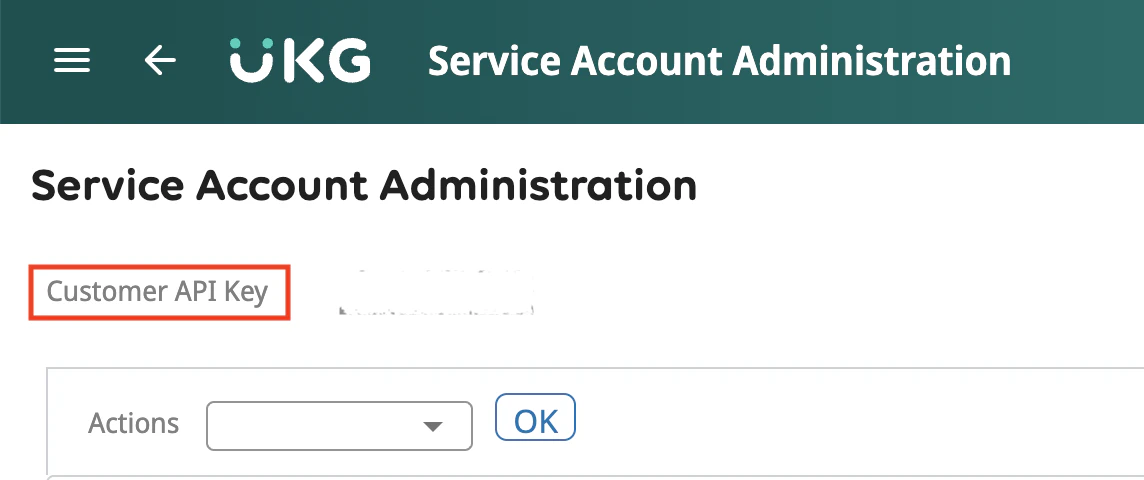
 ## Retrieving your UKG Pro Customer API key
Search for Service Account Administration in the search bar.
## Retrieving your UKG Pro Customer API key
Search for Service Account Administration in the search bar.
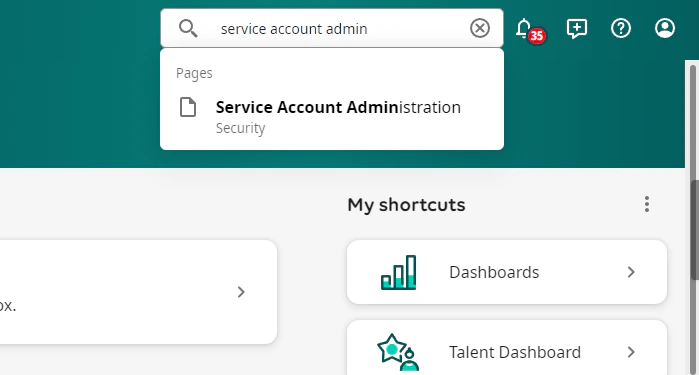 Copy the Customer API Key located under the header.
 ## Creating a Service Account
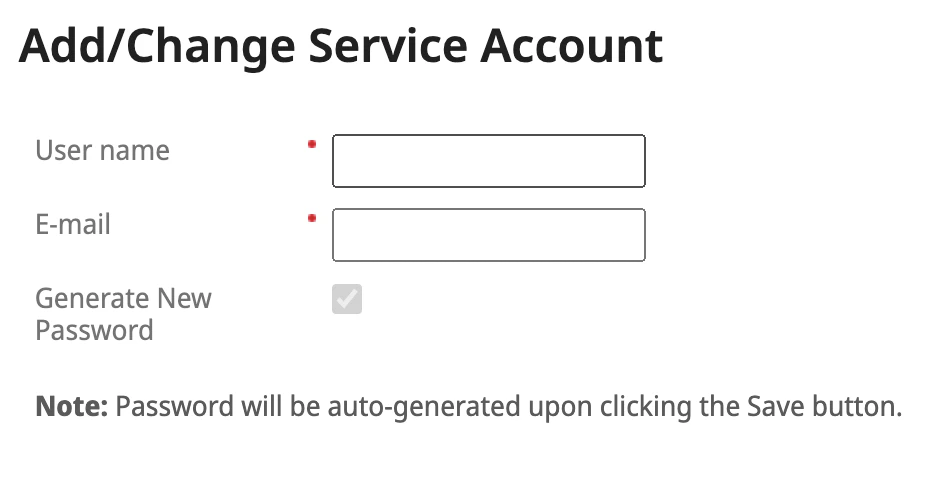
On the UKG Pro Service Account Administration page, click ➕ add in the upper right corner.
## Creating a Service Account
On the UKG Pro Service Account Administration page, click ➕ add in the upper right corner.
 Enter your admin's username and email address.
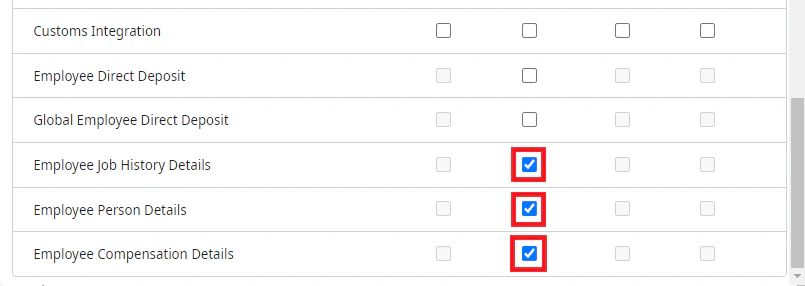
 Scroll down to the Web Service table below and select the following permissions required for the full set of operations supported by this integration:
| Web Service | Add | View | Edit |
| --------------------------------- | --- | ---- | ---- |
| Employee Person | | ✓ | ✓ |
| Employee Address | | ✓ | ✓ |
| Employee Contacts | ✓ | ✓ | ✓ |
| Employee Job | | ✓ | ✓ |
| Employee Compensation | | ✓ | ✓ |
| Employee Pay Statement | | ✓ | |
| Employee User Defined Fields | | ✓ | ✓ |
| Employee Employment Information | | ✓ | ✓ |
| Employee Phone Information | | ✓ | ✓ |
| Employee Termination | | ✓ | |
| Employee Process Hire | | ✓ | |
| Employee Self Service API | | ✓ | |
| Company Configuration Integration | | ✓ | ✓ |
| Personnel Integration | | ✓ | ✓ |
| Employee Job History Details | | ✓ | |
| Employee Person Details | | ✓ | |
| Employee Compensation Details | | ✓ | |
Scroll down to the Web Service table below and select the following permissions required for the full set of operations supported by this integration:
| Web Service | Add | View | Edit |
| --------------------------------- | --- | ---- | ---- |
| Employee Person | | ✓ | ✓ |
| Employee Address | | ✓ | ✓ |
| Employee Contacts | ✓ | ✓ | ✓ |
| Employee Job | | ✓ | ✓ |
| Employee Compensation | | ✓ | ✓ |
| Employee Pay Statement | | ✓ | |
| Employee User Defined Fields | | ✓ | ✓ |
| Employee Employment Information | | ✓ | ✓ |
| Employee Phone Information | | ✓ | ✓ |
| Employee Termination | | ✓ | |
| Employee Process Hire | | ✓ | |
| Employee Self Service API | | ✓ | |
| Company Configuration Integration | | ✓ | ✓ |
| Personnel Integration | | ✓ | ✓ |
| Employee Job History Details | | ✓ | |
| Employee Person Details | | ✓ | |
| Employee Compensation Details | | ✓ | |
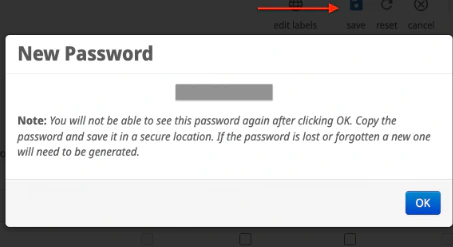
 Click Save to generate a new password. Save this password in a secure location.
 Make a note of the service account credentials:
* Service Account Username
* Service Account Password
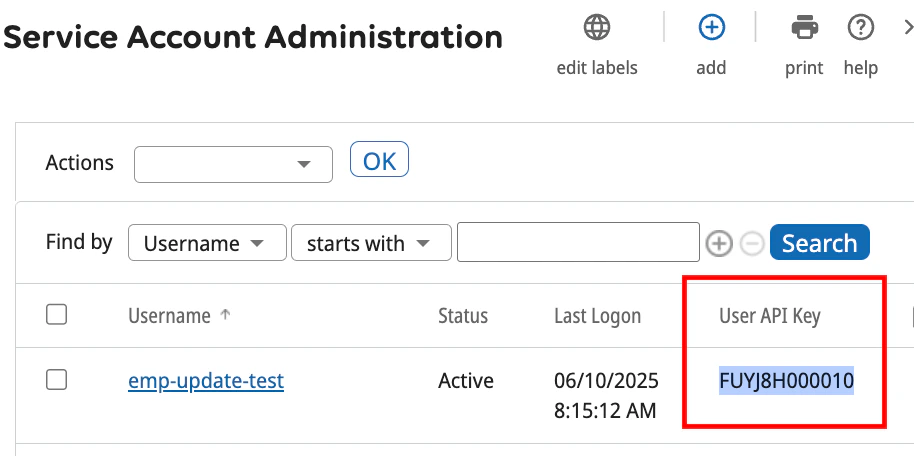
* Service Account User API Key (shown below on the *Service Account Administration* page)
Make a note of the service account credentials:
* Service Account Username
* Service Account Password
* Service Account User API Key (shown below on the *Service Account Administration* page)
 ## Connecting to StackOne
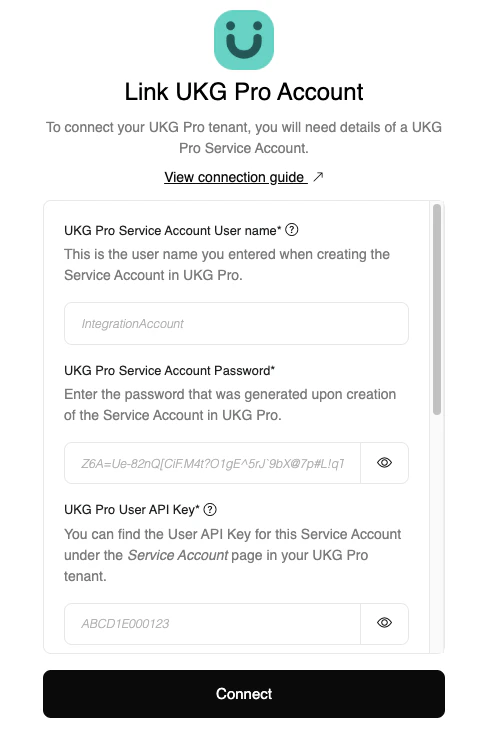
Enter the following credentials received from the previous steps:
* Service Account Username (from Step 3)
* Service Account Password (from Step 3)
* User API Key (from Step 3)
* Customer API Key (from Step 2)
* Web Service Domain (from Step 1)
* Web Service Subdomain (from Step 1)
## Connecting to StackOne
Enter the following credentials received from the previous steps:
* Service Account Username (from Step 3)
* Service Account Password (from Step 3)
* User API Key (from Step 3)
* Customer API Key (from Step 2)
* Web Service Domain (from Step 1)
* Web Service Subdomain (from Step 1)
Congratulations, you're all set! If you face any issues with the steps mentioned above,
please contact us by emailing [integrations@stackone.com](mailto:integrations@stackone.com). We're always here to assist you!
## Useful Links
[https://library.ukg.com/ukg-pro](https://library.ukg.com/ukg-pro)