> ## Documentation Index
> Fetch the complete documentation index at: https://stackone-hub-docs-confluence-api-token-update.mintlify.site/llms.txt
> Use this file to discover all available pages before exploring further.

# Notion

> Follow these steps to connect Notion via the StackOne Hub successfully.

<Warning>
  Ensure that your Notion account has Workspace Owner privileges.
</Warning>

If you've been directed to StackOne to integrate with Notion, the following steps will help you understand the process and any necessary actions to configure a successful integration.

## Log in to Notion

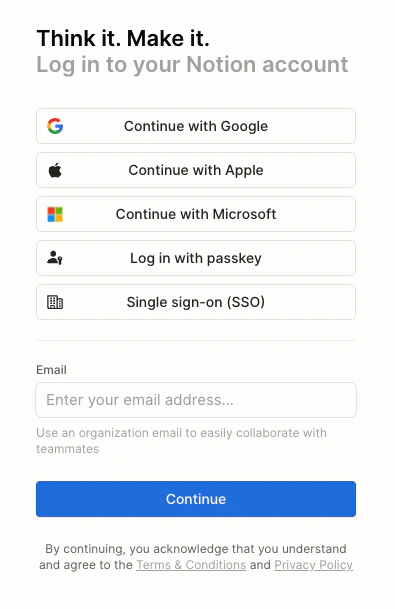
Log in to your Notion account.
<Frame>
  <img className="rounded-md" style={{ margin: '0 auto', border: '1px solid #efefef' }} alt="Log in to Notion" src="https://mintcdn.com/stackone-hub-docs-confluence-api-token-update/MGnlGQ2FDcYjia7O/images/notion/image2.png?fit=max&auto=format&n=MGnlGQ2FDcYjia7O&q=85&s=8de376747e0eb2e3577c3b7a8f035428" width="395" height="609" data-path="images/notion/image2.png" />
</Frame>

## Create your Notion API Key

<Steps>
  <Step title="Navigate to Workspace Settings">
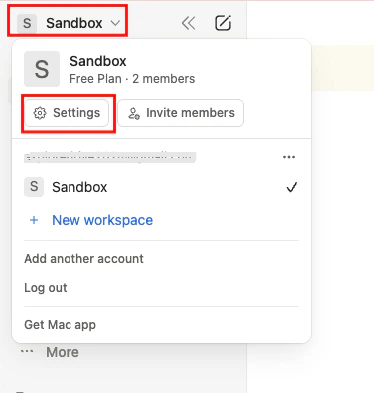
    Select your workspace and then click the `Settings` button.
    <Frame>
      <img className="rounded-md" style={{ margin: '0 auto', border: '1px solid #efefef' }} alt="Navigate to Workspace Settings" src="https://mintcdn.com/stackone-hub-docs-confluence-api-token-update/MGnlGQ2FDcYjia7O/images/notion/image3.png?fit=max&auto=format&n=MGnlGQ2FDcYjia7O&q=85&s=979ec25e40daac606ce76623ad161b31" width="374" height="393" data-path="images/notion/image3.png" />
    </Frame>
  </Step>

  <Step title="Navigate to Manage Integration">
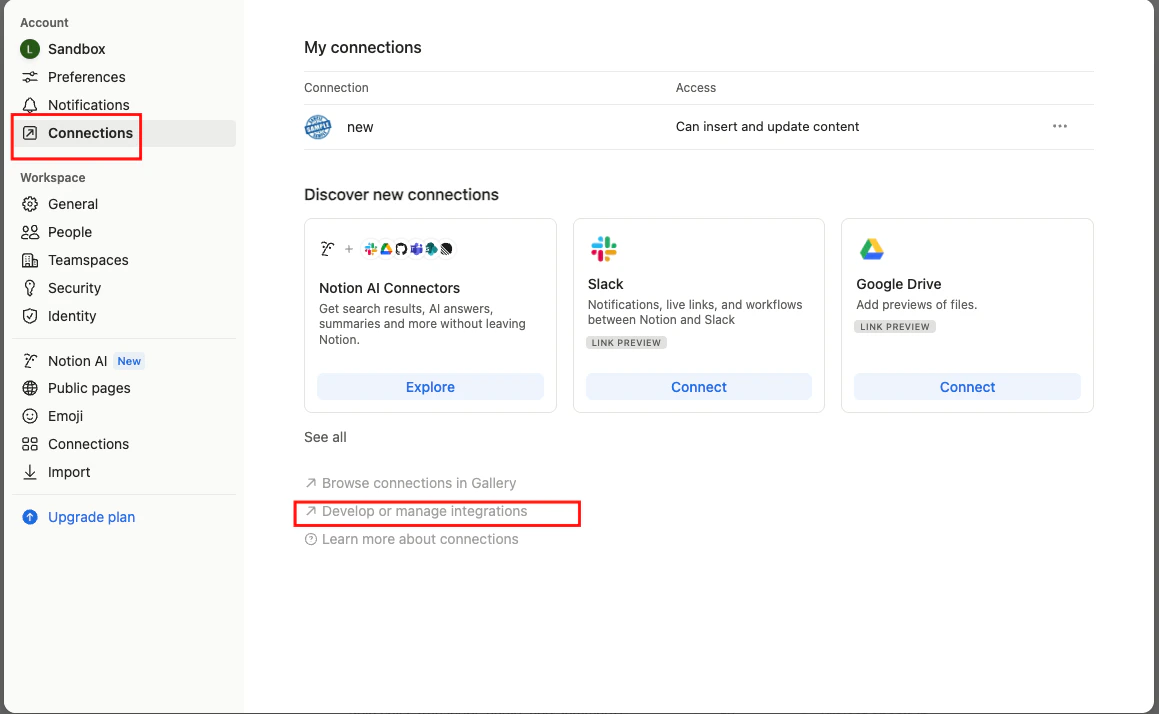
    In the pop-up, select `Account > Connections` and click the `Develop or manage integrations` button to open the [Manage Integration Page](https://www.notion.so/profile/integrations).
    <Frame>
      <img className="rounded-md" style={{ margin: '0 auto', border: '1px solid #efefef' }} alt="Navigate to Manage Integration" src="https://mintcdn.com/stackone-hub-docs-confluence-api-token-update/MGnlGQ2FDcYjia7O/images/notion/image4.png?fit=max&auto=format&n=MGnlGQ2FDcYjia7O&q=85&s=b3ccbc16dcc50bb955e6d58da4a75b02" width="1159" height="714" data-path="images/notion/image4.png" />
    </Frame>
  </Step>

  <Step title="Create a new API Key">
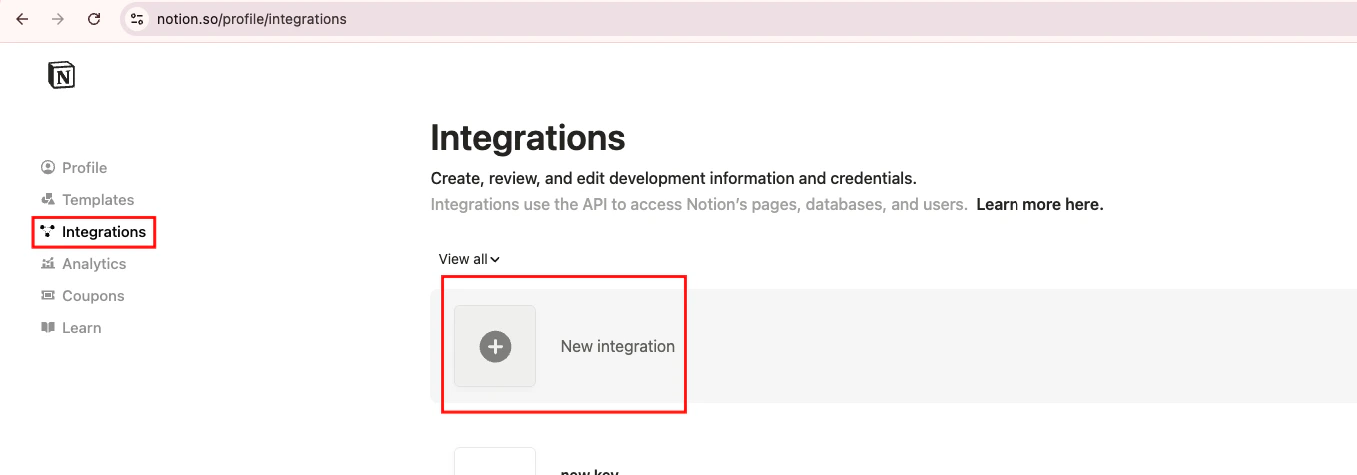
    Click the `New integration` button under the `Integrations` menu to create a new API Key integration.
    <Frame>
      <img className="rounded-md" style={{ margin: '0 auto', border: '1px solid #efefef' }} alt="Create a new API Key" src="https://mintcdn.com/stackone-hub-docs-confluence-api-token-update/MGnlGQ2FDcYjia7O/images/notion/image5.png?fit=max&auto=format&n=MGnlGQ2FDcYjia7O&q=85&s=8cd30526c5586b914696d1369cd445b0" width="1357" height="475" data-path="images/notion/image5.png" />
    </Frame>
  </Step>

  <Step title="Enter API Key Details">
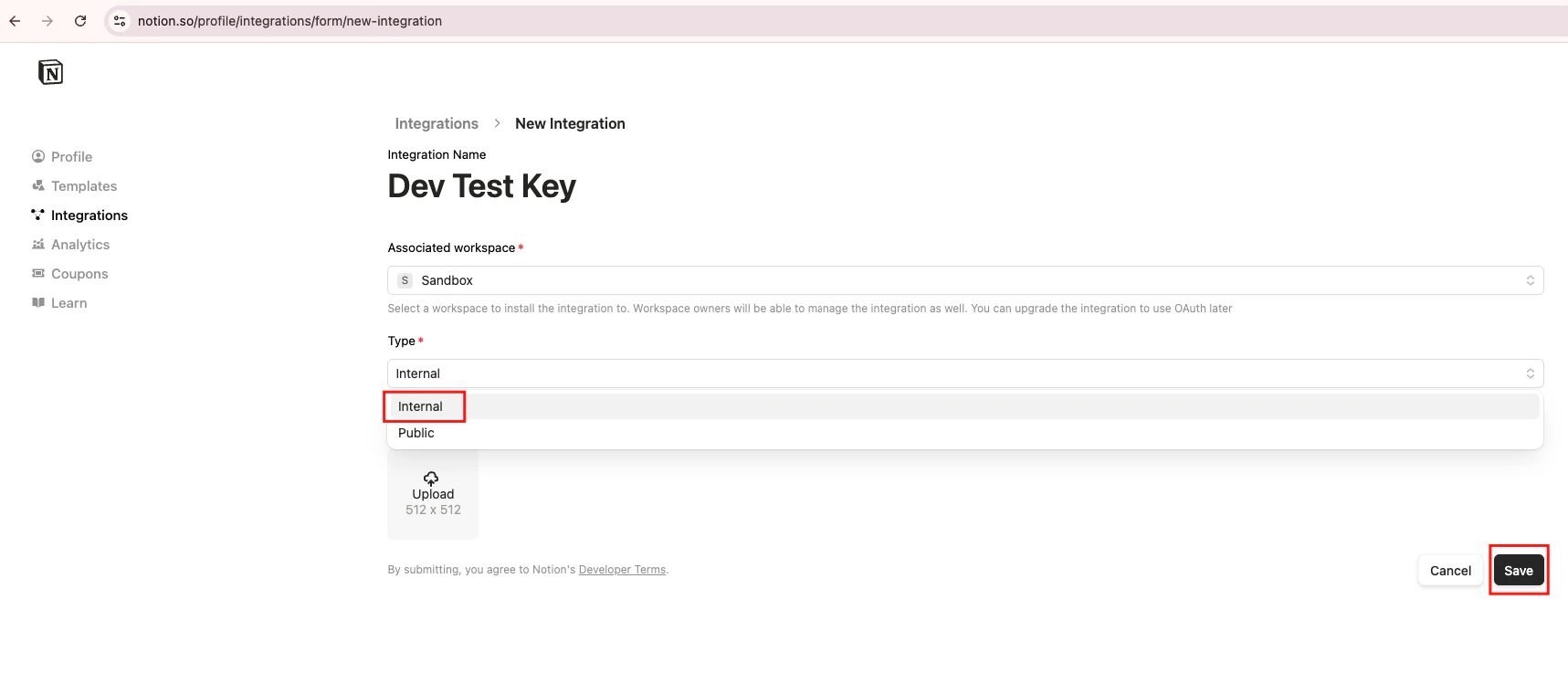
    Enter the API Key name, select the workspace, choose <b>Type</b> as `Internal` from the dropdown, and click the `Save` button.
    <Frame>
      <img className="rounded-md" style={{ margin: '0 auto', border: '1px solid #efefef' }} alt="Enter API Key Details" src="https://mintcdn.com/stackone-hub-docs-confluence-api-token-update/MGnlGQ2FDcYjia7O/images/notion/image6.png?fit=max&auto=format&n=MGnlGQ2FDcYjia7O&q=85&s=03eac45d25ce1bee1594d702fdde0d83" width="1717" height="760" data-path="images/notion/image6.png" />
    </Frame>
  </Step>

  <Step title="Navigate to Configure API Integration Settings">
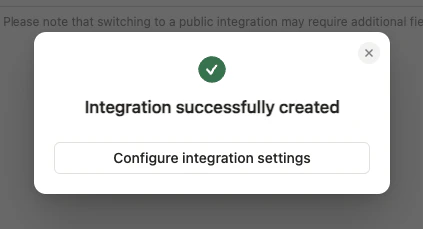
    Click the `Configure integration settings` button.
    <Frame>
      <img className="rounded-md" style={{ margin: '0 auto', border: '1px solid #efefef' }} alt="Navigate to Configure API Key Integration Settings" src="https://mintcdn.com/stackone-hub-docs-confluence-api-token-update/MGnlGQ2FDcYjia7O/images/notion/image7.png?fit=max&auto=format&n=MGnlGQ2FDcYjia7O&q=85&s=6c00e8569b2719ca5de69a8882734402" width="423" height="229" data-path="images/notion/image7.png" />
    </Frame>
  </Step>

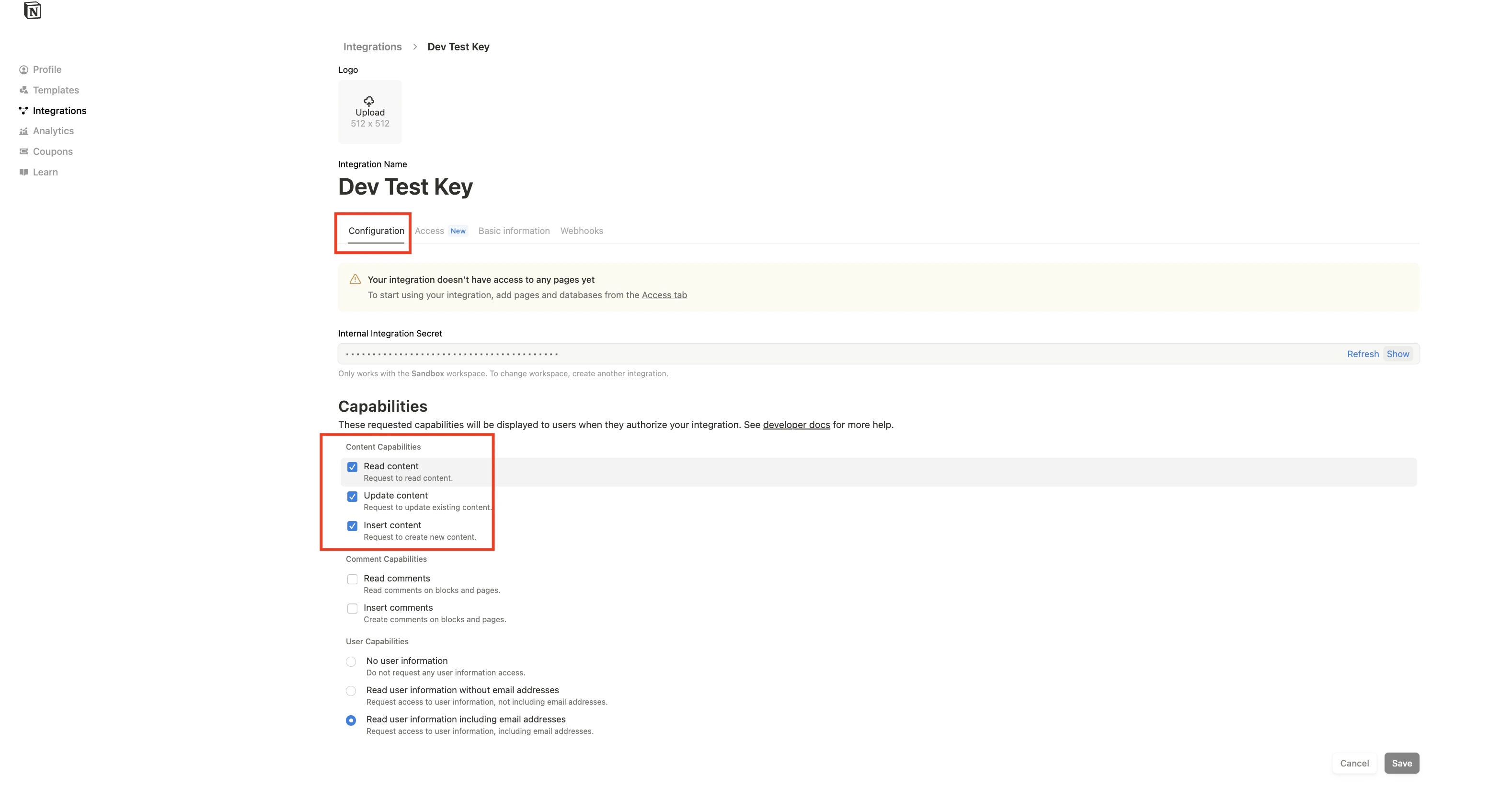
  <Step title="Configure API Integration Settings">
    Make sure you have checked the following permissions under the `Configuration > Capabilities > Content Capabilities` section:

    <ol type="a">
      <li>Read content</li>
      <li>Update content</li>
      <li>Insert content</li>
    </ol>

    <Frame>
      <img className="rounded-md" style={{ margin: '0 auto', border: '1px solid #efefef' }} alt="Check mark required permissions" src="https://mintcdn.com/stackone-hub-docs-confluence-api-token-update/MGnlGQ2FDcYjia7O/images/notion/image8.png?fit=max&auto=format&n=MGnlGQ2FDcYjia7O&q=85&s=54774cce2a43b3ef8af2b151b263d3a5" width="3156" height="1646" data-path="images/notion/image8.png" />
    </Frame>
  </Step>

  <Step title="Copy the API Secret">
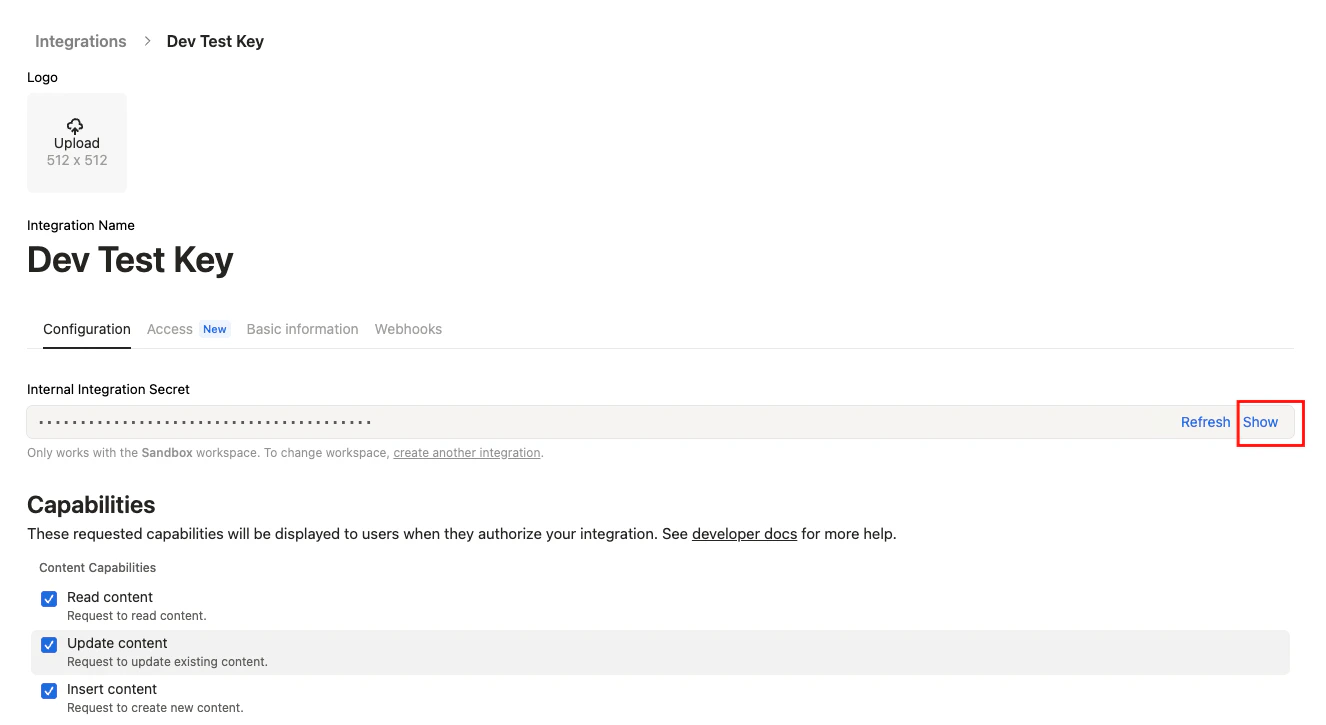
    Click the `Show` button and copy the API Secret to a safe place.
    <Frame>
      <img className="rounded-md" style={{ margin: '0 auto', border: '1px solid #efefef' }} alt="Copy your API Secret" src="https://mintcdn.com/stackone-hub-docs-confluence-api-token-update/MGnlGQ2FDcYjia7O/images/notion/image9.png?fit=max&auto=format&n=MGnlGQ2FDcYjia7O&q=85&s=52ccc2e41d24972a462e5e9c11fb4fd9" width="1326" height="725" data-path="images/notion/image9.png" />
    </Frame>
  </Step>

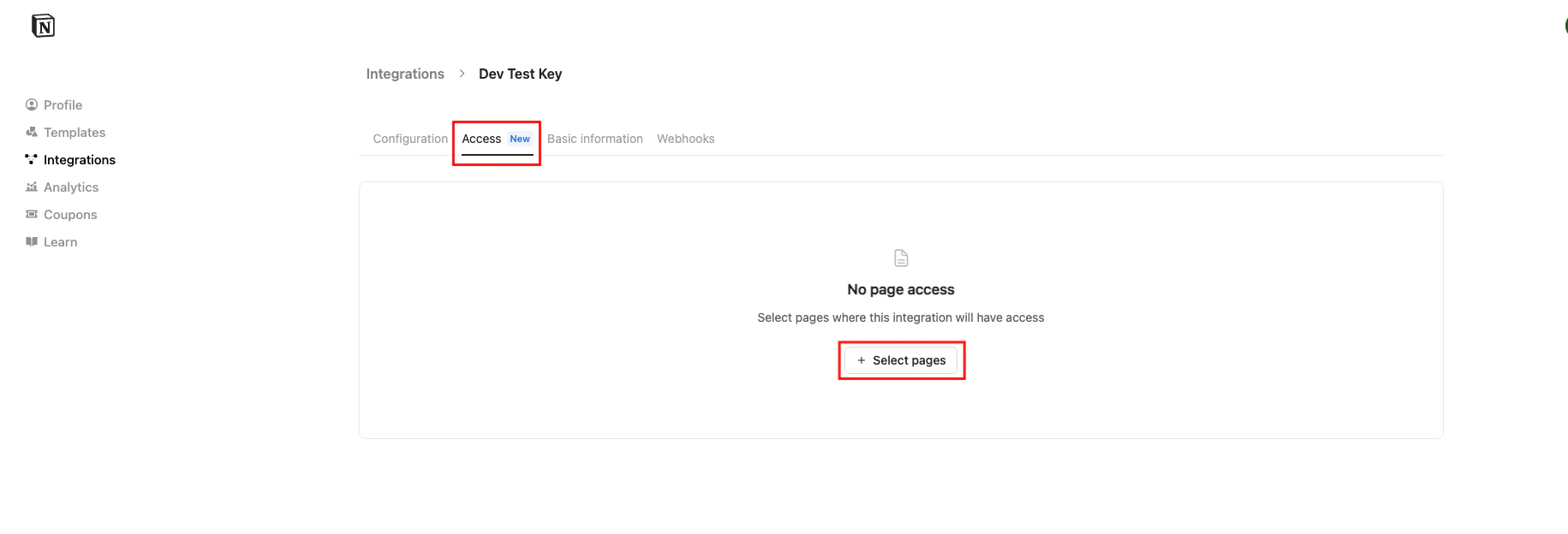
  <Step title="Navigate to Access Page">
    Go to the `Access` menu and click the `Select pages` button.
    <Frame>
      <img className="rounded-md" style={{ margin: '0 auto', border: '1px solid #efefef' }} alt="Navigate to Select Pages" src="https://mintcdn.com/stackone-hub-docs-confluence-api-token-update/MGnlGQ2FDcYjia7O/images/notion/image10.png?fit=max&auto=format&n=MGnlGQ2FDcYjia7O&q=85&s=f8fabf263e2ec9387b562f0f9bd29c6b" width="1831" height="624" data-path="images/notion/image10.png" />
    </Frame>
  </Step>

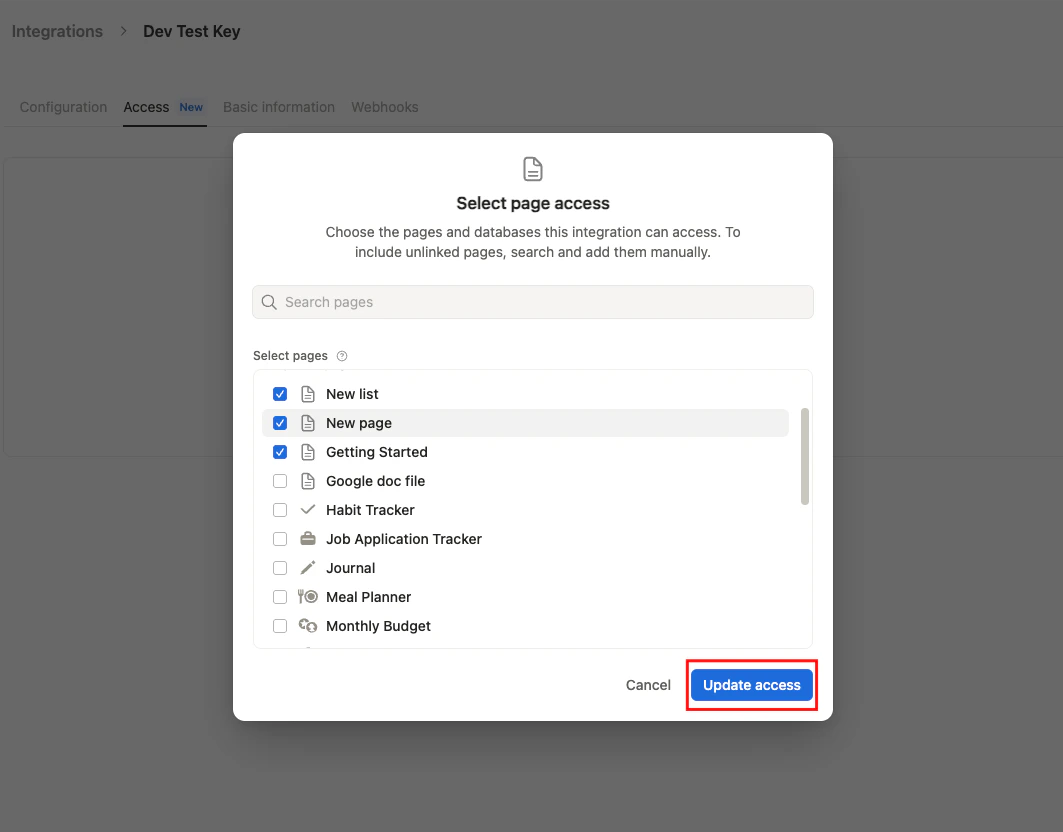
  <Step title="Select pages to access">
    Select all the pages you want to access via this API Secret and click the `Update access` button.
    <Frame>
      <img className="rounded-md" style={{ margin: '0 auto', border: '1px solid #efefef' }} alt="Select pages" src="https://mintcdn.com/stackone-hub-docs-confluence-api-token-update/MGnlGQ2FDcYjia7O/images/notion/image11.png?fit=max&auto=format&n=MGnlGQ2FDcYjia7O&q=85&s=4160bdab91059c3ddc4585fa5ce9391c" width="1063" height="832" data-path="images/notion/image11.png" />
    </Frame>
  </Step>
</Steps>

## Find your Version

You can find your Version at [https://developers.notion.com/reference/versioning](https://developers.notion.com/reference/versioning)

## Linking your Account

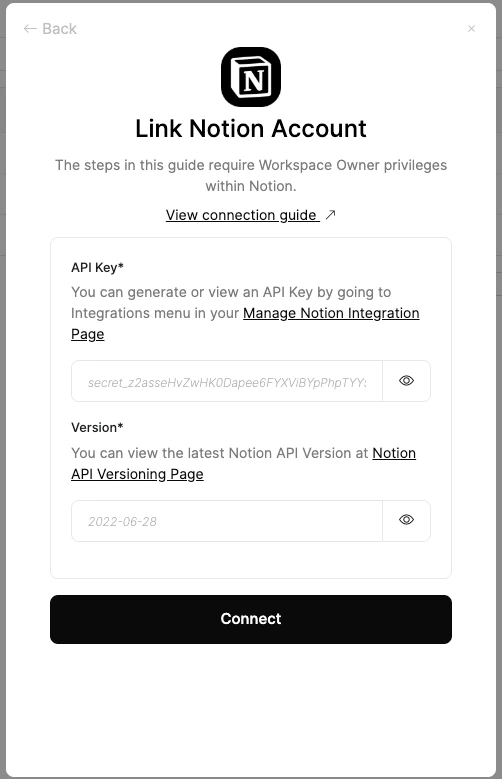
When you reach the Link Account page, select the Notion integration from the hub and enter the credentials from the previous steps:

* **API Key**
* **Version**

Proceed by clicking the Connect button.
<Frame>
  <img className="rounded-md" style={{ margin: '0 auto', border: '1px solid #efefef' }} alt="Enter Credentials" src="https://mintcdn.com/stackone-hub-docs-confluence-api-token-update/MGnlGQ2FDcYjia7O/images/notion/image12.png?fit=max&auto=format&n=MGnlGQ2FDcYjia7O&q=85&s=de7d5ce5b9e81978b00fb4f1836cd4e3" width="502" height="779" data-path="images/notion/image12.png" />
</Frame>

<br />

Congratulations, you're all set! If you face any issues with the steps mentioned above,
please contact us by emailing [integrations@stackone.com](mailto:integrations@stackone.com). We're always here to assist you!

## Available data

This integration has the following [DOCUMENTS Resources](https://docs.stackone.com/reference/getting-started-with-your-api) available from the provider:

<ul>
  <li>Drives</li>
  <li>Files</li>
  <li>Folders</li>
</ul>