> ## Documentation Index
> Fetch the complete documentation index at: https://stackone-hub-docs-confluence-api-token-update.mintlify.site/llms.txt
> Use this file to discover all available pages before exploring further.
# Greenhouse
> If you have been directed to StackOne to integrate with Greenhouse, the following steps will help you understand the process and any necessary actions to configure successful integration.
This guidance assumes you have Admin privileges for your Greenhouse account.
## Generating Harvest API Key
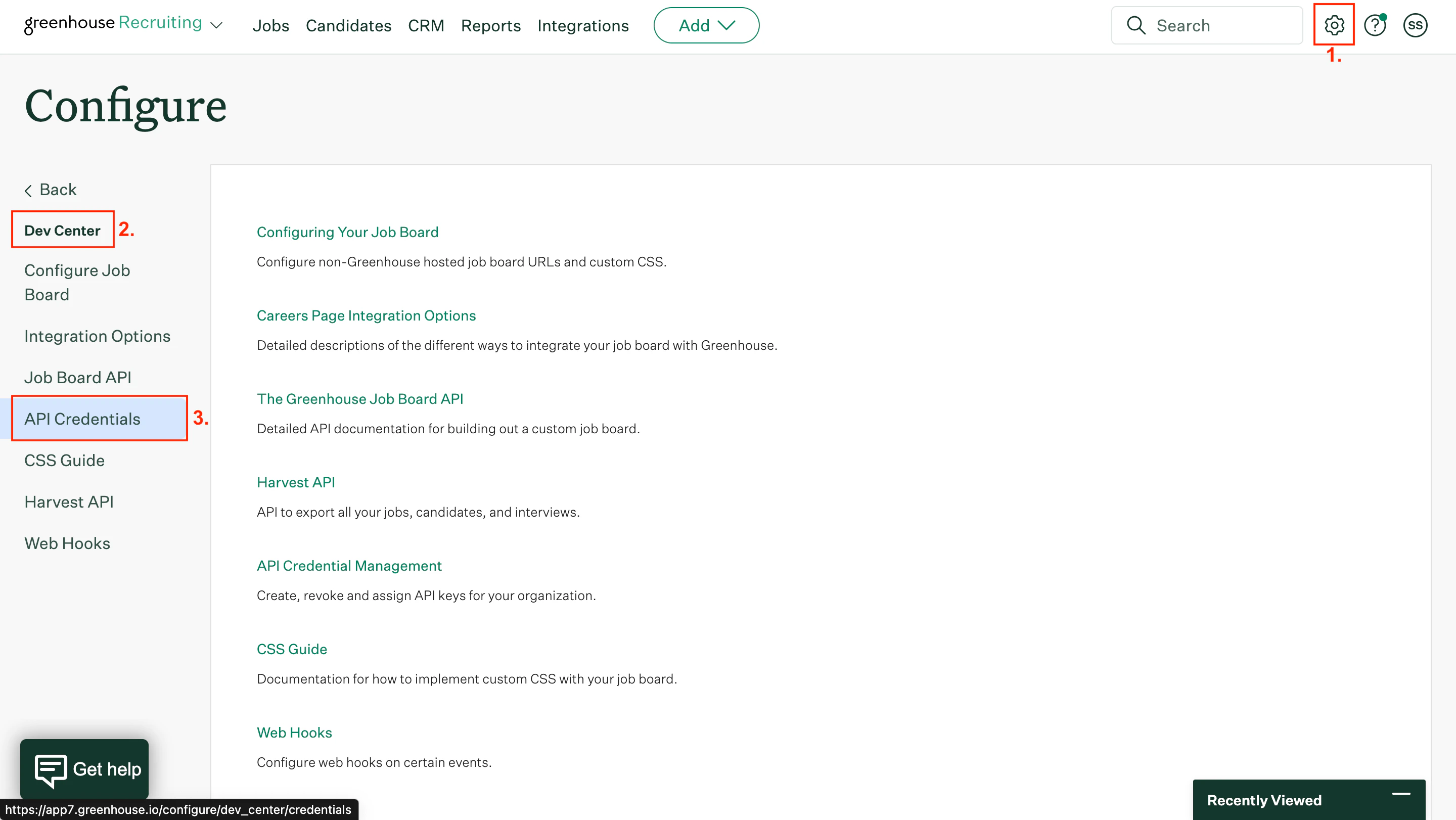
Click on Configure gear ⚙️ and open Dev Center > API credentials.
 Click Create new API key. Specify the following parameters:
API type – Harvest
Partner – Custom
Description – "Describe\_your\_integration"
Click Create new API key. Specify the following parameters:
API type – Harvest
Partner – Custom
Description – "Describe\_your\_integration"
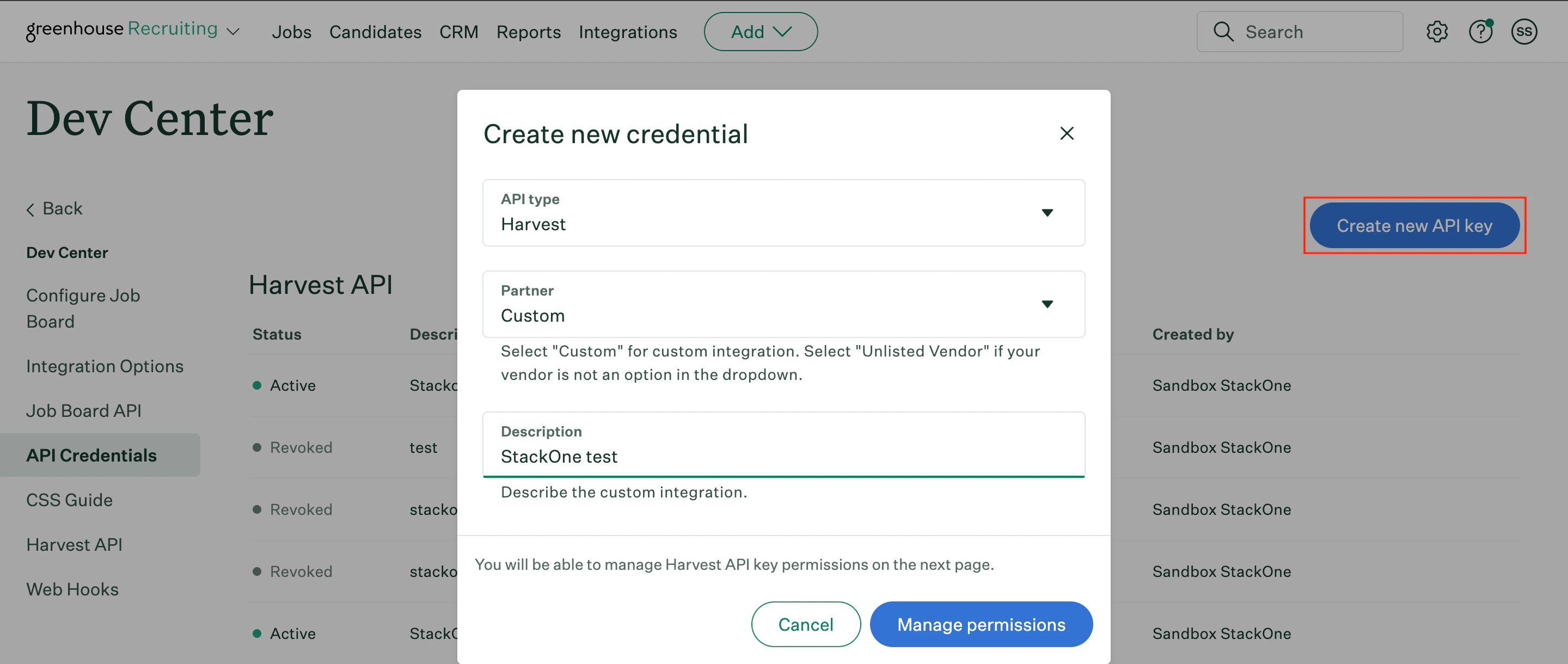 Click Manage permissions.
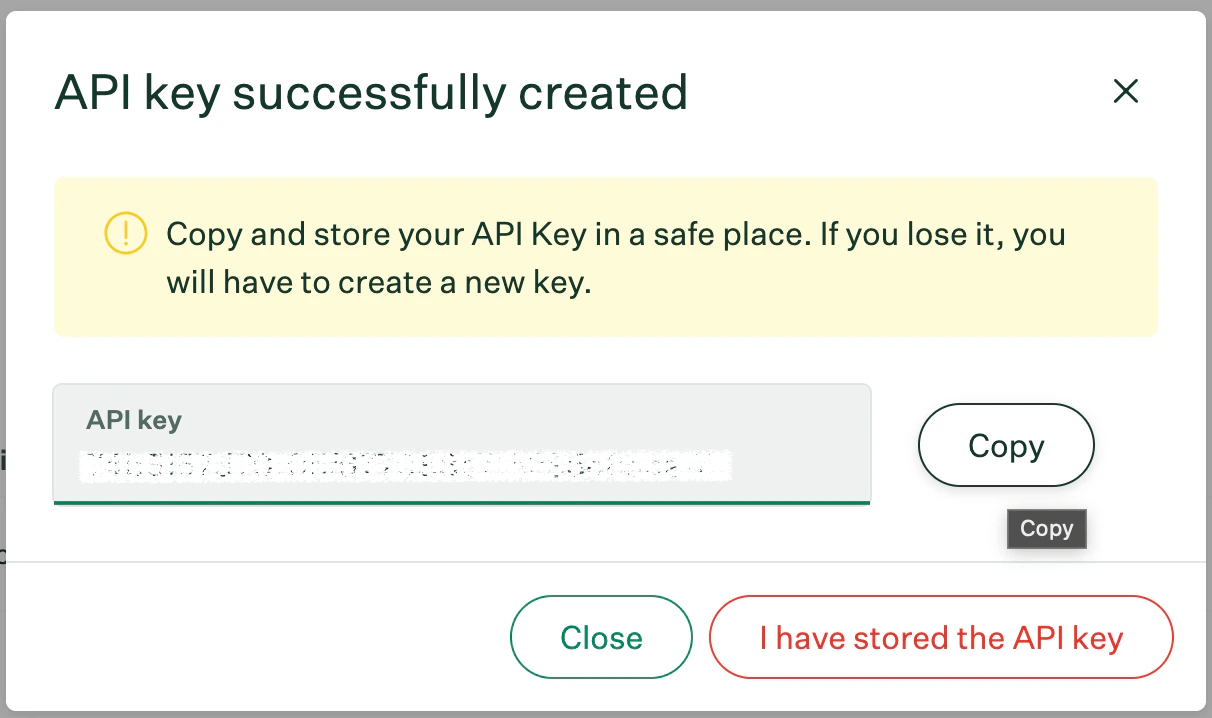
Copy your newly generated API key to a safe place. Then click I have stored the API key.
Click Manage permissions.
Copy your newly generated API key to a safe place. Then click I have stored the API key.
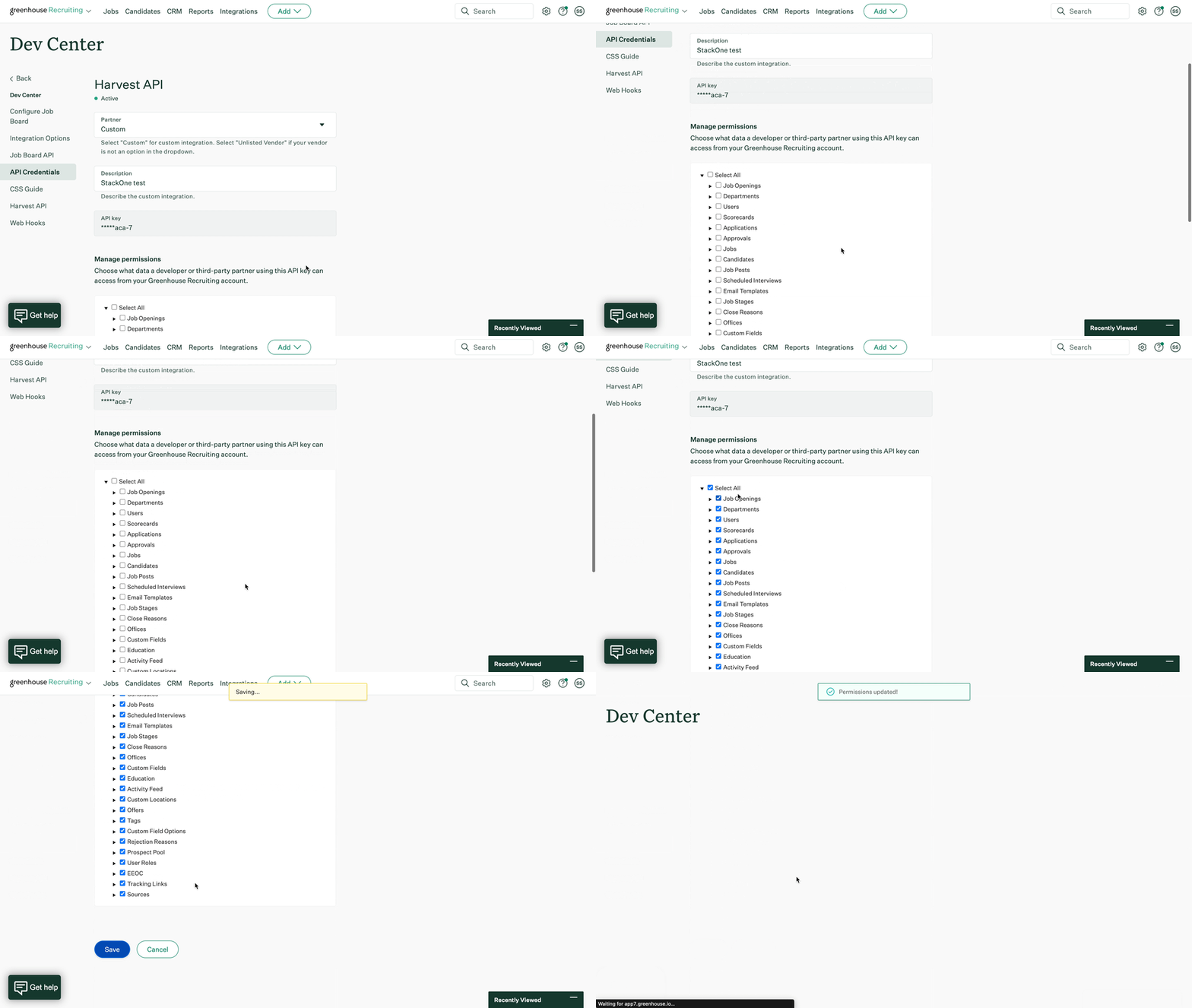
 In the Manage permissions page, enable Select all and click Save.
 ## Generating Job Board API Key
In the API credentials page, click Create new API key. Specify the following parameters:
API type – Job Board
Partner – Custom
Description – "Describe\_your\_integration"
## Generating Job Board API Key
In the API credentials page, click Create new API key. Specify the following parameters:
API type – Job Board
Partner – Custom
Description – "Describe\_your\_integration"
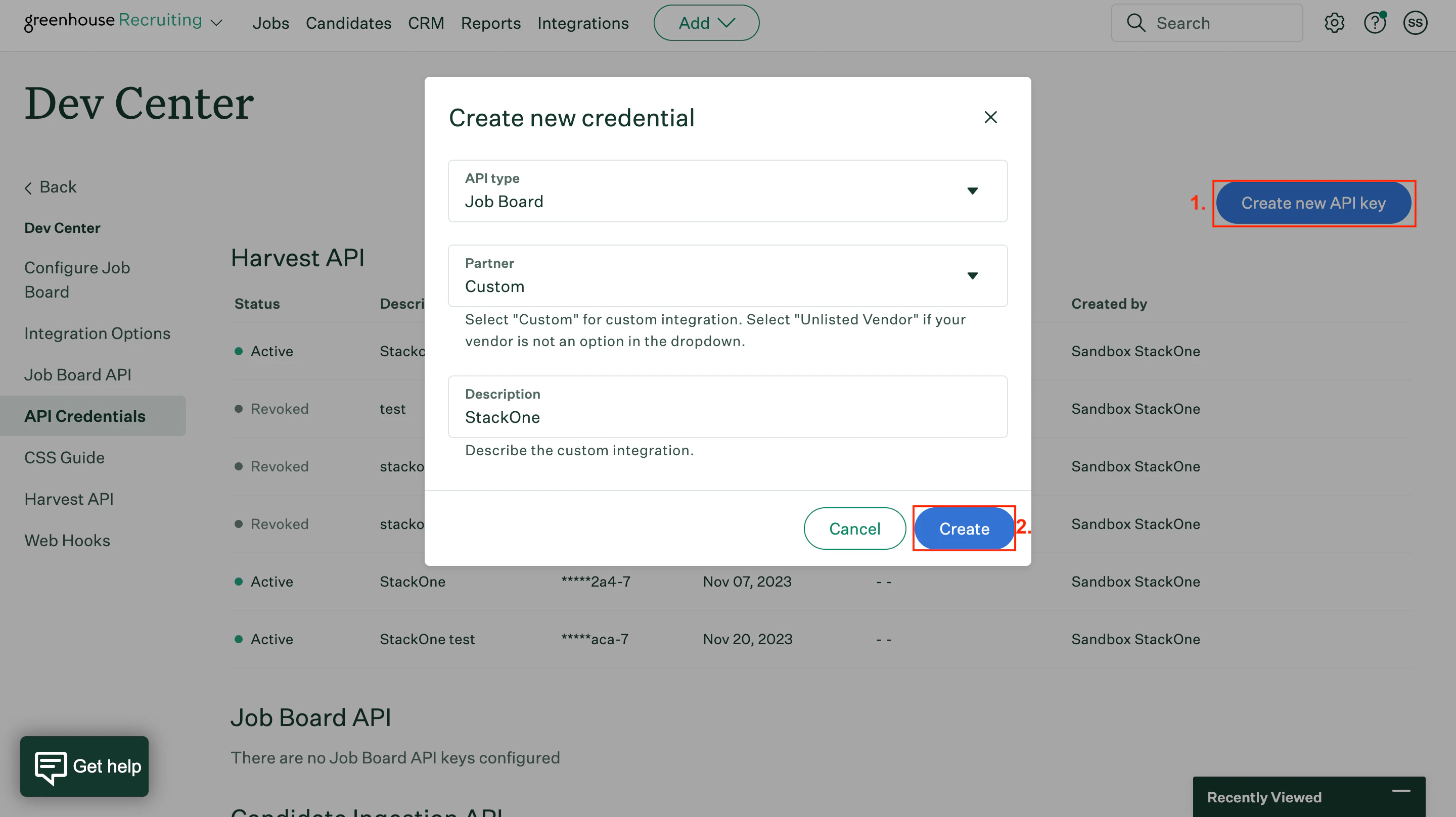 Click Create.
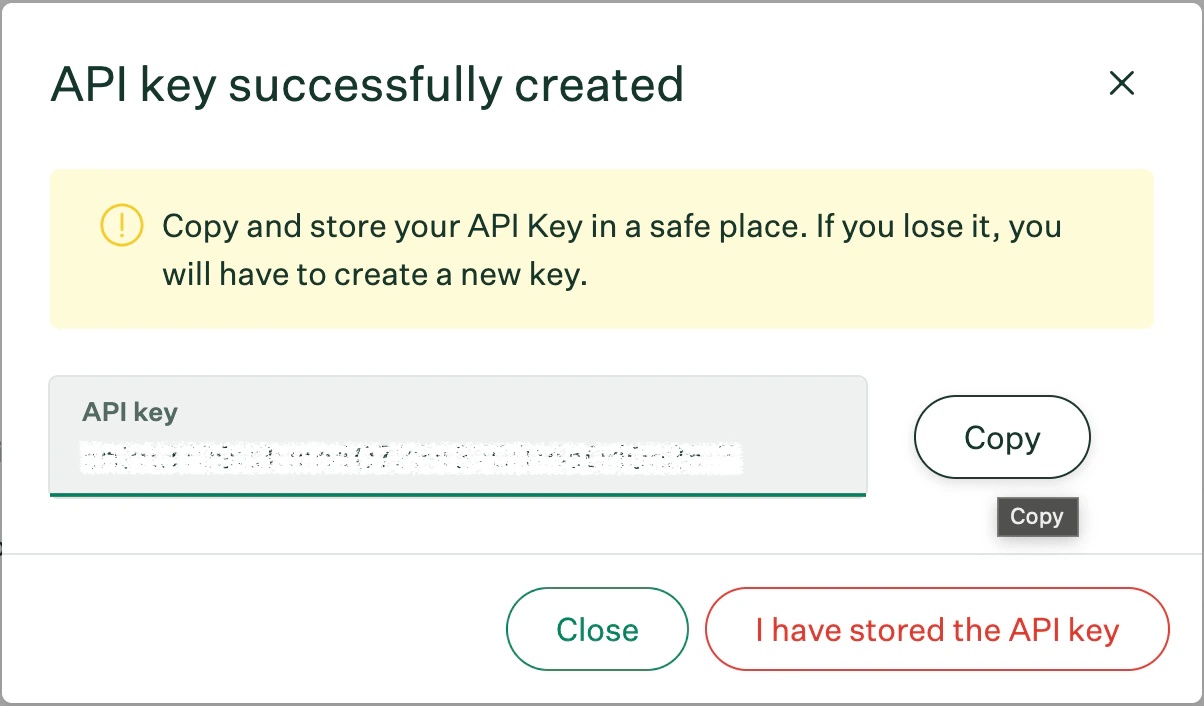
Copy your Job Board API key to a safe place. Then click I have stored the API key.
Click Create.
Copy your Job Board API key to a safe place. Then click I have stored the API key.
 ## Retrieve a greenhouse User ID
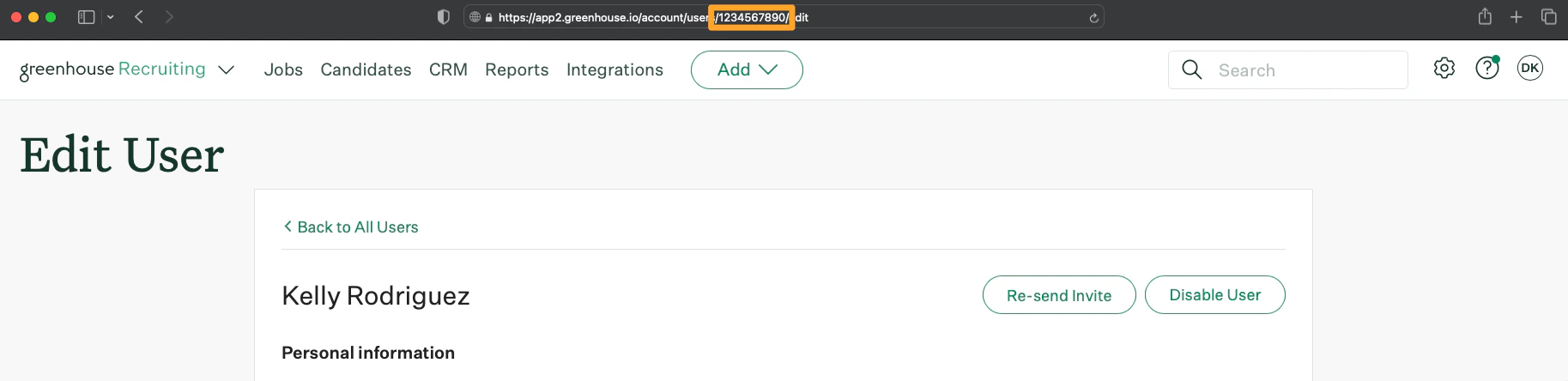
Per the Greenhouse documentation, you can get a user ID by going to the users page, select a user with Site Admin permission and retrieve the user ID present in the URL:
Screenshot of an example user ID
## Retrieve a greenhouse User ID
Per the Greenhouse documentation, you can get a user ID by going to the users page, select a user with Site Admin permission and retrieve the user ID present in the URL:
Screenshot of an example user ID
 ## Connect with StackOne
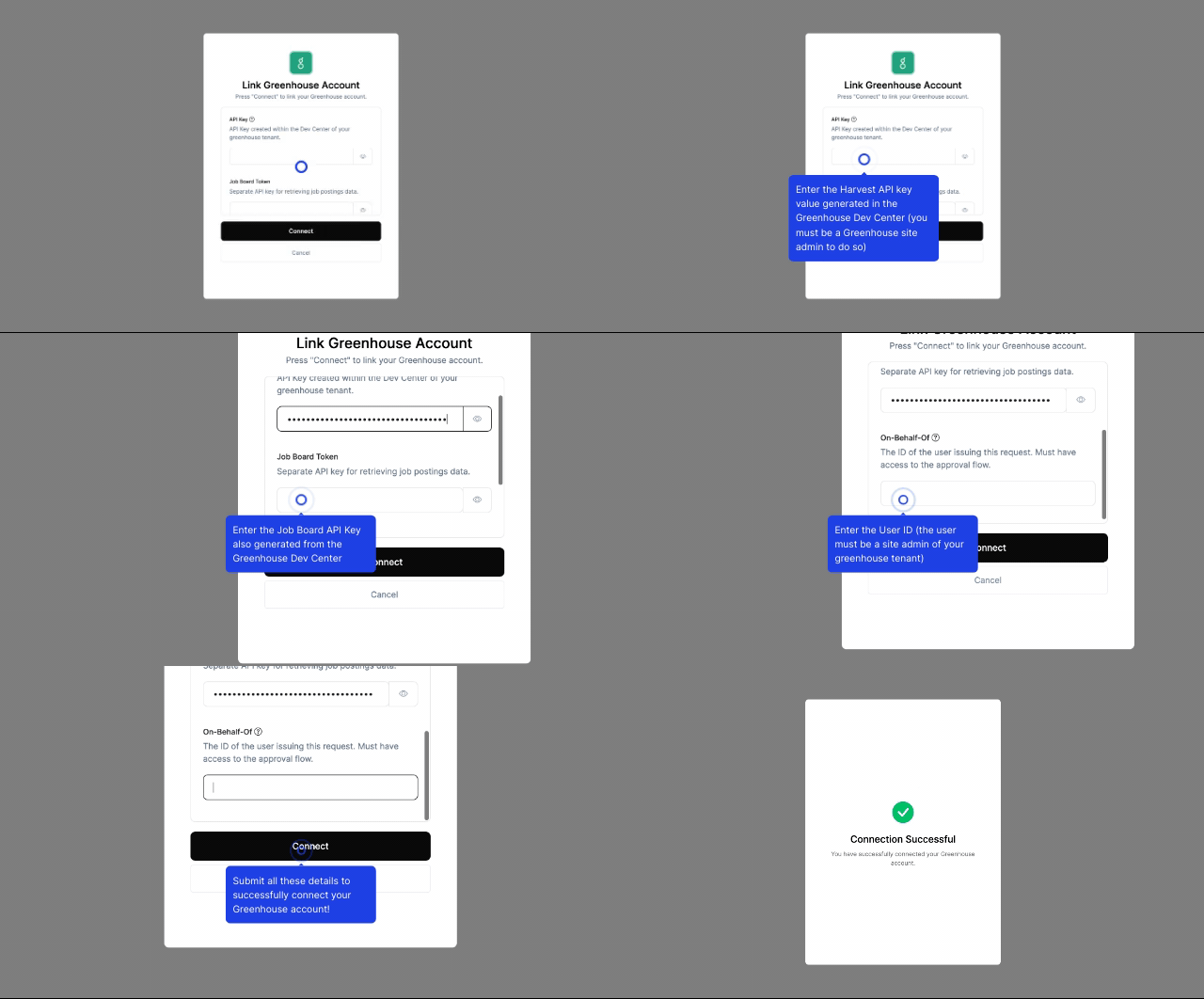
Enter the gathered details in the relevant inputs and proceed by clicking the Connect button.
## Connect with StackOne
Enter the gathered details in the relevant inputs and proceed by clicking the Connect button.
Congratulations, you're all set! If you face any issues with the steps mentioned above,
please contact us by emailing [integrations@stackone.com](mailto:integrations@stackone.com). We're always here to assist you!
## Useful Links
[https://developers.greenhouse.io/harvest.html](https://developers.greenhouse.io/harvest.html)